

Engineering data management goes beyond storing CAD files. Teams need to organize product information, track design changes, manage workflows, and provide access to the right data across different roles.
In Part 1, we explored ZWTeammate’s integration with ZW3D and its design management capabilities. In Part 2, we’ll take a closer look at the web client, starting with its user types and licensing packages before exploring the interface, advanced search, project navigation, Part and Design records, and the Embedded Browser. Through this walkthrough, we’ll see how ZWTeammate connects CAD-based work with browser-based engineering data management.
ZWTeammate brings several tools together to help engineering teams manage product data, control design changes, and collaborate more effectively. Some operations are available directly inside ZW3D, while others can be accessed through the web client.
Its main capabilities include:
Together, these capabilities provide a structured way to manage engineering data, track design changes, and coordinate work across a team.
In the following sections, we will focus on the web client and explore how these tools are presented, how users navigate the platform, and how they access engineering information.
ZWTeammate provides three user types, each designed for different responsibilities within an engineering organization.
| User Type | Access Environment | Capabilities |
| Linker | ZWCAD / ZW3D (embedded plugin) | Collaborative design, BOM management, data publishing, HTML file generation for online viewing, and management of related parts and documents. |
| Web | Web browser | View parts and BOMs, track release history, and check files published for online viewing. |
| Manage | Web browser (administrators only) | Manage user accounts and configure automatic coding rules, workflows, and attributes. |
| Package | Included User Types | Capabilities |
| CAD Author | Linker + Web + Manage | Full access to the embedded CAD plugin and web client. Supports collaborative design, BOM management, data publishing, HTML generation, and management of related parts and documents. Designated users can also receive administrator privileges to manage accounts, coding rules, workflows, and attributes. |
| Web Author | Web | Browser-based management of parts and BOMs, version history tracking, and access to data versions in files available for online viewing. |
| Consumer | Web (viewing access) | View parts and BOMs, track release history, and check files published for online viewing. |
Note: The capabilities listed above reflect the supplied ZWTeammate package descriptions.
Understanding these user types and licensing packages helps clarify how ZWTeammate distributes access to engineering data across an organization. Next, let’s explore the web client interface and examine how users can navigate the platform, search for engineering records, and access product information.
The ZWTeammate web client opens in a browser. The login page supports two languages, Chinese and English, and provides two tabs: User and Manage.
The Manage tab suggests a separate administration interface, although I did not explore it during this test. For this walkthrough, we’ll focus on the User login and the standard web client.
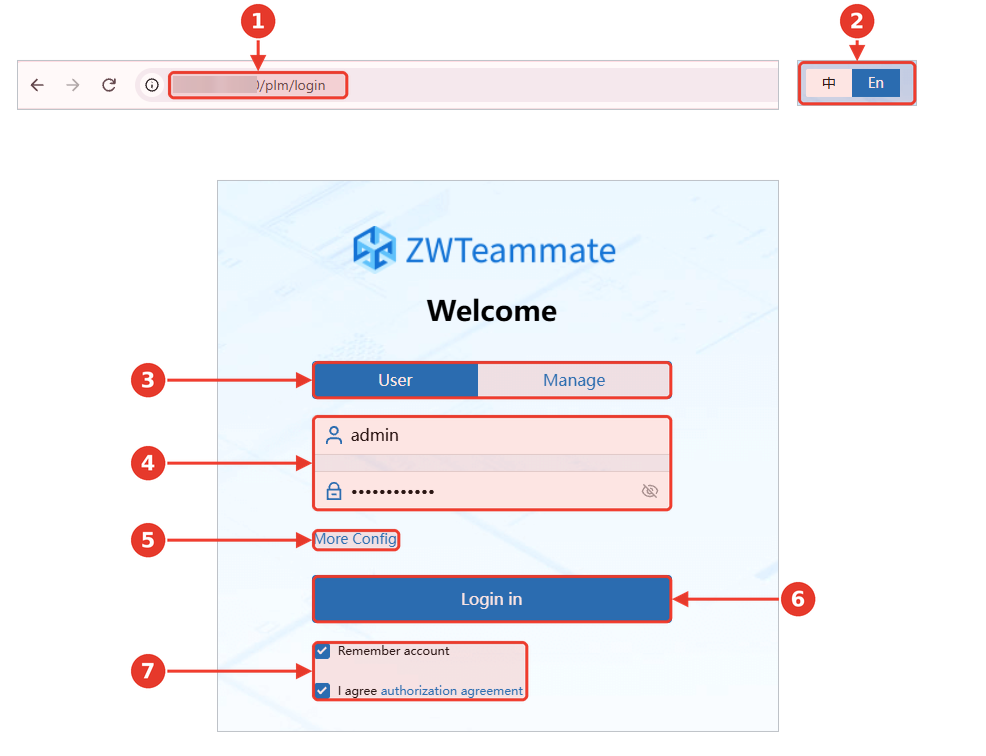
Figure 1. The ZWTeammate web login page, showing the browser address bar, language options, and login settings.
The ZWTeammate home page gives you an overview of your daily activities. It helps you see which tasks are waiting for your attention and which engineering records are currently being worked on.
The Process Task section displays workflow tasks and provides two tabs: To-do Process Task and My Task. The Data at Work section gives you access to records grouped by type: Part, Design, Document, Change Request, and Change Notice.
On the left, the navigation menu provides access to the main areas of the system: Home, Search, NAV, Part, Design, Document, Workflow, and Change.
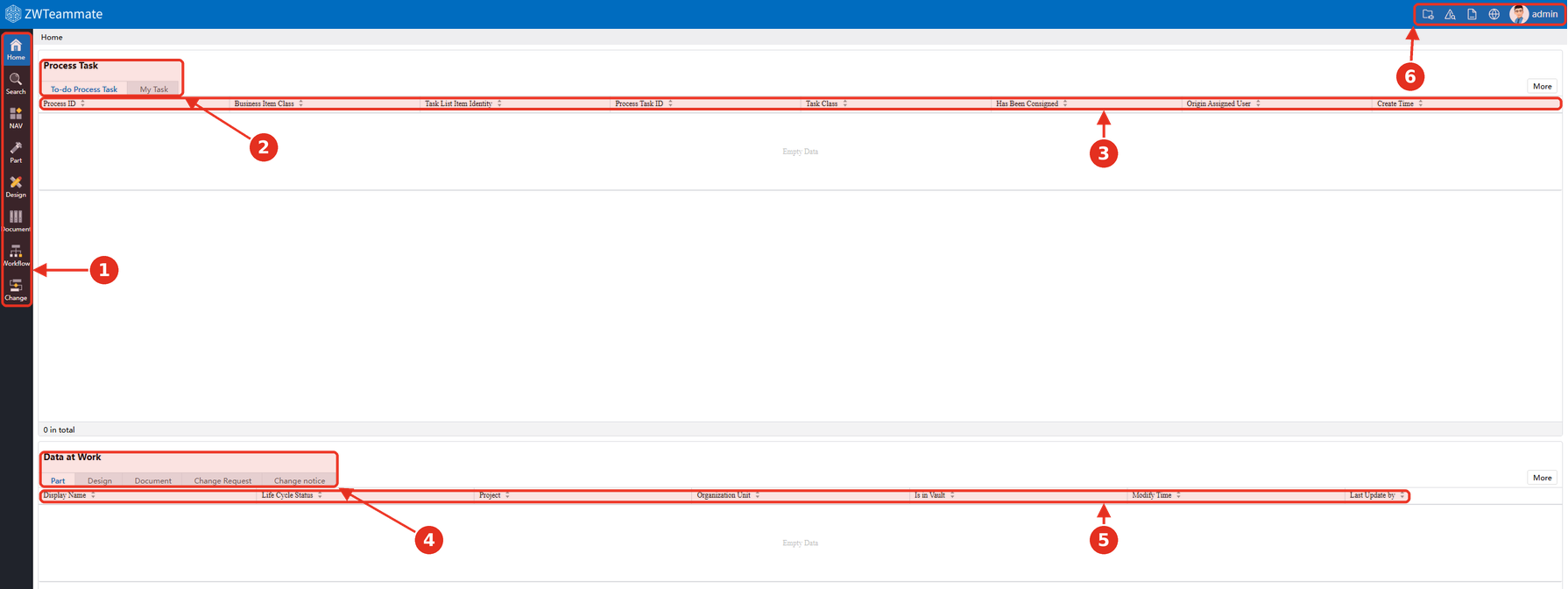
Figure 2. The ZWTeammate web client home page, showing the Process Task and Data at Work sections.
The Search section allows you to find different types of engineering records in ZWTeammate. The process starts by selecting the type of record you want to search for: Part, Design, Document, Change Request, or Change Notice.
Once you select a record type, you can build your search query by adding conditions. Each condition includes a field, an operator, and a value. In this example, the condition uses ID, Including, and a value entered by the user. You can add or remove conditions using the plus and minus buttons, then combine multiple conditions with a logical operator such as AND.
If you use the same search criteria regularly, you can save the query and access it again from the Saved Search tab.
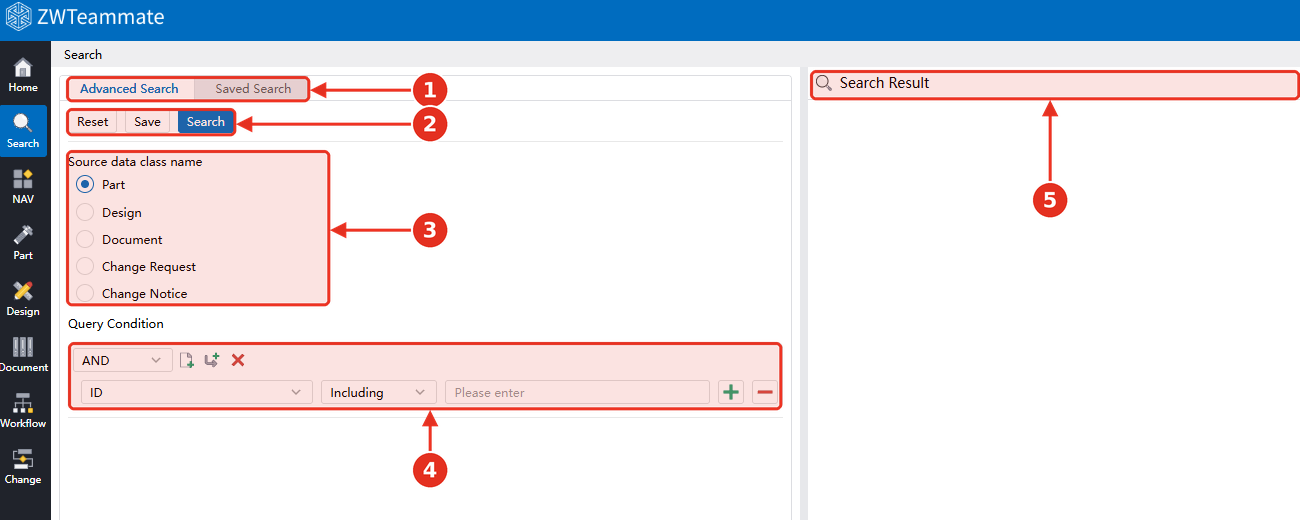
Figure 3. The Advanced Search page in the ZWTeammate web client, showing the available record types and query conditions.
The NAV section provides a file-manager-style view of your engineering data. Its left pane contains three tabs: Folder, Vault, and Favorites.
In the Folder tab, you can navigate through the folder structure, starting from Main Folder, then opening Project Collaboration Area to access the available projects. When you select a folder, its contents appear in the right pane.
The right pane displays the records stored in the selected location, along with information such as record type, display name, name, life cycle status, project, organization unit, and modification time.
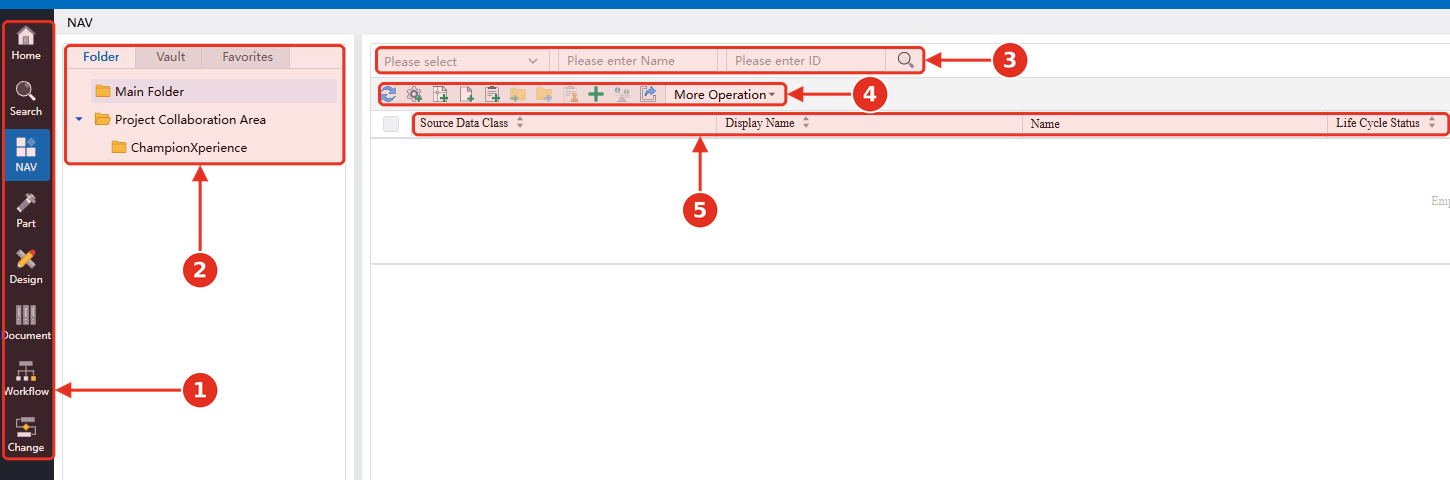
Figure 4. The NAV page in the ZWTeammate web client, showing the Folder, Vault, and Favorites tabs. The table continues to the right with the Project, Organization Unit, and Modify Time columns.
The Part and Design pages share the same basic layout: filters at the top, a toolbar, and a table displaying the available records. The main difference is in the information shown in the table. The Part page includes a Part Number column, while the Design page displays a design ID, revision, and CAD preview.
The Design page also provides a detailed view of each record. When you select a design from the table, a detail panel opens with twelve tabs:
These tabs give you access to more than the design file itself. You can explore its structure, associated documents and parts, where it is used, its change history, and related workflows.
In this test, the design listed is Part001, with ID Des-0000002, revision A, life cycle status WORK IN PROGRESS, and Is in Vault set to Yes.
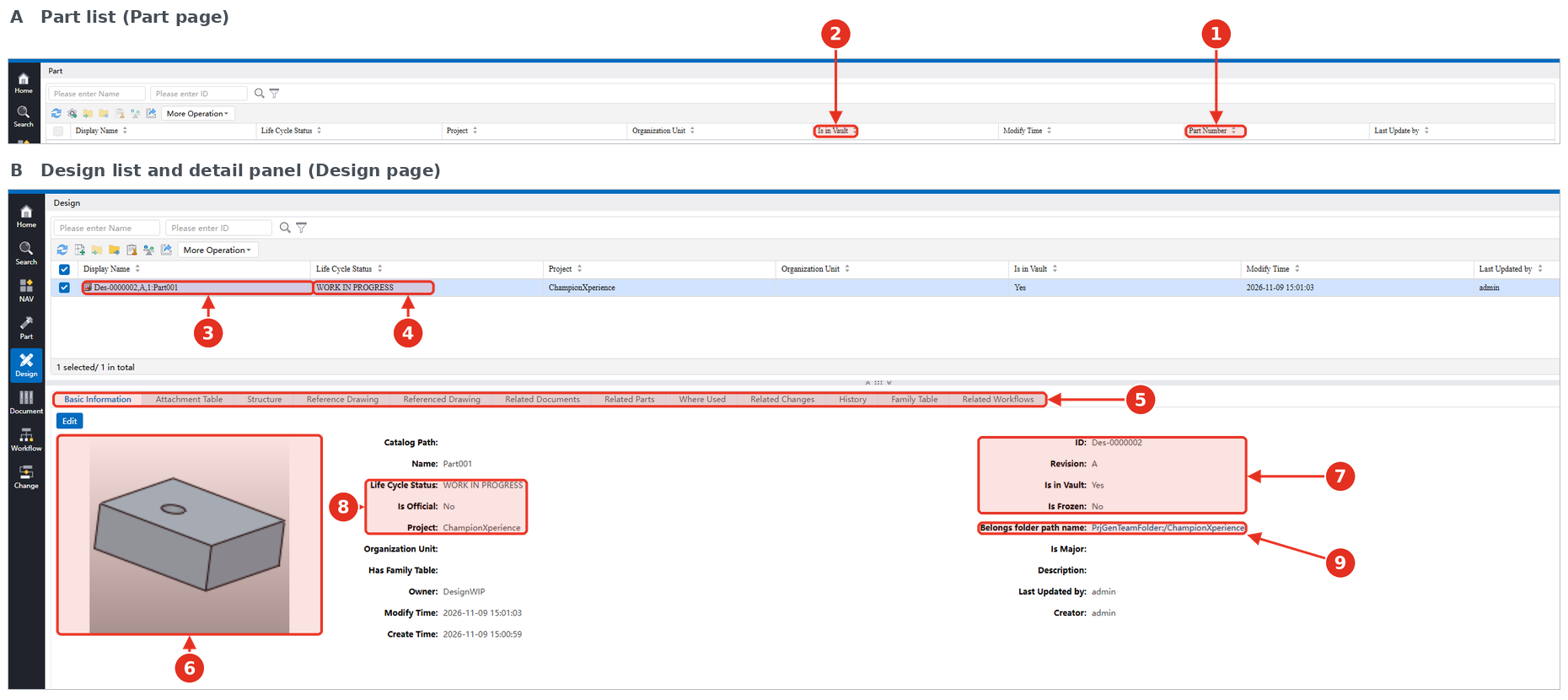
Figure 5. (A) The Part page and (B) the Design page with its detail panel open.
The Embedded Browser button opens the ZWTeammate web client in a separate tab inside ZW3D. In this example, it displays the Workflow page, which contains four tabs: To-do Process Task, Completed Process Task, My Task, and System-initiated Process Task.
You can filter the task list using the available selection options, task name, and date range. This makes it possible to access workflow tasks and approval activities without leaving the ZW3D environment or opening a separate browser window.
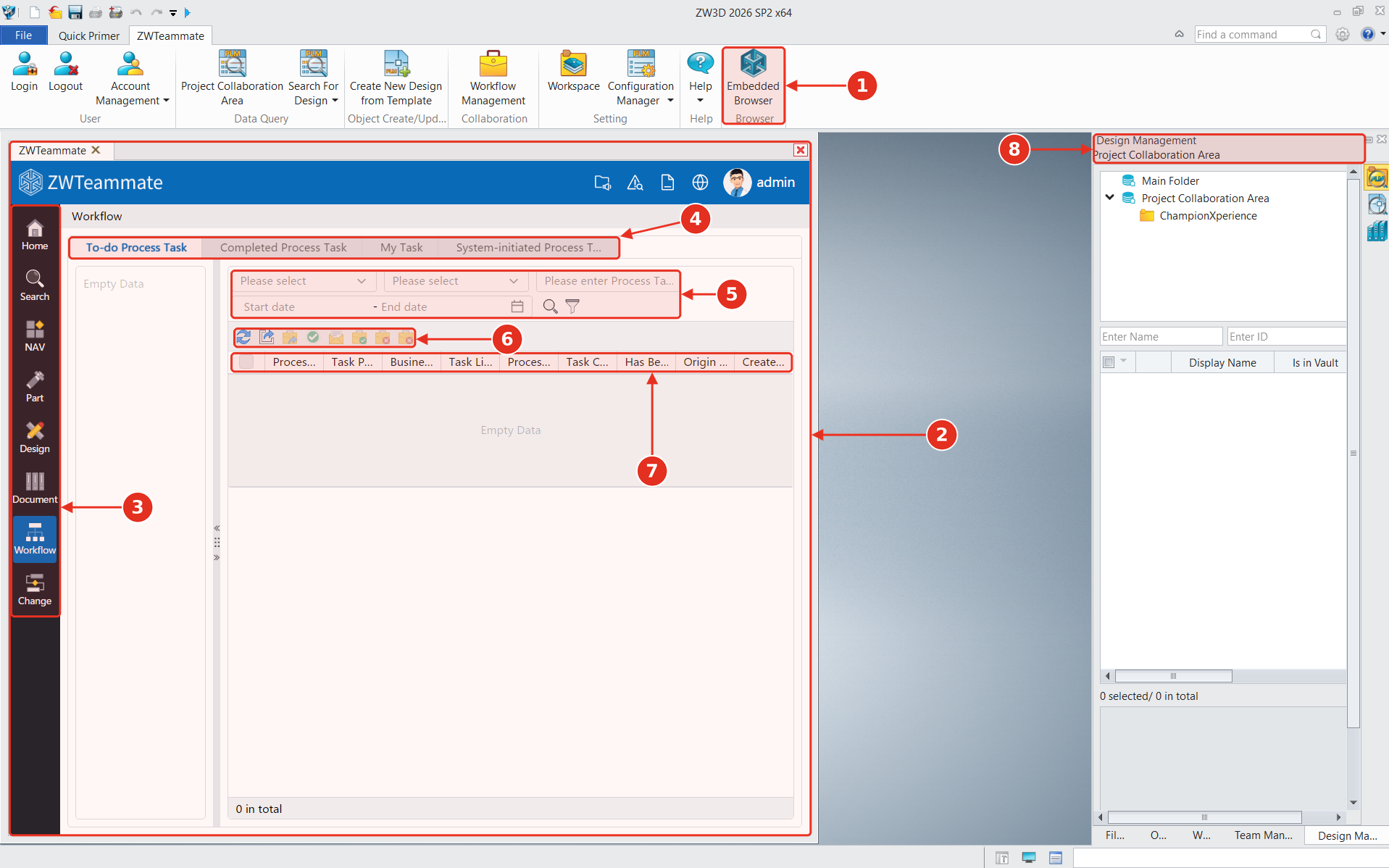
Figure 6. The Embedded Browser displaying the ZWTeammate Workflow page inside ZW3D.
ZWTeammate combines CAD-integrated and browser-based data management, allowing engineering teams to access, organize, and track product information from different environments. Its web client provides useful tools for searching records, reviewing design details, navigating project folders, and following workflows.
Together, the Linker plugin and web client offer a practical approach to managing engineering data and supporting collaboration across teams. For ZW3D users, ZWTeammate is worth exploring through a pilot with real projects and workflows.

