

Have you ever opened SOLIDWORKS Design and noticed something strange? Everything looks normal at first. The compass is there. Your apps are there. You can open files. You can work.
But one important window is missing. MySession is just… gone.
There is no error message, warning, or explanation when this happens.
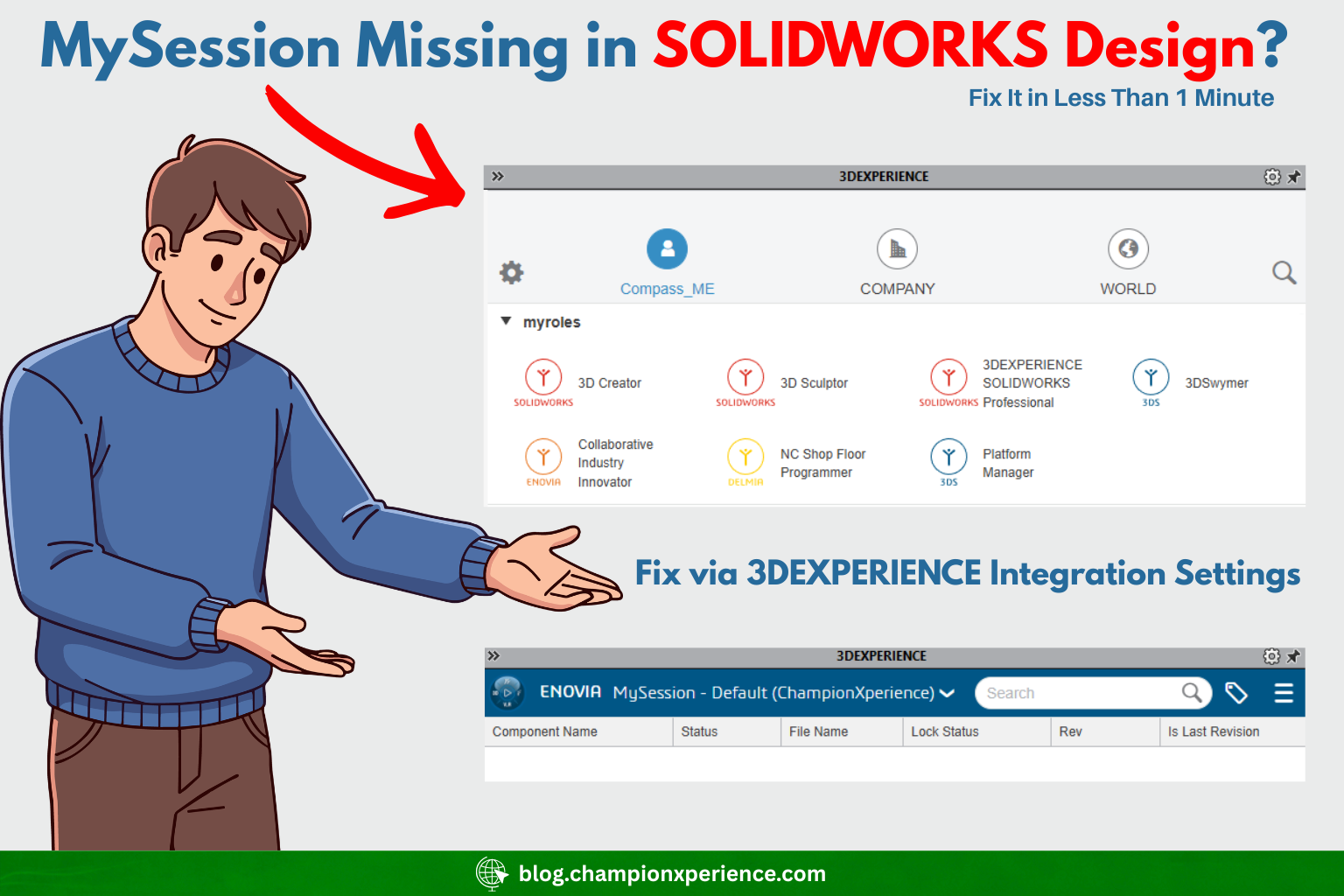
It feels like the software is working — but not completely. And if you use MySession every day to manage your open items, this can be really frustrating.
Let’s talk about why this happens and how to fix it the simple way.
If you work inside the 3DEXPERIENCE platform, you already know that MySession is more than just a small panel.
It shows:
It helps you understand what is happening in your current session.
Without it, you can still work — but you lose visibility. And that makes things uncomfortable, especially on larger projects.

Here is what makes this problem confusing:
But the MySession pane is completely missing.

You might try:
And this is where many users go into “panic mode”.
When something disappears in SOLIDWORKS, the first instinct is to think something is corrupted. So what do people do?
They:
I’ve seen users spend hours doing this. But here is the truth: None of that will fix this issue.
Because the problem is not corruption. It’s a setting.
The most common reason your MySession pane disappears is a setting called: PDM Integration
At some point, you may have enabled it to test something. Maybe you were exploring how it works. Maybe someone suggested turning it on. And then… you forgot about it.
Here is what happens: When the PDM integration radio box is checked, MySession will disappear. The change does not always happen immediately. You usually need to close and restart SOLIDWORKS before the pane actually vanishes (or comes back). That delay makes the issue even more confusing. You don’t connect the action to the result.
Why This Is So Confusing The frustrating part is this: SOLIDWORKS does not give you a warning. It doesn’t say: “MySession will be disabled because PDM integration is active.” It just disappears. So you think: Something is broken. Your installation is damaged. Your settings are corrupted. But nothing is broken. It is simply the way the integration works.
Here is exactly what you need to do:
Launch SOLIDWORKS Connected (SOLIDWORKS Design).
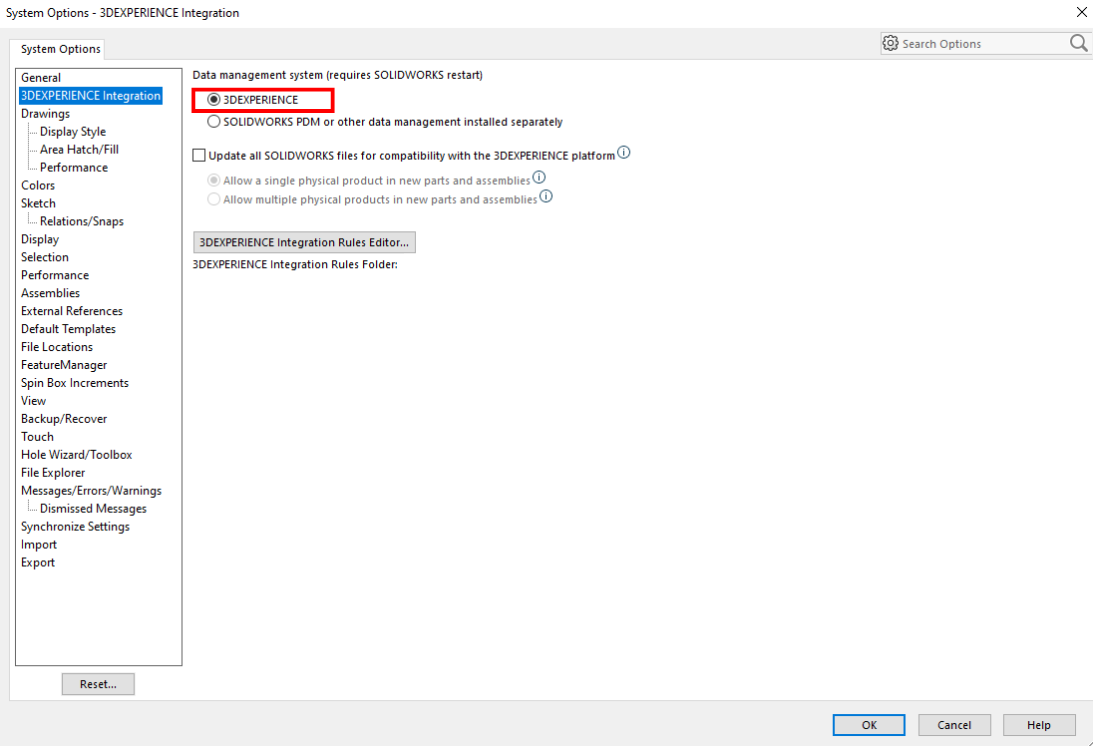
Go to Tools > Options.
Open the System Options tab.
Click 3DEXPERIENCE Integration.
Make sure 3DEXPERIENCE is selected.
Do NOT select “SOLIDWORKS PDM or other data management installed separately.”
Click OK.
Close SOLIDWORKS completely.
Start SOLIDWORKS again.
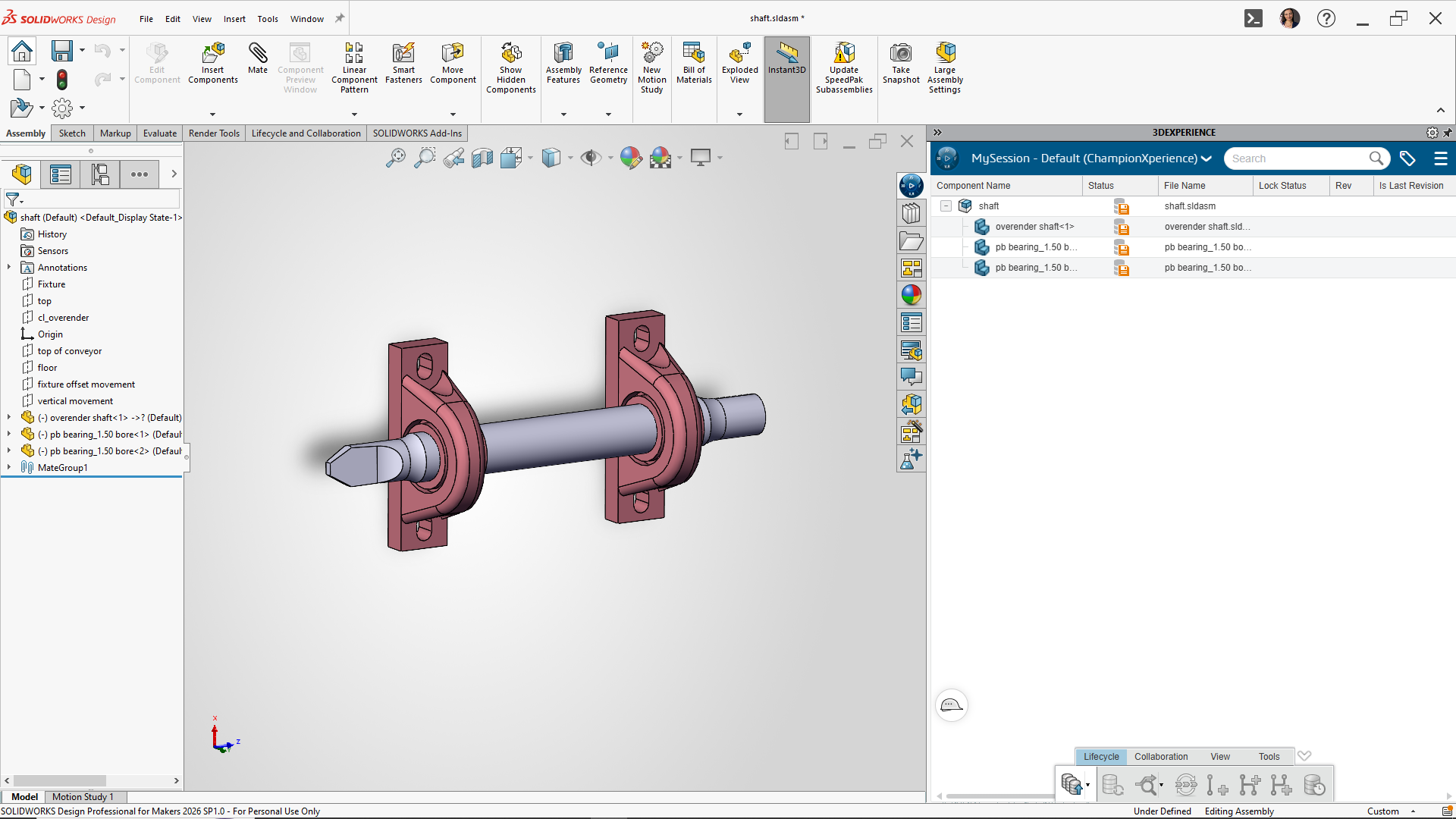
After restarting, your MySession pane should appear again..
One important detail: Sometimes you will uncheck the box — and nothing happens. Don’t panic. The change usually requires a full shutdown of SOLIDWORKS Connected. Just closing the window is not enough. Make sure the process is fully closed before opening it again.
After restart, the pane reappears.
Now, this doesn’t mean PDM integration is bad. It depends on your workflow. If your company uses a specific PDM configuration and you understand how it interacts with the platform, you may need it enabled. But if you’re working fully inside the 3DEXPERIENCE environment, enabling that option by accident can remove MySession and create confusion.
So always enable it intentionally — not just for testing without knowing the impact.
A Small Setting, A Big Headache
What makes this issue interesting is how small the cause is compared to the reaction it creates. One checkbox. That’s all. And yet it can lead to: Hours of troubleshooting Searching forums Contacting support Reinstalling software All because the system does not clearly explain what changed.
Before doing anything drastic when something disappears: Check your settings. Think about what you changed recently. Restart the software properly. Many platform issues are not bugs. They are configuration changes. And sometimes, the solution is much simpler than we expect.
If your MySession pane disappears, don’t assume the worst. It’s very likely: Not corruption Not a failed update Not a broken installation.
It’s probably just PDM Integration enabled. Uncheck it. Restart SOLIDWORKS. And your session panel should return. Simple. Sometimes the best fix is not the complicated one.

