

If you are using 3DEXPERIENCE SOLIDWORKS daily like I do, you know that updates are part of the workflow. Sometimes, issues like session expired messages in SOLIDWORKS can interrupt your work, so keeping your software up-to-date is essential. The good news? Updating SOLIDWORKS Design on the 3DEXPERIENCE platform is much easier than the old traditional installer process. Let me share how I personally update it.
From my daily experience:
Performance improves
Small bugs get fixed
New tools become available
Platform compatibility stays stable
Since we work in a cloud environment, staying on the same version as the platform is important for collaboration.
Before updating, I close SOLIDWORKS completely. I also make sure all my files are saved to the platform. This avoids any issues.
I open my browser and log in to the 3DEXPERIENCE dashboard. From there, I launch SOLIDWORKS Design normally.
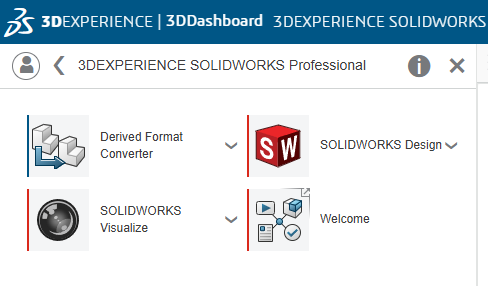
When launching, the system automatically checks if there is a new update. If there is one, I get a message saying an update is available. I don’t need to search for anything manually.

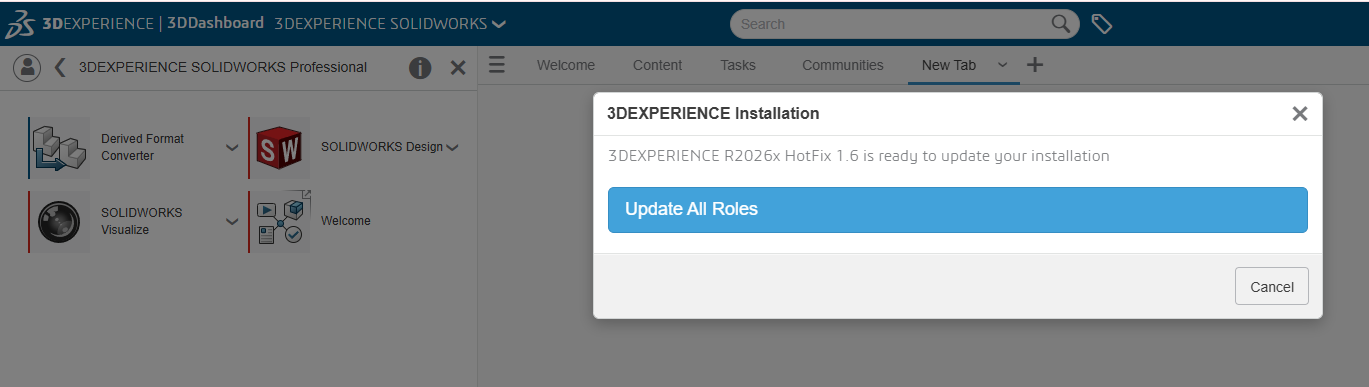
After I click Update, a new window appears called 3DEXPERIENCE Installation. It shows a message saying that 3DEXPERIENCE R2026x HotFix 1.6 is ready to update your installation. At this point, I see the option Update All Roles. Since I am using 3DEXPERIENCE SOLIDWORKS, I always click Update All Roles to make sure everything stays aligned with the platform and there are no version conflicts.
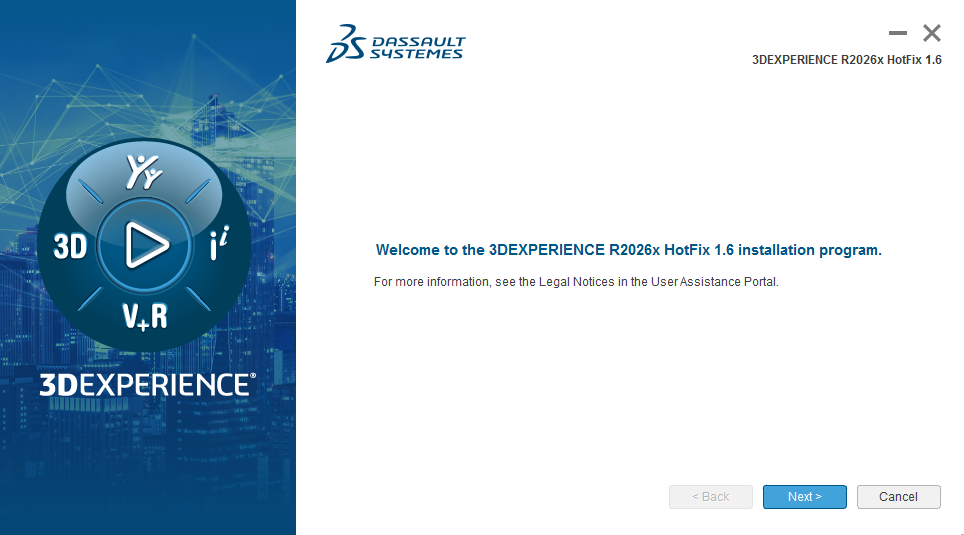
After that, the installation wizard opens with a welcome message: Welcome to the 3DEXPERIENCE R2026x HotFix 1.6 installation program. This is the official installer from Dassault Systèmes. I simply click Next and continue with the default steps. I do not change any settings. I just let the system download and install the update automatically.
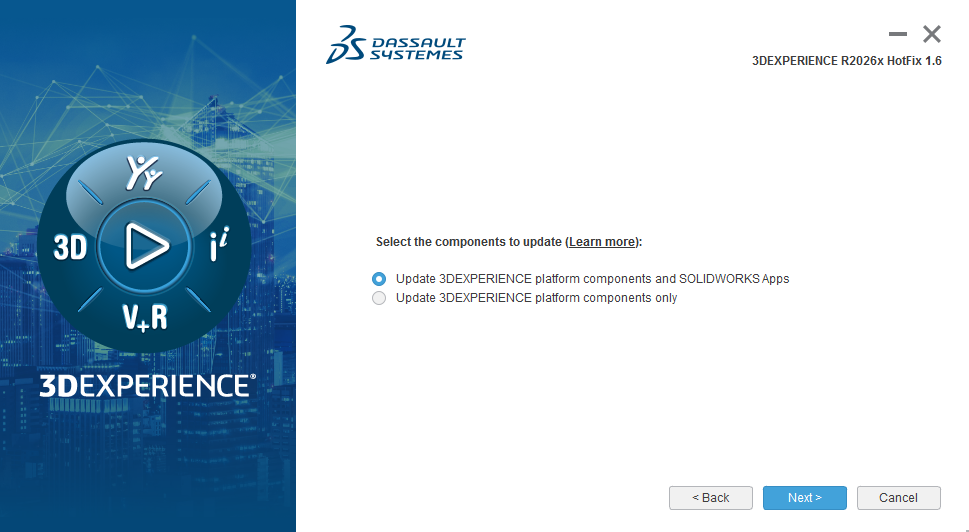
After I click Next, another window appears with two checkbox options under “Select the items to update (Learn more)”.
I see:
☑ Update 3DEXPERIENCE platform components and SOLIDWORKS Apps
☑ Update 3DEXPERIENCE platform components only
From my daily experience using 3DEXPERIENCE SOLIDWORKS, I always select the first option:
Update 3DEXPERIENCE platform components and SOLIDWORKS Apps.
This ensures that both the platform and SOLIDWORKS Design are updated together. It keeps everything synchronized and avoids version mismatch between the desktop application and the cloud platform.
The second option, Update platform components only, is usually not what I choose, because it updates only the background platform services without updating the SOLIDWORKS application itself.
So I keep the first option selected, click Next, and continue with the installation using the default settings.
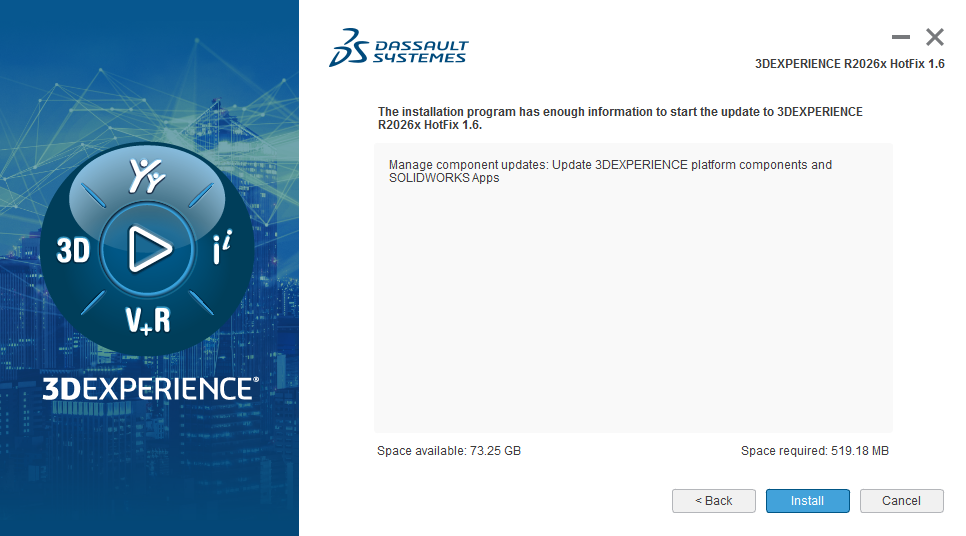
After clicking Next, a final summary window appears showing that the system is ready to update to R2026x HotFix 1.6. It confirms that 3DEXPERIENCE platform components and SOLIDWORKS Apps will be updated and displays the available and required disk space.
I quickly check that everything looks correct, then I click Install. The update starts, I wait until it finishes, and then I relaunch 3DEXPERIENCE SOLIDWORKS and continue working normally.
After I click Install, the progress window appears.
First, it shows Installing files… with a percentage, for example 16%. Then it may display something like:
0 B / 19 MB installed
After that, it switches to Downloading files… and shows the progress, such as:
49 MB / 173 MB downloaded
Download speed: 9 MB/s
At this stage, I simply wait and let the system complete the download and installation. I do not close the window or interrupt the process. Once it reaches 100%, the update finishes.

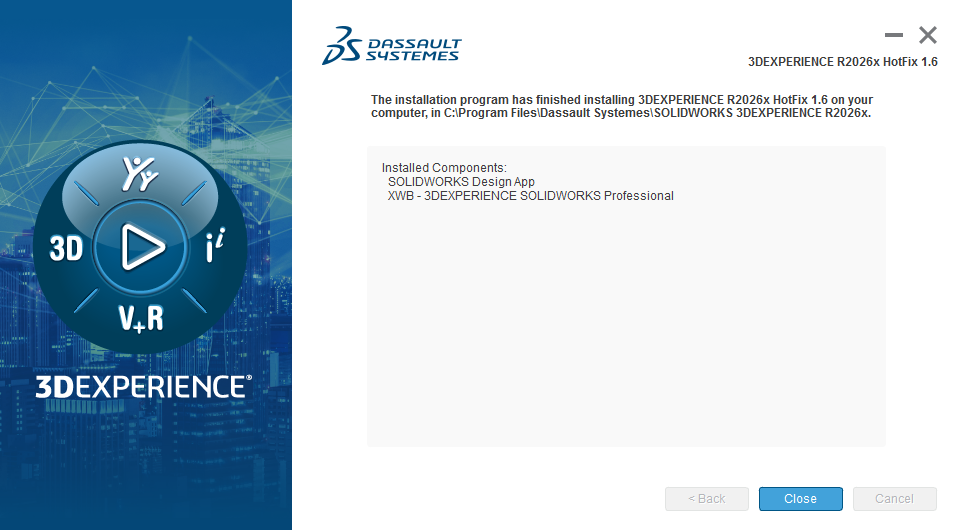
Once the installation finishes, a confirmation window appears saying:
DASSAULT SYSTEMES – 3DEXPERIENCE R2026x HotFix 1.6
It confirms that 3DEXPERIENCE R2026x HotFix 1.6 has been installed on your computer, usually in:
C:\Program Files\Dassault Systemes\SOLIDWORKS 3DEXPERIENCE R2026x
It also lists the installed components:
SOLIDWORKS Design App
3DEXPERIENCE SOLIDWORKS Professional
At this point, the update is complete. I just close the installer, relaunch 3DEXPERIENCE SOLIDWORKS, and continue working with the latest version.
After the update finishes, the ‘Installation Success’ message appears at the bottom of the 3DEXPERIENCE Platform screen.
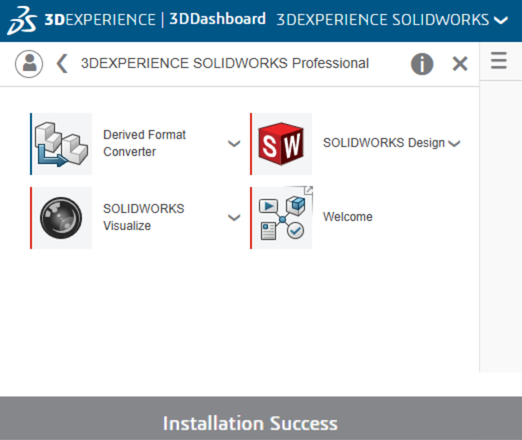
Next, I return to the platform, go to Me, and select SOLIDWORKS Design. This time, the platform recognizes that SOLIDWORKS Design is up-to-date. The 3DEXPERIENCE Launcher then starts the software on my desktop. The platform shows ‘Launching SOLIDWORKS Design’.
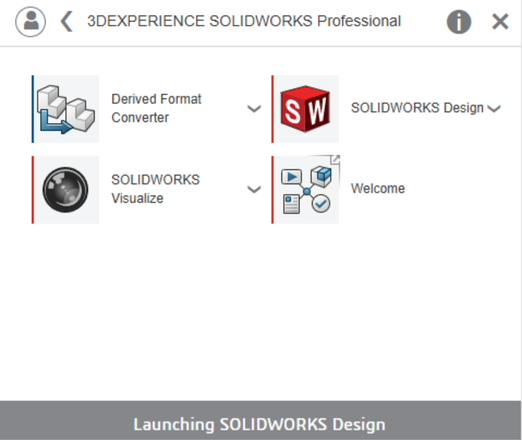
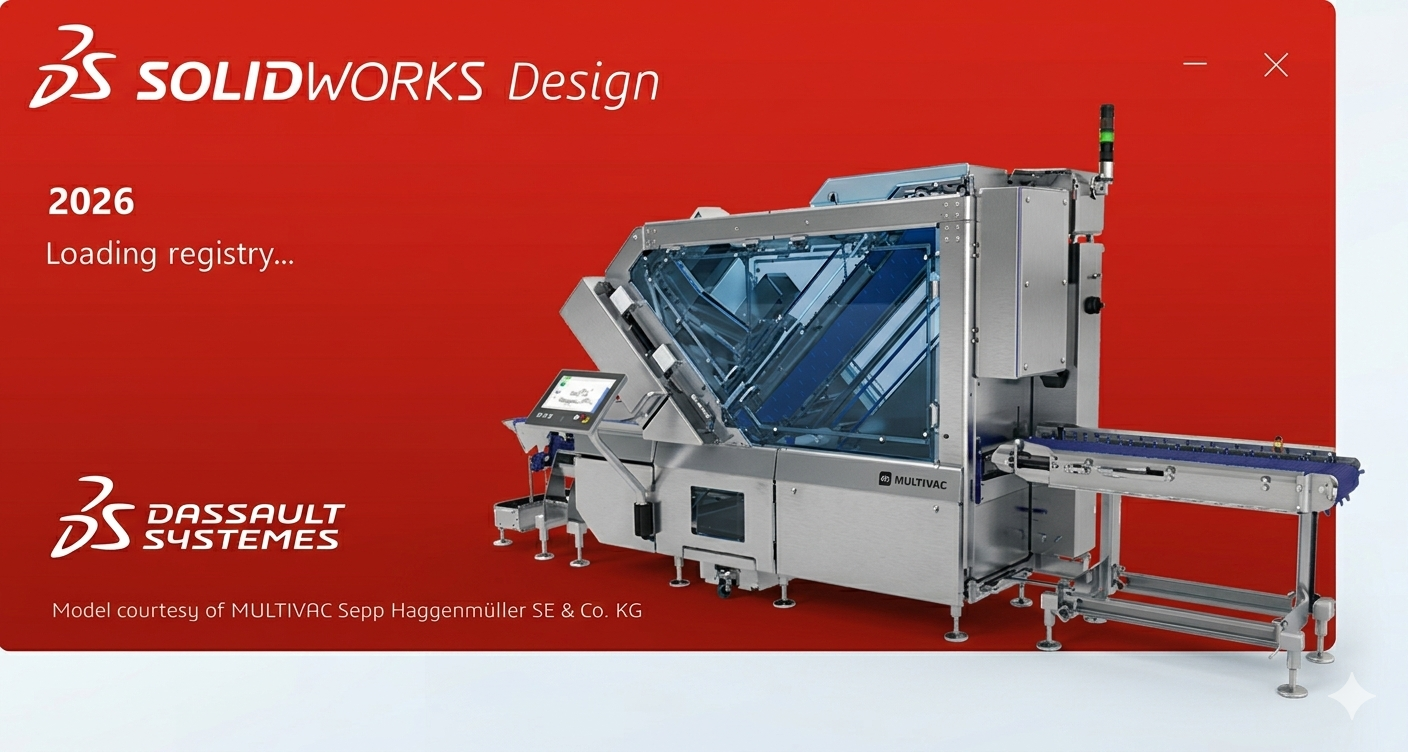
After a few seconds, the SOLIDWORKS Design splash screen appears, signaling that I’m ready to start working with the updated version.
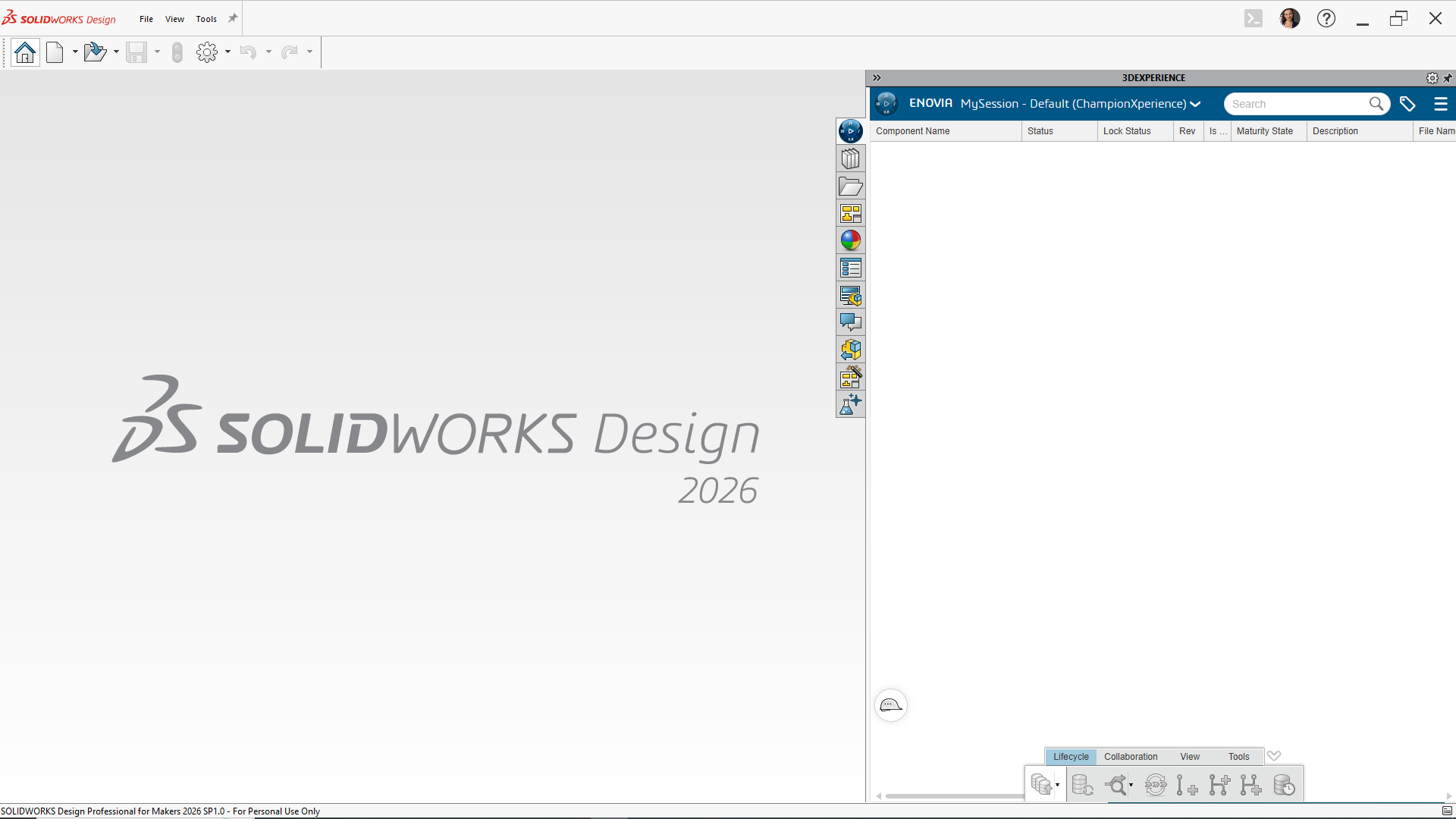
You’re All Set! Time to Start Creating with the Latest Version in SOLIDWORKS Design!
If you’re a hobbyist or maker, check out my guide on SOLIDWORKS for Makers to see how you can access professional CAD tools for just $2 per month.

