In mechanical design, using the correct material is not only about appearance. Material properties directly affect part weight, simulation accuracy, manufacturing decisions, and cost estimation.
Although SOLIDWORKS includes a large built-in material database, engineers often work with supplier-specific materials, modified plastics, custom alloys, or 3D printing materials that are not available in the default library.
This guide explains how to create and manage custom materials in SOLIDWORKS using a practical engineering workflow.
Custom materials in SOLIDWORKS are useful when the standard material library does not contain the material you need. Many companies use special plastics, aluminum alloys, composite materials, or 3D printing materials that are not included in the default database.
Creating custom materials helps engineers use correct material information in their designs and simulations. This is important for getting accurate part weight, strength, and manufacturing data.
Custom materials are often used when a supplier provides special material properties, when existing materials do not match the required values, or when a company wants to use its own standard material library.
Using accurate material properties improves mass calculations, center of gravity accuracy, simulation results, BOM consistency, and manufacturing documentation.
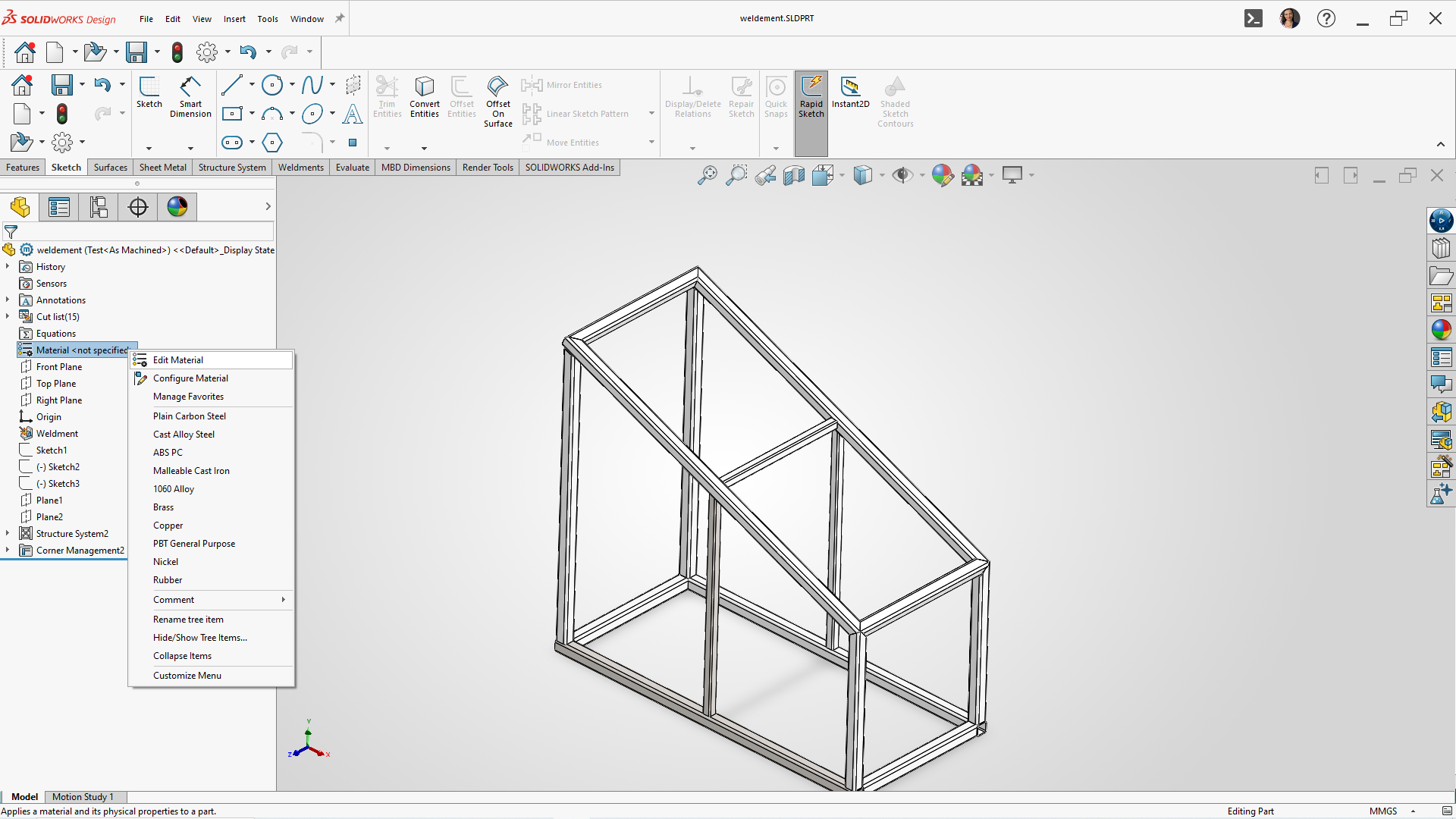
Open a part file in SOLIDWORKS.
In the FeatureManager Design Tree:
This opens the Material Database window where all libraries, categories, and materials are stored.
Instead of editing default SOLIDWORKS materials, create your own library.
In the left panel:
Example:
After creating the library:
Example categories:
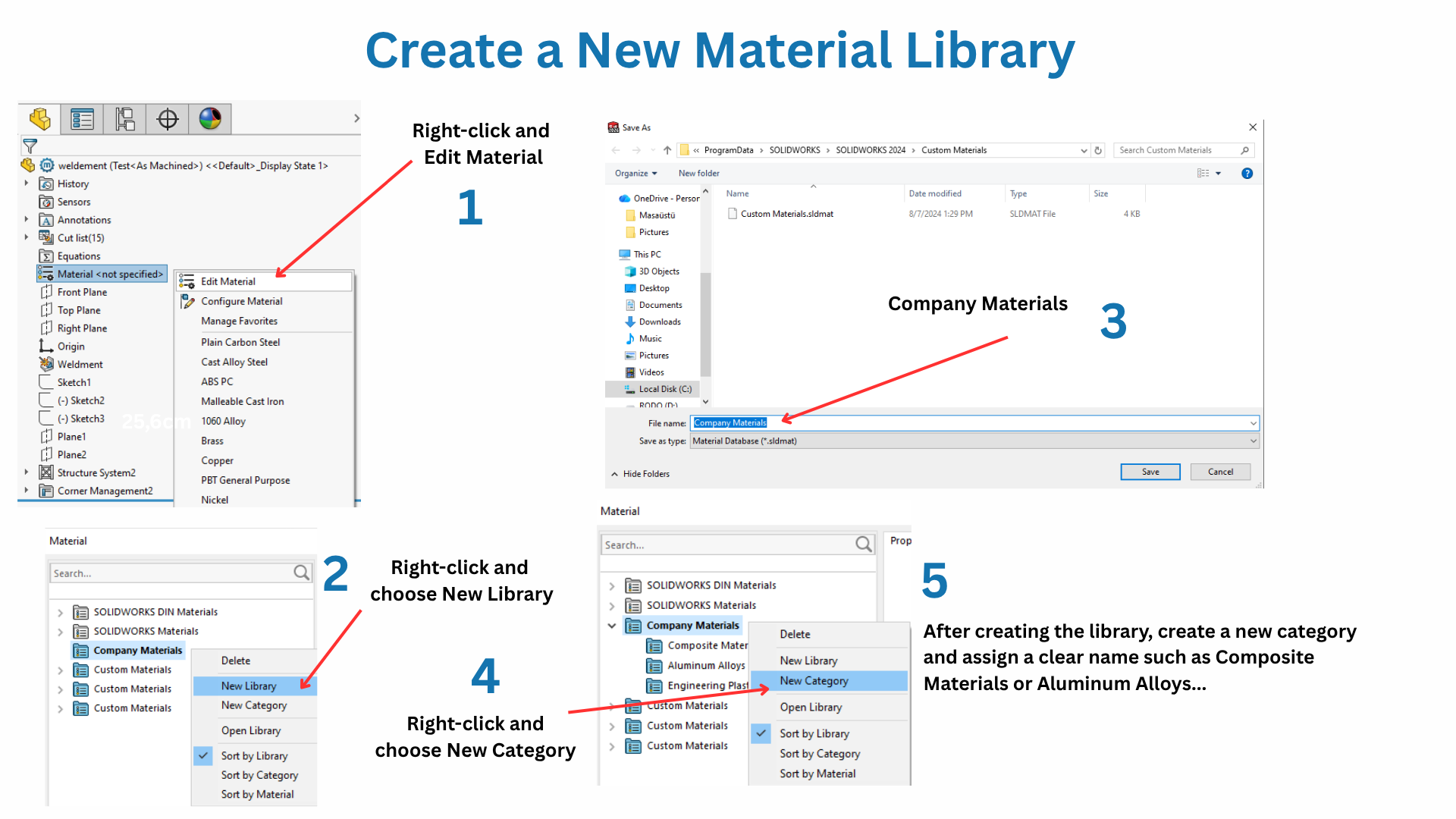
This structure keeps materials organized for future projects.
There are two common methods engineers use.
Method 1 — Copy an Existing Material (Recommended)
This is the fastest workflow because it preserves:
Example:
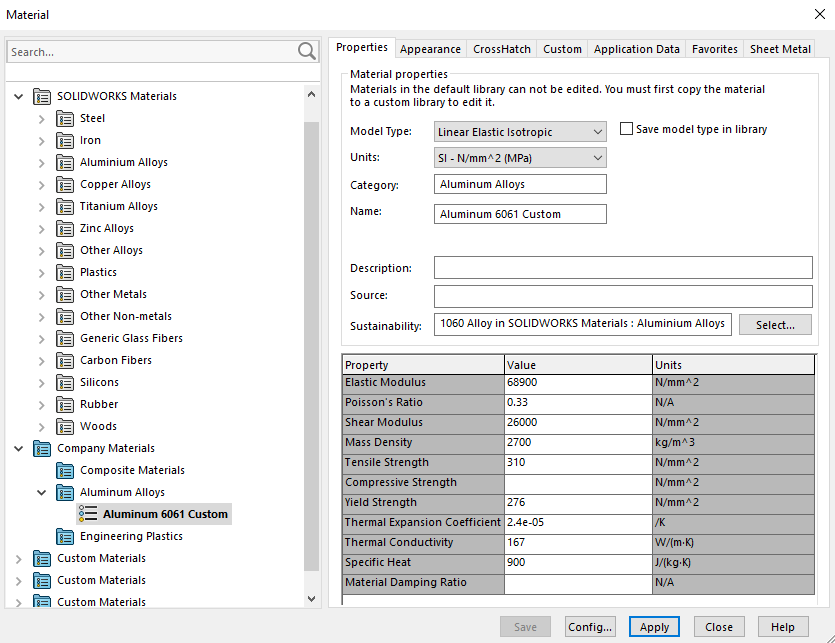
If you need a modified 1060 Alloy, copy the existing Alloy material first.
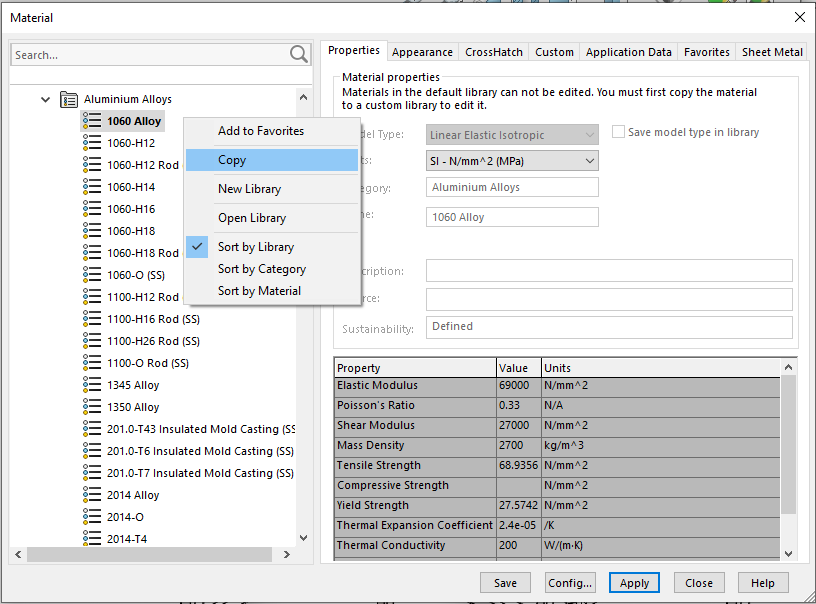
Steps:
Rename the material afterward.
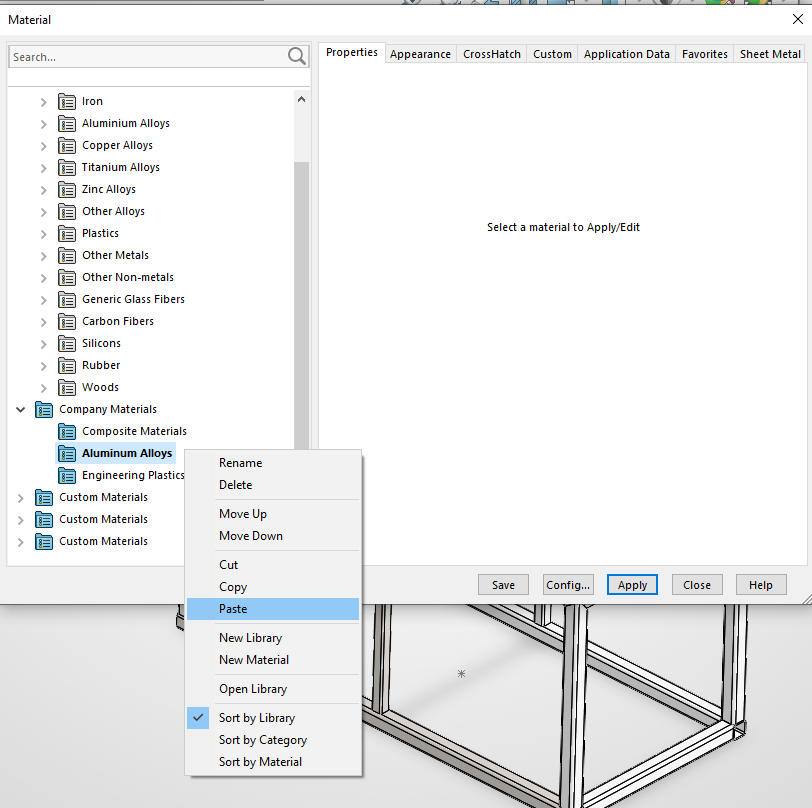
Example:
Method 2 — Create a Material from Scratch
If no similar material exists:
This creates an empty material entry where all properties must be entered manually.
Click Apply and then Close.
The custom material is now assigned to the part.
Once applied, SOLIDWORKS automatically updates:
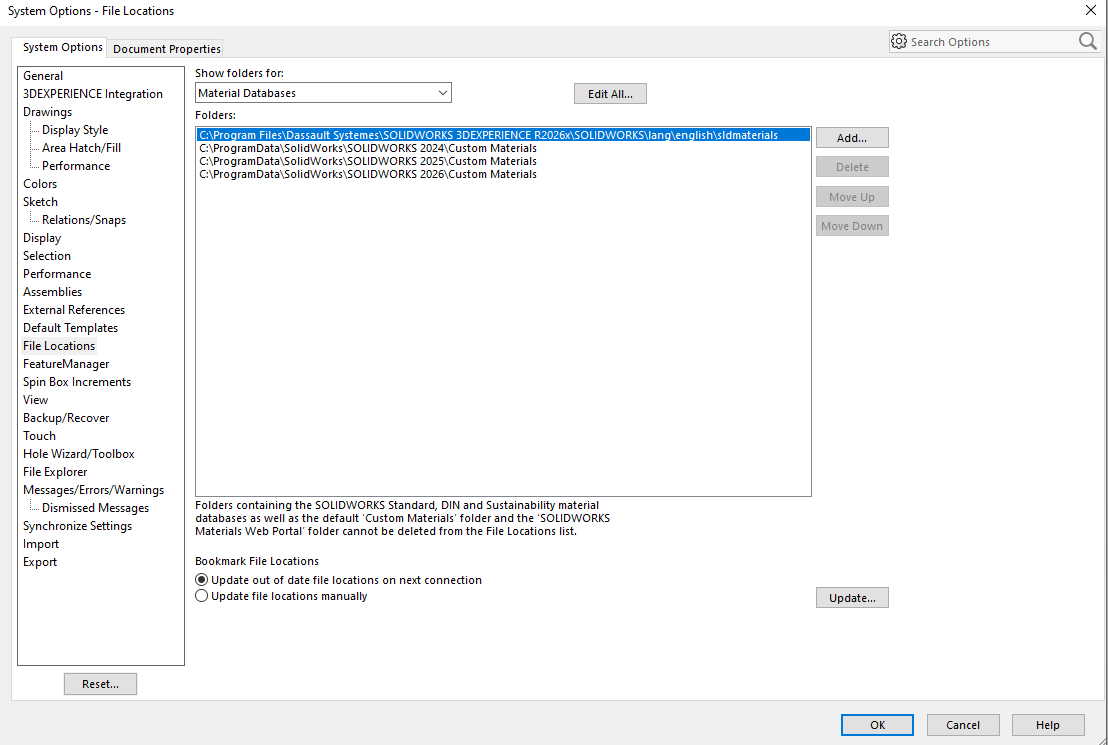
Custom materials are stored as .sldmat files.
Default location example:
C:\Program Files\SOLIDWORKS Corp\SOLIDWORKS\lang\english\sldmaterials
For engineering teams, storing material libraries in a shared location is recommended.
Common options include:
To add a shared library:
This ensures all users work with the same validated material data.
Use Real Supplier Data
Whenever possible, use manufacturer datasheets instead of estimated values.
Standardize Naming
Use clear naming conventions such as:
Keep Libraries Organized
Separate materials by:
Backup Material Libraries
Since .sldmat files contain company-specific data, regular backups are important.
Creating custom materials in SOLIDWORKS is a simple process, but it has a major impact on engineering accuracy and workflow consistency.
A properly managed material library improves:
For companies working with specialized materials or production workflows, custom material libraries quickly become an essential part of the CAD environment.