

Before sending to manufacturing, engineers usually have to make separate 2D drawings to show dimensions and tolerances. This often causes mistakes and slows down work.
With Onshape MBD, all product information is added directly inside the 3D model in the cloud, keeping design, manufacturing, and inspection teams in sync and making collaboration faster and easier.
Now, let’s explore how MBD works and why it matters for your workflow.
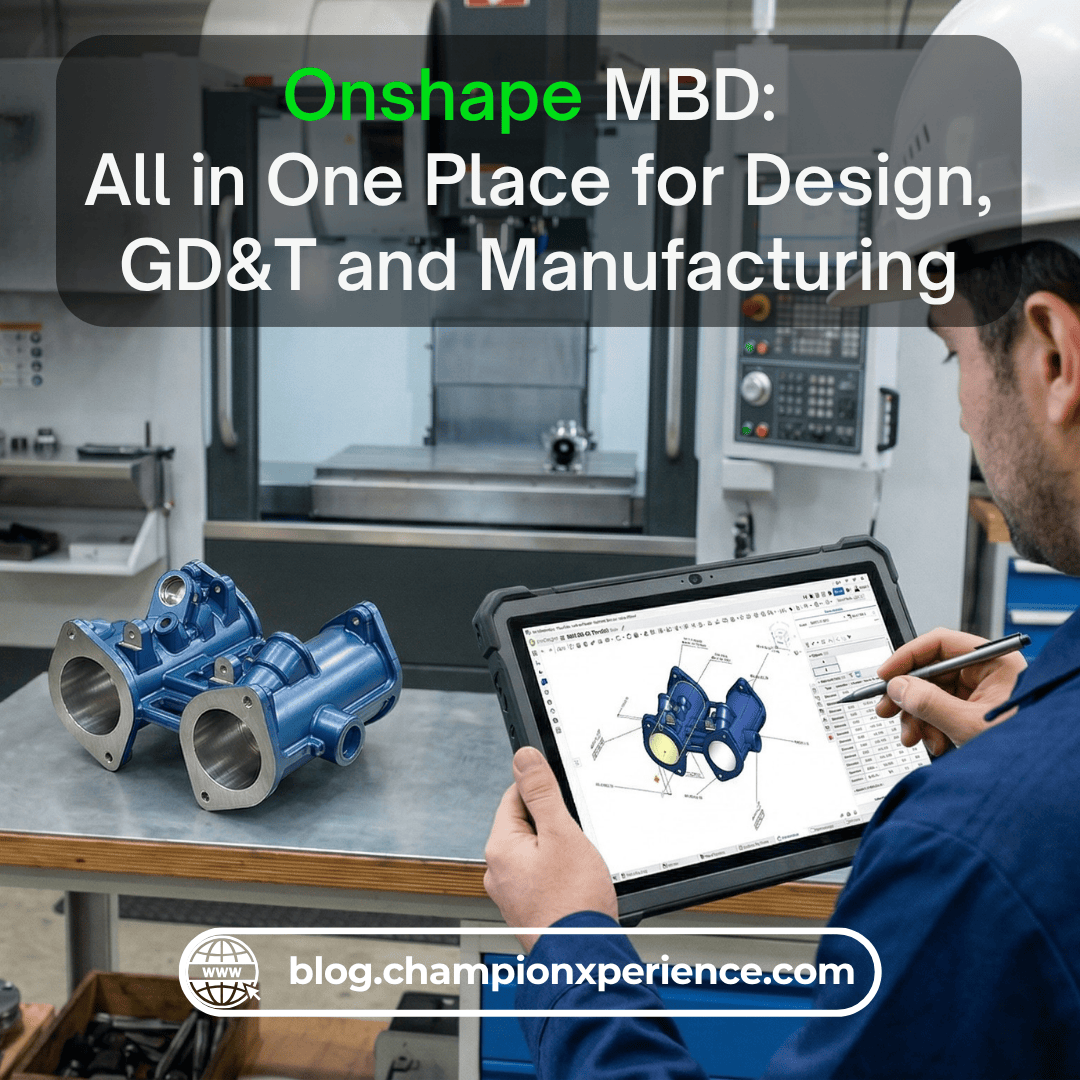
Onshape MBD is a way to define a product directly inside the 3D model. Rather than using separate 2D drawings to show dimensions, tolerances, and notes, all this information can be found inside the Part Studio alongside the geometry.
This information is called Product Manufacturing Information (PMI). It includes dimensions, tolerances, datums, and annotations needed for manufacturing and inspection.
With this approach, the 3D model becomes more than just a shape. It becomes a complete product definition. It clearly shows how the part should be made, measured, and verified.
This helps reduce confusion and makes communication easier between design, manufacturing, and inspection teams.
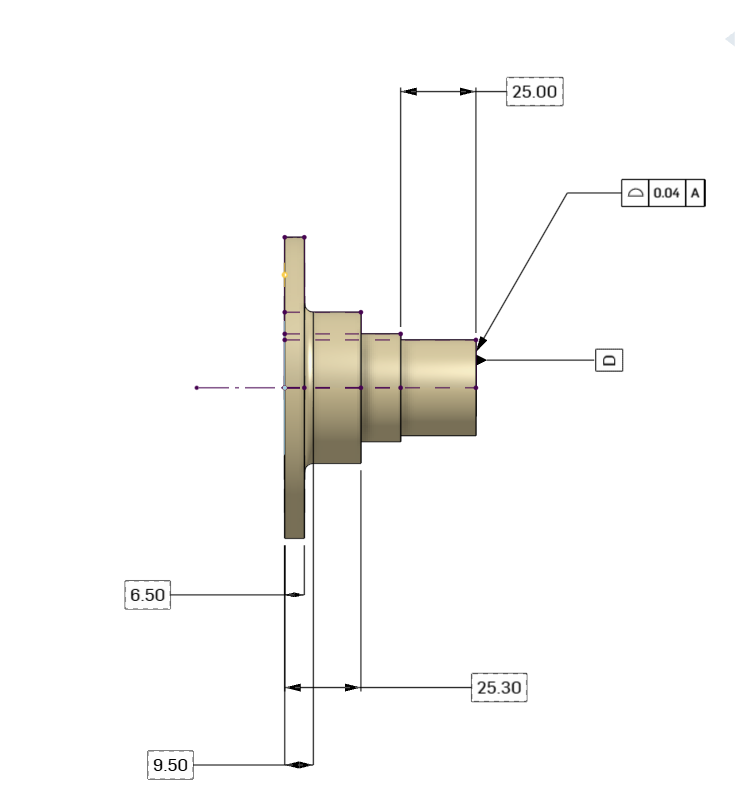 Fig. 1: Flange Front View with Model-Based Definition (MBD)
In Onshape MBD, we work directly on the model to define:
All this data is connected to the geometry. When the model changes, the PMI updates automatically.
This means we do not need to update drawings manually or worry about outdated information. Everyone always works with the latest version of the design.
This helps avoid errors caused by old or incorrect drawings. It also saves time because we do not need to update documentation manually.
Instead of repeating the same information in multiple places, we define everything once in the model. This makes the workflow faster and cleaner.
Inspection teams can use the model directly. They do not need to recreate dimensions or tolerances from drawings.
Onshape MBD works with many third-party CMM systems. This helps teams measure parts faster and with fewer mistakes.
We can define default tolerances based on company standards.
If a dimension does not have a specific tolerance, the system applies the default automatically.
This ensures consistency and saves time, especially in large projects.
All product information is stored in one place: the 3D model.
This avoids problems like:
Everyone works on the same data, which improves collaboration.
The Inspection Table is a key part of the Onshape MBD workflow. It shows all PMI in a clear and organized way.
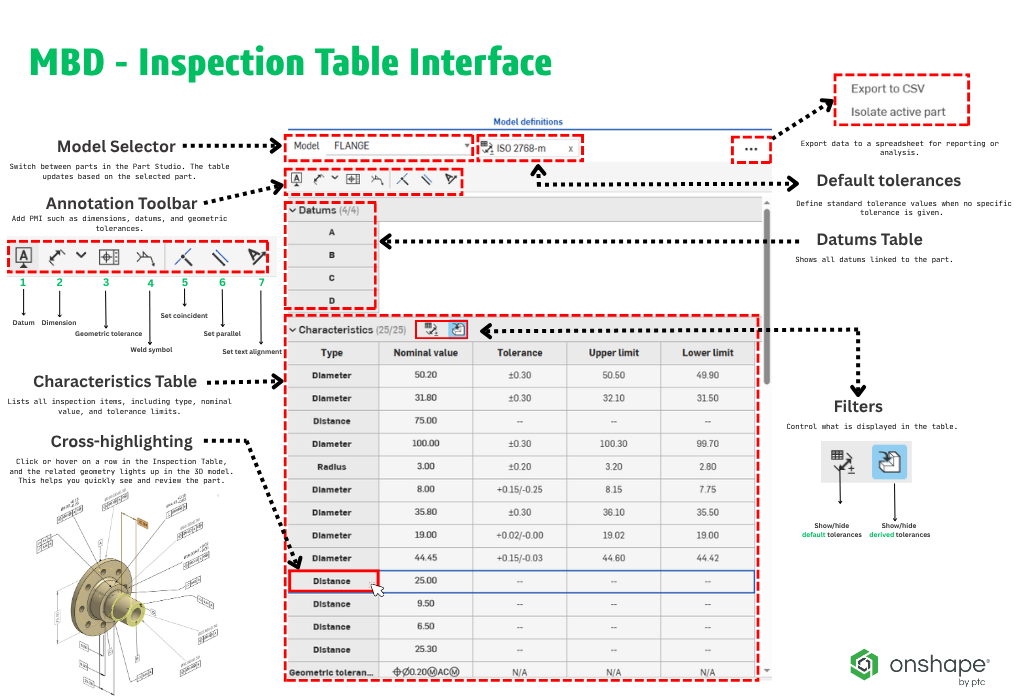
Fig. 2: Flange MBD Inspection Table Interface
Main elements include:
One important feature is cross-highlighting.
When we hover over or click on a row in the table, the related geometry is highlighted in the graphics area. This makes it easier to understand and review the model.
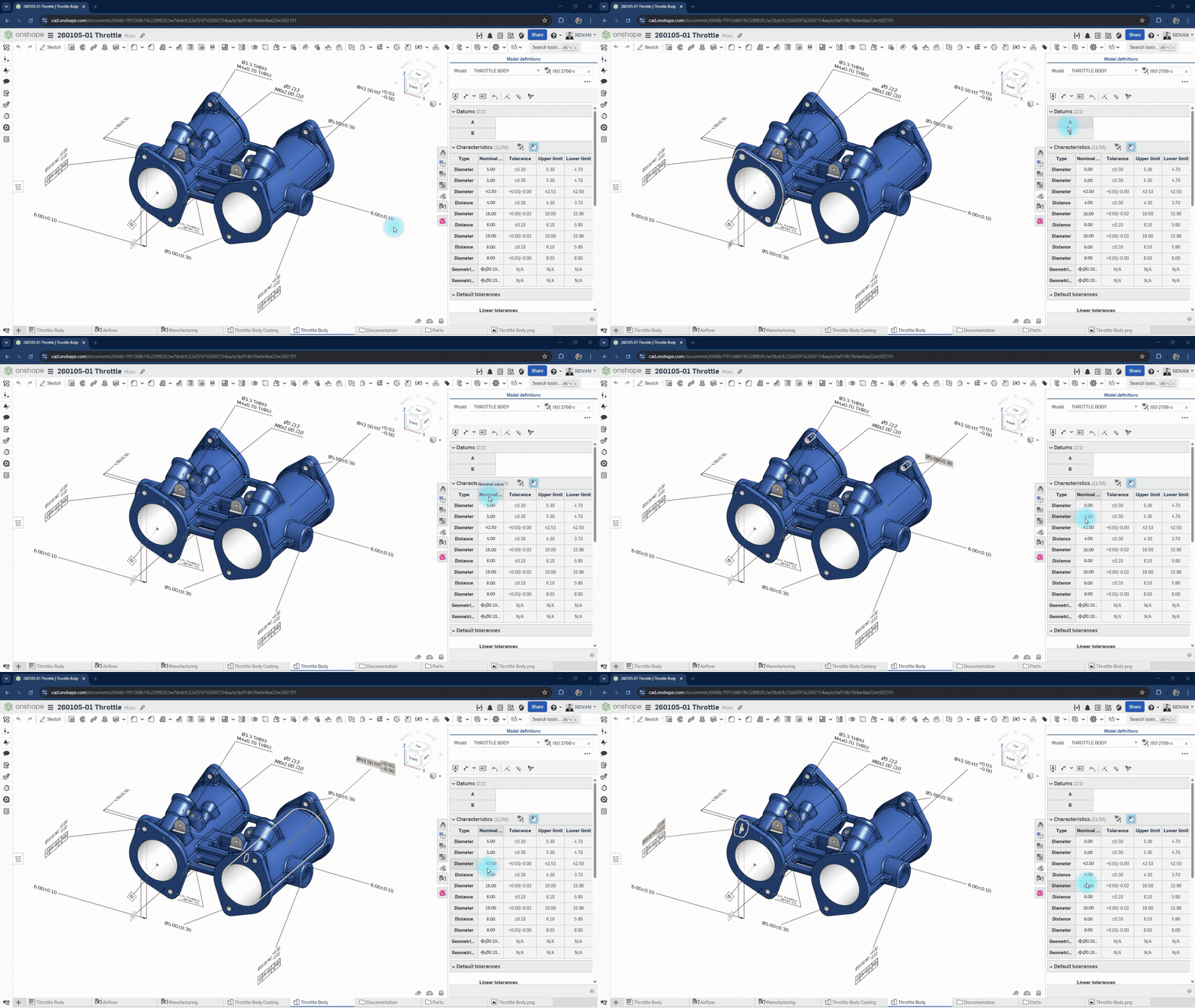 Fig. 3: Interactive cross-highlighting between GD&T table and 3D model
When we add PMI in Onshape:
Also, sketch dimensions can be used as inspection characteristics once they are fully defined.
This makes the workflow smooth and keeps everything connected.
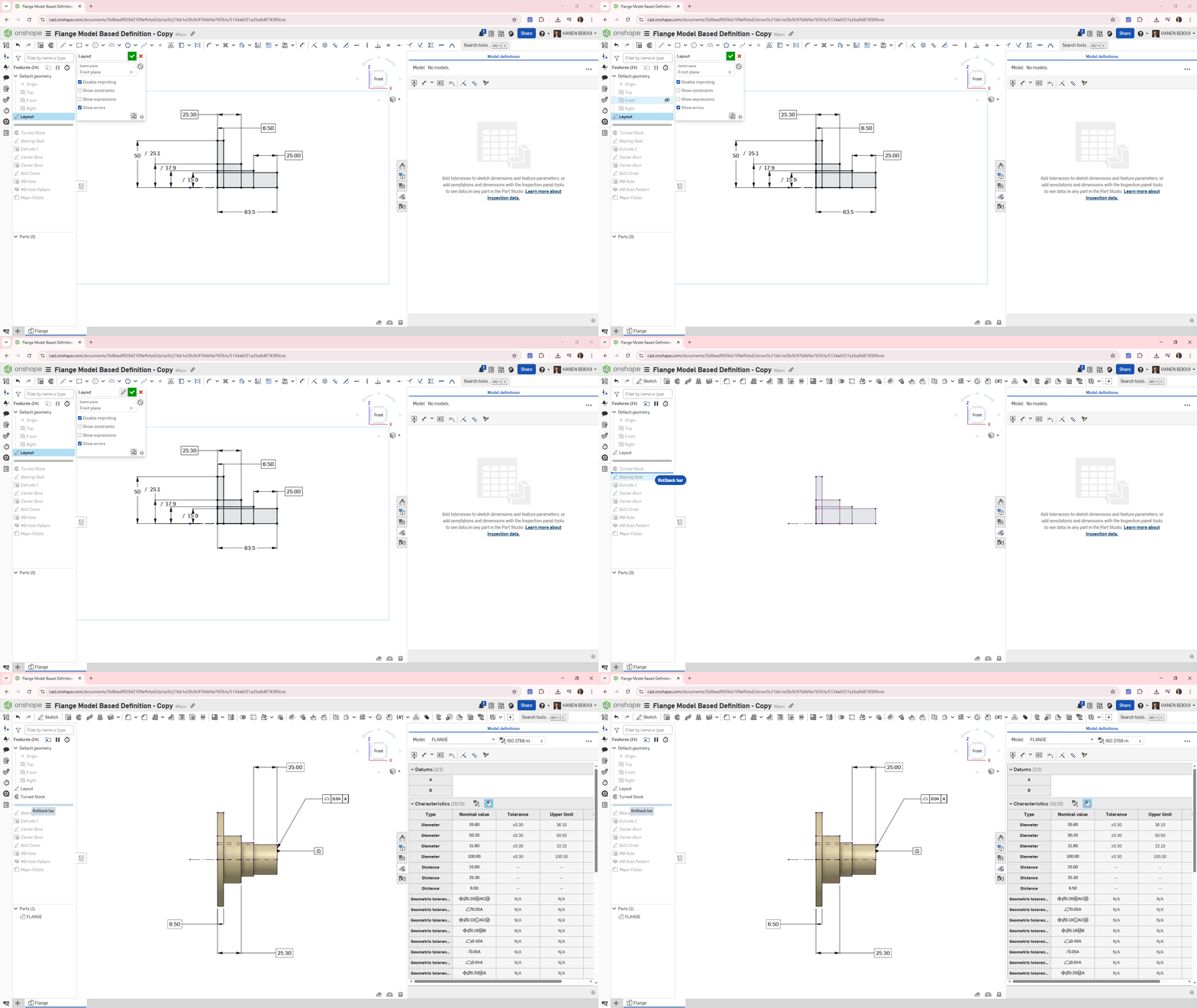 Fig. 4: Activating MBD from Sketch to Feature Creation in the Flange Model
Onshape makes it easy to review and update MBD data.
We can:
This helps keep the model clean and accurate.
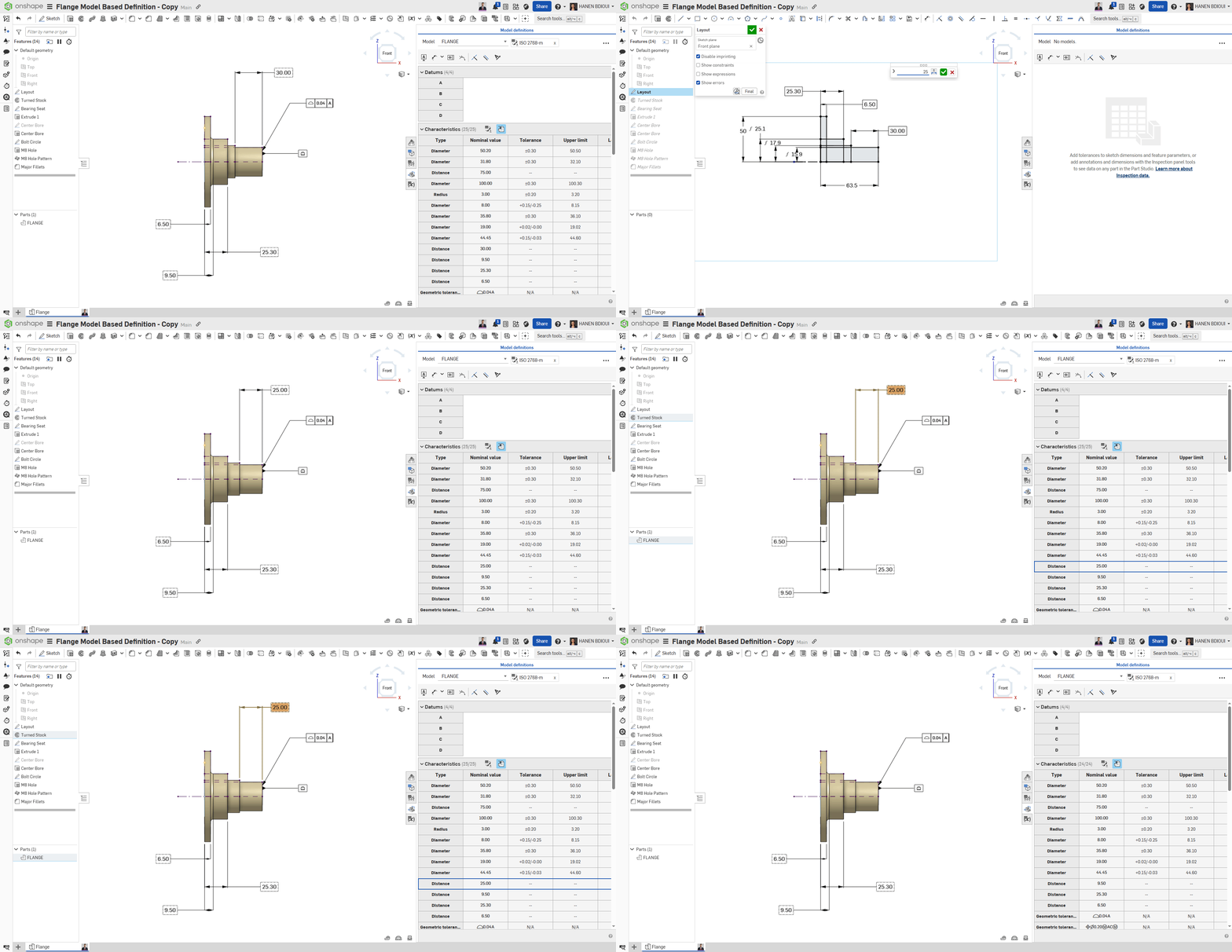
Fig. 5: Editing MBD data in Onshape with automatic Inspection Table updates
Sometimes changes in the model can create issues between geometry and PMI.
Onshape detects these problems and shows that the model needs review.
To keep the model valid:
This ensures the model is ready for manufacturing and inspection.
Onshape MBD supports export to STEP AP242 format.
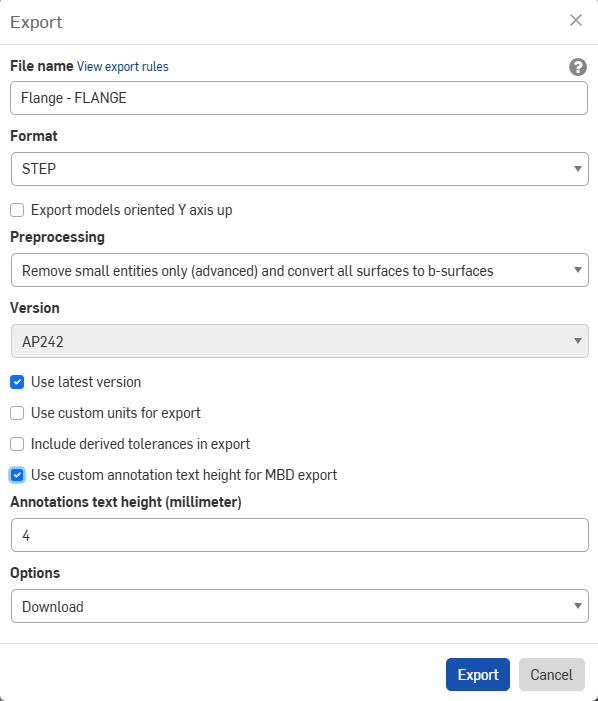 Fig. 6: STEP AP242 Export Dialog with PMI Enabled
This format includes both geometry and PMI. It allows other systems to read:
This is useful for:
It helps avoid manual work and improves accuracy.
Below is an example of a file exported from Onshape and successfully imported into Creo with all defined 3D PMI fully preserved.
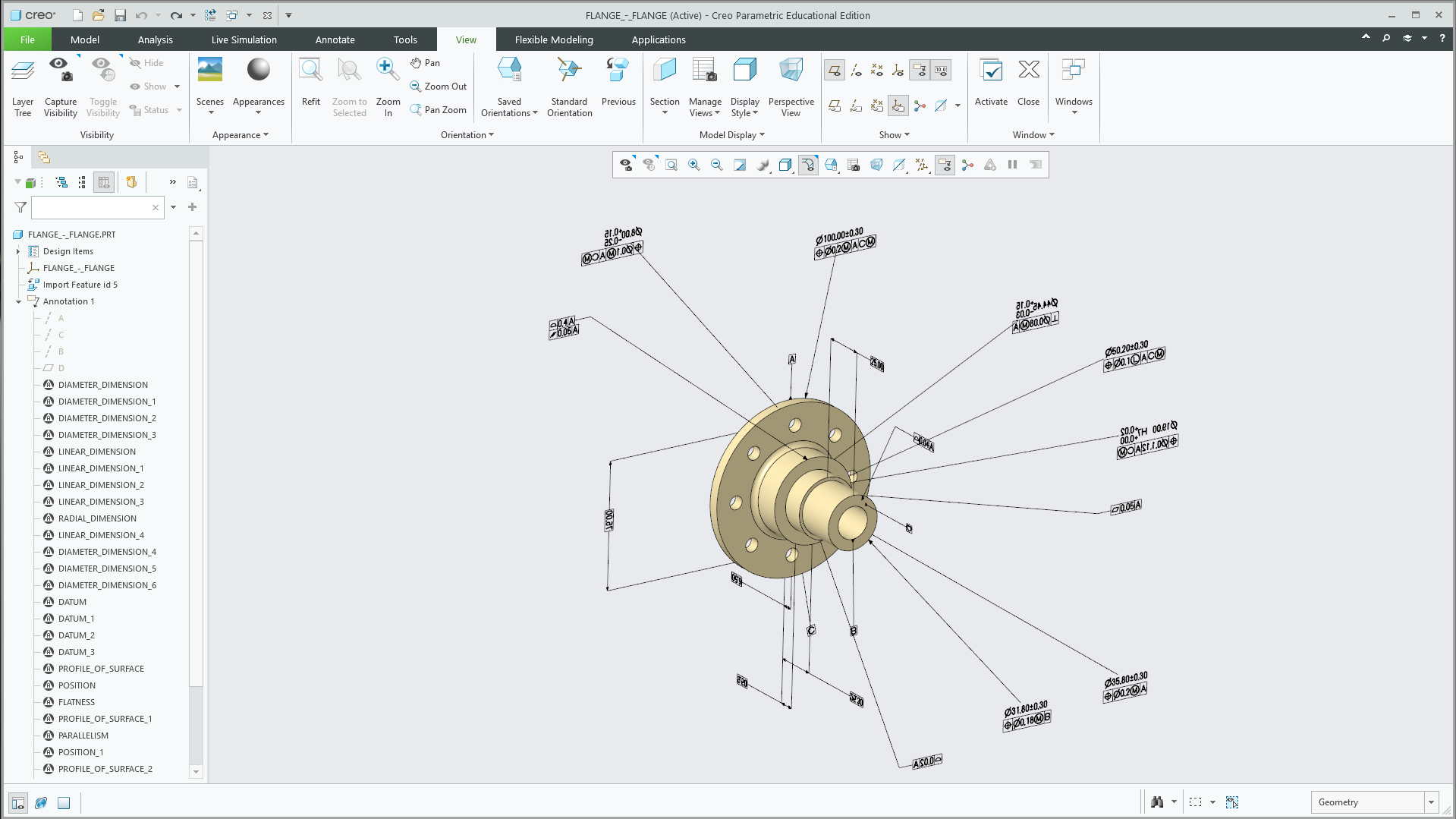 Fig. 7: Onshape model imported into Creo with all PMI preserved (Both Onshape and Creo are PTC products).
Onshape offers a different approach compared to traditional CAD systems.
In many tools, MBD is a separate feature or add-on. In Onshape, it is built directly into the modeling environment.
Because Onshape is cloud-native:
This makes collaboration easier and faster.
Onshape MBD brings GD&T, communication, and manufacturing workflows together in a single cloud-native environment. Engineers can define product requirements, collaborate with team members, and make decisions directly within the 3D model—without relying on separate drawings or disconnected tools.
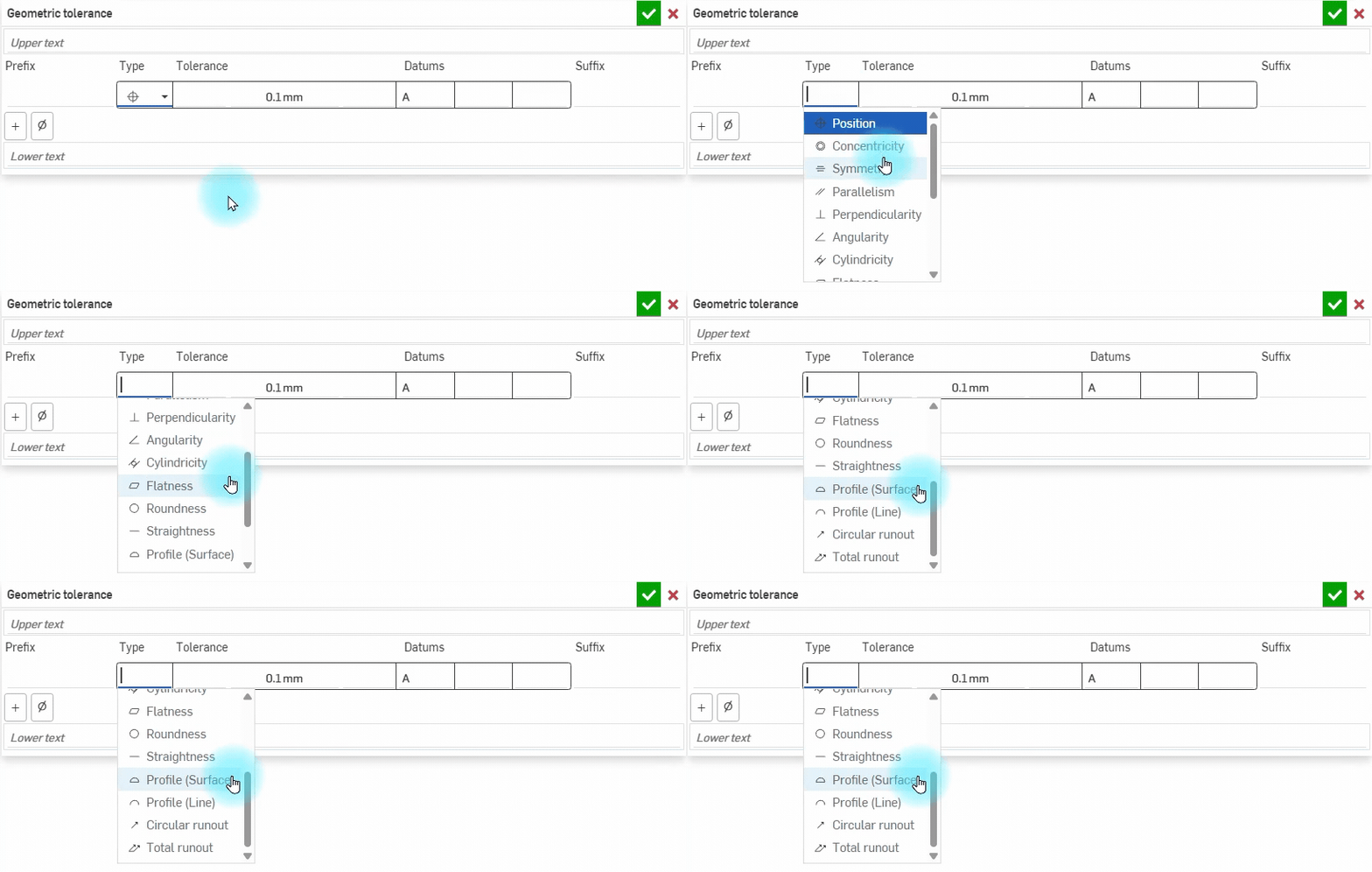 Fig. 8: Geometric tolerance types in Onshape MBD
The following video shows how engineers apply GD&T, communicate through comments, and collaborate in real time—all within the same 3D model.
To better understand how Onshape MBD improves communication, let’s look at a real collaboration scenario between a design engineer and a production engineer.
In this example, the team is defining datums for a flange part to ensure proper machining and alignment during production.
Design Engineer (Hanen Bdioui Polat)
Hello @RIDVAN, I set Datum A (flange surface) for the shaft bores. For machine zero (Datum B), the outer surfaces marked in red are too rough. Is the tagged main bore the ideal reference for fixturing? Can you confirm and add Datum B?
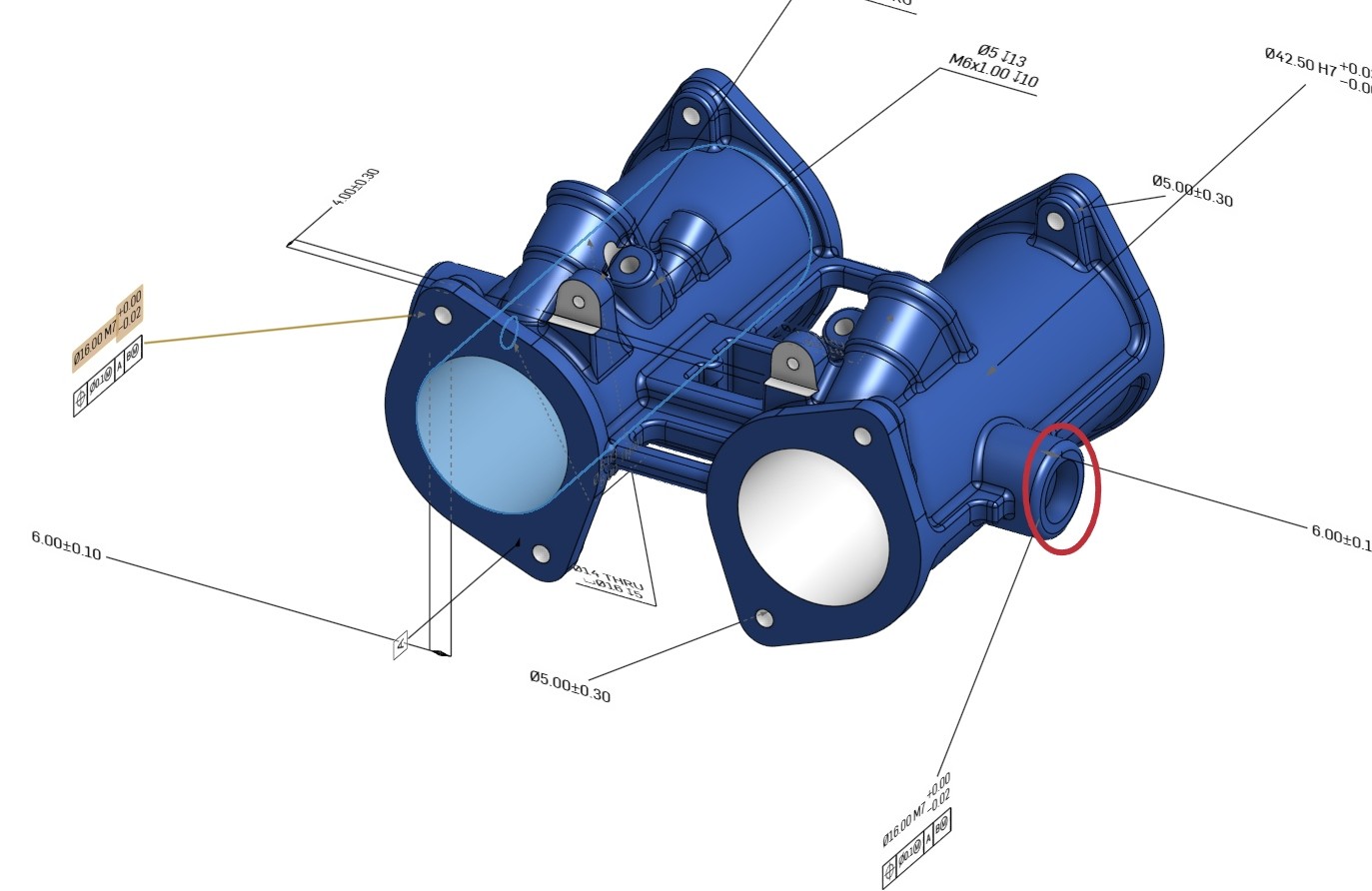
Production Engineer (Ridvan Polat)
Hello @HANEN BDIOUI, you’re absolutely right. The main bore (Ø42.50) is the most stable surface for centering. I tagged Datum B to the dimension and I’m setting up the CNC routing accordingly.
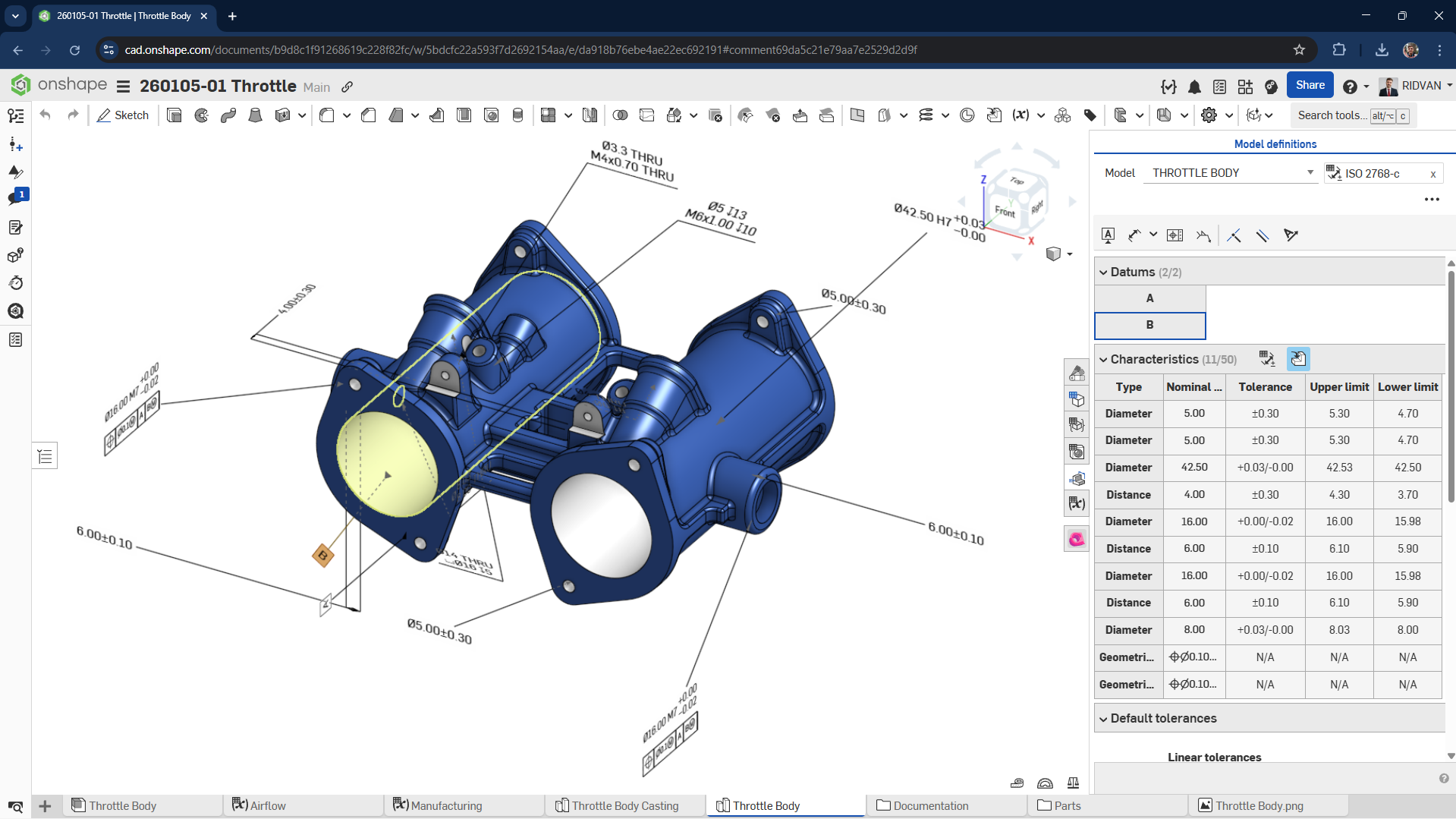
Design Engineer (Hanen Bdioui Polat)
Great, thanks for the collaboration. MBD is complete, we can proceed to production.
This example shows how Onshape MBD connects design and manufacturing teams through a shared 3D model.
The video starts with a desktop (PC) workflow, then continues on a tablet, and finally on a mobile device—demonstrating how engineers can seamlessly access and interact with the same model across different platforms.
Instead of relying on separate drawings and external communication, all interactions—GD&T definition, comments, and decision-making—happen directly within the model. Engineers can clearly reference geometry, assign tasks, and respond in real time.
Why It Matters
Onshape MBD is not just a way to define dimensions and tolerances—it’s a platform that enables teams to collaborate anytime, anywhere, reduce errors, and move from design to production with confidence.
| Aspect | MBD | Traditional 2D |
| Data Source | The 3D model contains all the PMI and becomes the main reference. | Information is split between drawings and other documents. |
|---|---|---|
| Clarity | Working directly in 3D makes it easier to read and understand the design. | 2D views can be difficult to interpret, especially for complex parts. |
| Collaboration | Teams work from the same model, so everyone stays aligned. | Risks ending up with different or outdated versions of drawings. |
| Changes | When we update the model, the changes are reflected everywhere. | Updates have to be done manually on each drawing. |
| Manufacturing | The model can be used directly for manufacturing processes like CAM. | Data needs to be reinterpreted before it can be used in production. |
| Efficiency | Helps reduce errors and saves time during the design process. | Takes more time and increases the risk of mistakes. |
With Onshape MBD, manufacturing teams can work directly from the 3D model.
They do not need to wait for drawings. All required information is already inside the model.
Inspection teams can also use the model to create measurement programs. This reduces manual work and improves accuracy.
Overall, this leads to:
In some cases, yes.
Some customers or industries still require drawings for documentation or approval.
However, in many workflows, the 3D model with PMI is enough. It can fully define the product without additional documents.
Onshape MBD changes how we define and share product information. Instead of separating geometry and documentation, we bring everything into one place: the 3D model.
This makes the workflow: Simpler, faster, and more reliable
By using MBD, we improve communication, reduce errors, and support better collaboration between teams.
For engineers and companies looking to modernize their workflow, Onshape MBD is a strong and practical solution.


