

Reverse engineering does not always start with a physical part or a 3D scanner. In this example, I start with an existing STL file of a Multi-Cavity part and take a practical look at how Solid Edge Reverse Engineering tools can turn an imported mesh into editable CAD geometry.
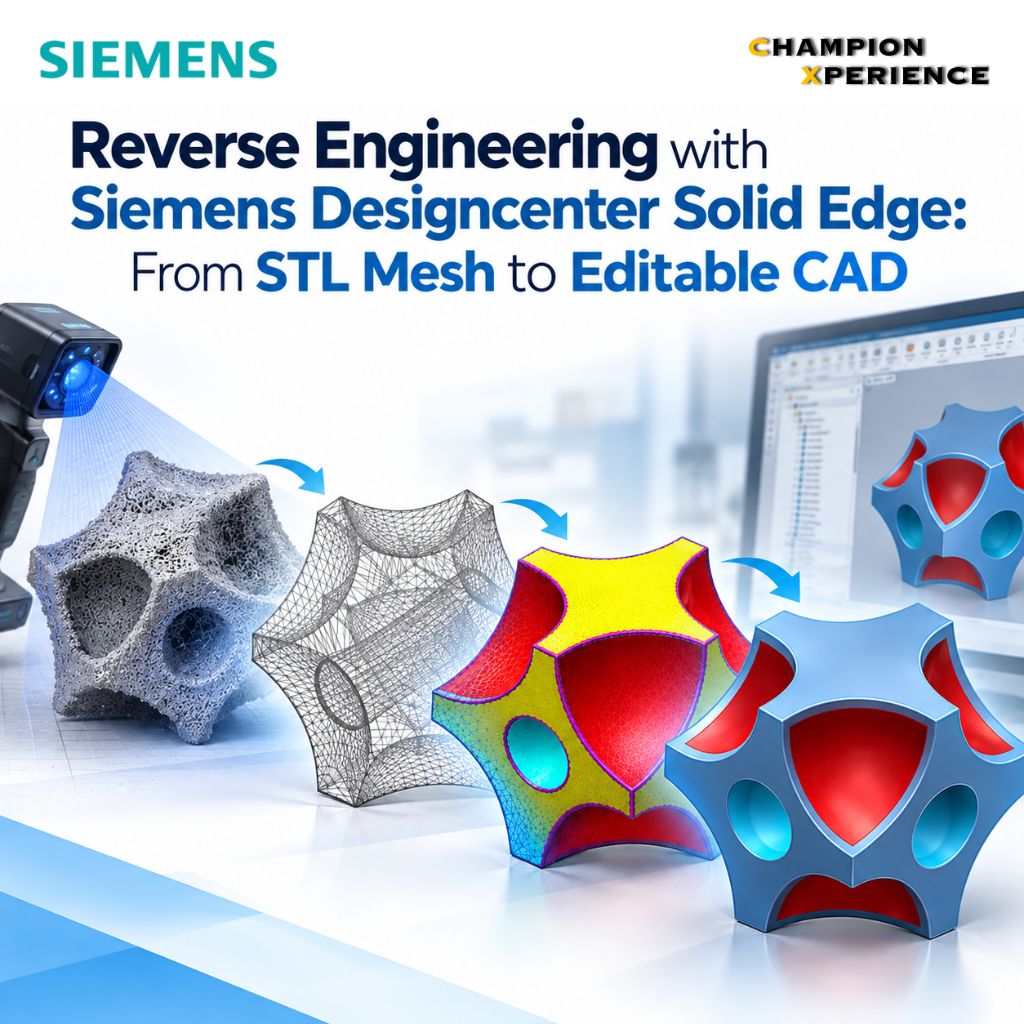
The workflow covers the main steps, from preparing and remeshing the STL to region recognition, surface extraction, and creating an editable Design Body. I also compare automatic and manual region recognition to show how different mesh settings can affect the final result.
The Multi-Cavity part used in this example was downloaded as an STL file.
Unlike a native CAD model, an STL does not contain design history such as sketches, extrusions, holes, or fillets. Instead, the shape is represented by a collection of triangular facets.
This means that, when the STL is opened in Solid Edge, we have the mesh geometry but not the original editable CAD features or B-rep faces.
The goal of the Reverse Engineering workflow is to use this mesh as the starting point and progressively turn it into usable CAD geometry that can be edited according to the design intent.
Before starting with the mesh, there is one important point to understand.
Solid Edge provides both Ordered and Synchronous modeling environments. Ordered modeling is history-based, while Synchronous Technology allows you to work more directly with geometry without relying entirely on a conventional feature-history sequence.
For reverse engineering, Synchronous is useful because an STL file does not contain the original CAD design history.
If Solid Edge opens with Ordered as the default environment, you can change it to Synchronous:
Synchronous will then be used as the default modeling environment for new parts and assemblies.
Once Synchronous is active, you can access the Reverse Engineering environment and its dedicated commands.
STL files do not contain unit information, so it is important to select the correct units when opening the file in Solid Edge. In the File Open dialog, open the Import Options and select the appropriate units.
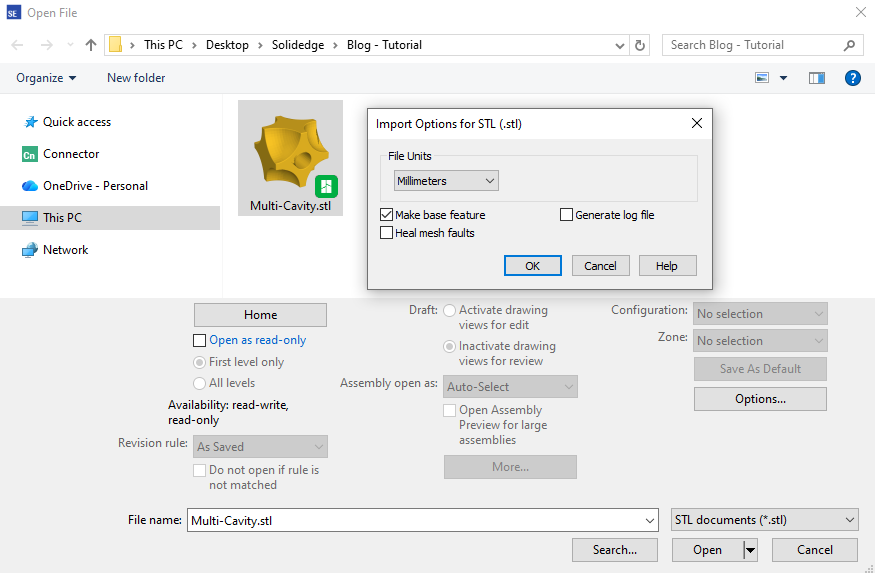 Figure 1. Opening the STL with the Correct Units
Solid Edge then prompts you to select a Standard Template. For this example, I select Metric, choose metric part.par, and click OK to open the STL file.
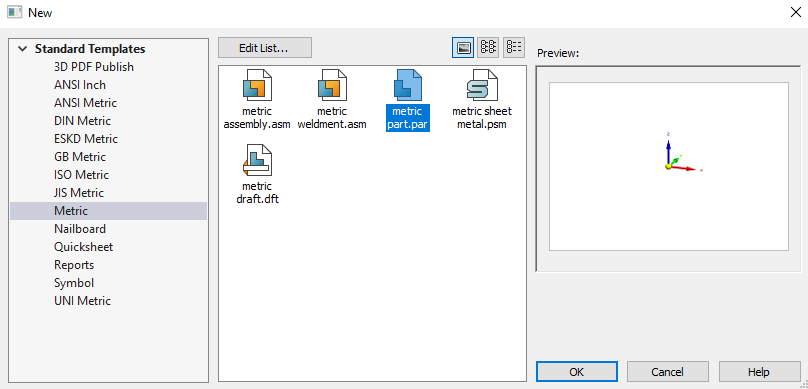 Figure 2. Selecting the Standard Template for the STL File
This is the original STL mesh before remeshing. It shows the raw triangular structure of the scanned part. To see this view, go to View and select Wire Frame.
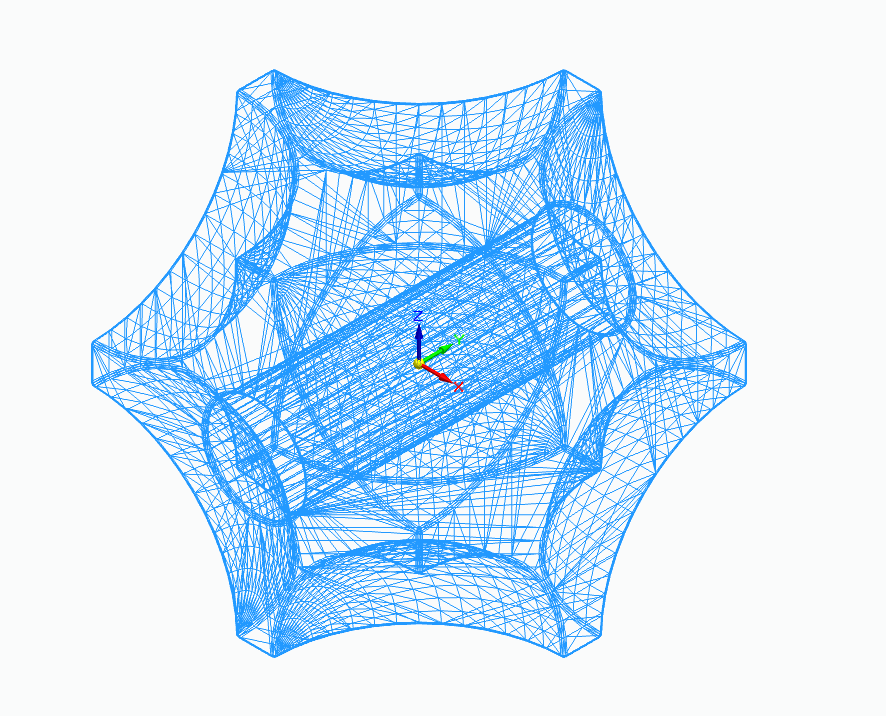 Figure 3. Original STL Mesh Before Remeshing
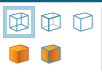 Figure 4. View Ribbon – Wireframe Option
The Remesh tool improves the quality and consistency of the STL mesh by adjusting the size and distribution of its triangles while preserving the part’s overall shape.
The remeshing process is controlled by three main parameters: Target size, Minimum size, and Chordal tolerance.
For this part, we set:
Then, click Accept to apply the remeshing settings.
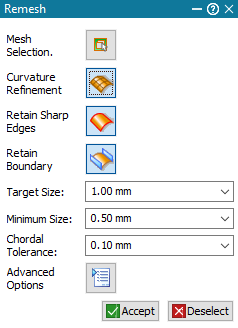 Figure 5. Remeshing Options Dialog Box
After remeshing, the next step is Region Recognition. This process identifies the different geometric regions of the mesh and assigns a specific color to each geometry type.
Solid Edge uses the following standard colors:
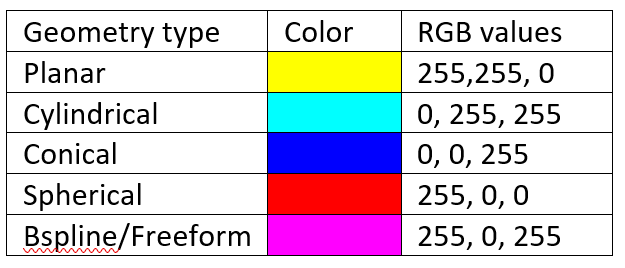 Figure 6. Standard Colors for Region Recognition
These colors are used by both the Automatic and Manual Region commands. In Automatic Region Recognition, Solid Edge assigns the colors automatically, while in Manual Region Recognition, the user selects the appropriate color from the color palette.
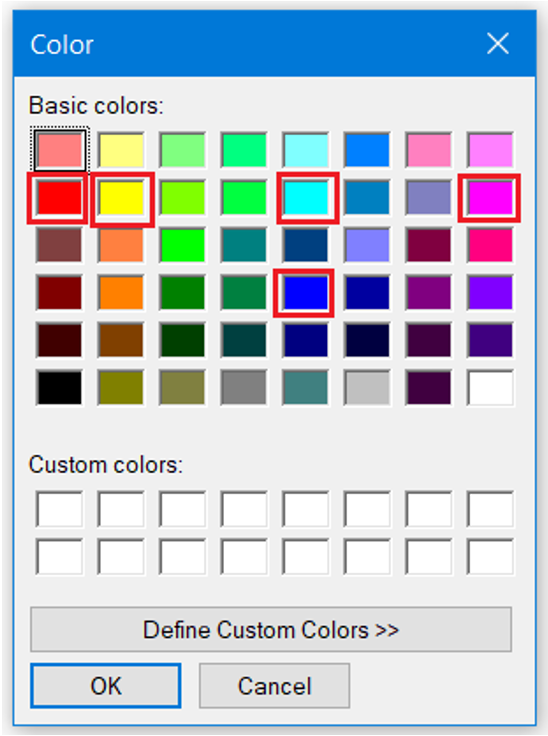 Figure 7. Palette Colors for Region Recognition
We now return to our first example after remeshing. We click Automatic and select the STL part to identify its regions.
Watch the Automatic Region Recognition workflow:
Then continue with the screenshot and explanation.
As shown below, Solid Edge automatically assigns colors based on the detected geometry. Different colored regions can be seen on the mesh, representing the different geometric features identified by the software.
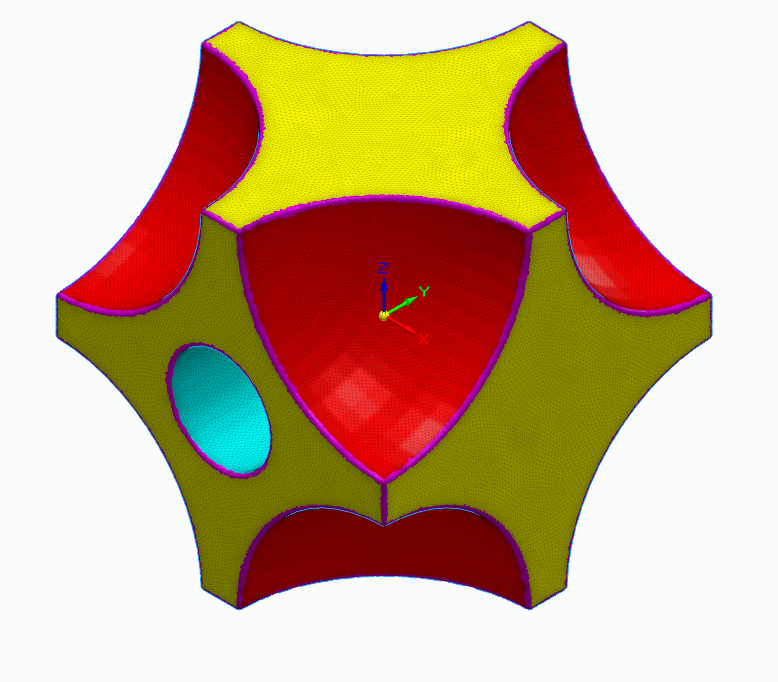 Figure 8. Automatic Region Recognition
The Accuracy value controls the tolerance used to identify the geometric regions. For this example, we use an Accuracy value of 5 and click Accept to apply the settings.
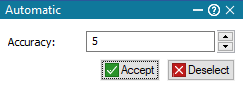 Figure 9. Automatic Region Recognition Dialog Box
After identifying the mesh regions, the next step is to Extract Surface. This process creates CAD surfaces from the recognized mesh regions based on their assigned geometry types and colors.
The surfaces can be extracted all at once or individually. In this section, I use the Extract All command to extract all recognized regions simultaneously.
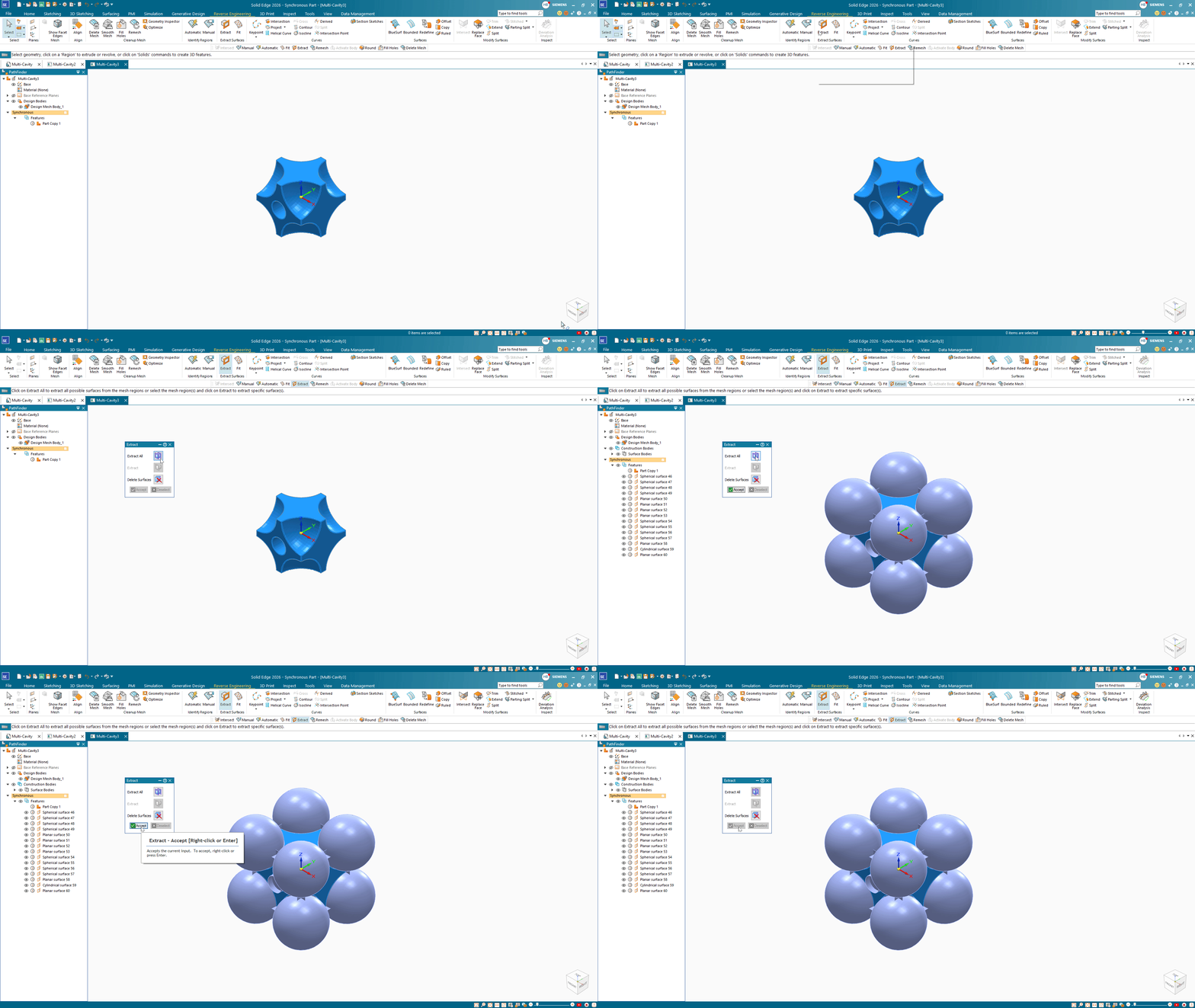 Figure 10. Extracting Surfaces from Mesh Regions
Next, we hide the Design Mesh Body in the PathFinder because including the mesh in the Intersect operation would produce an incorrect intersection.
We then go to the Intersect command, select Create Design Bodies in the Options, and select all the extracted surfaces of the part. Then, we click Validate.
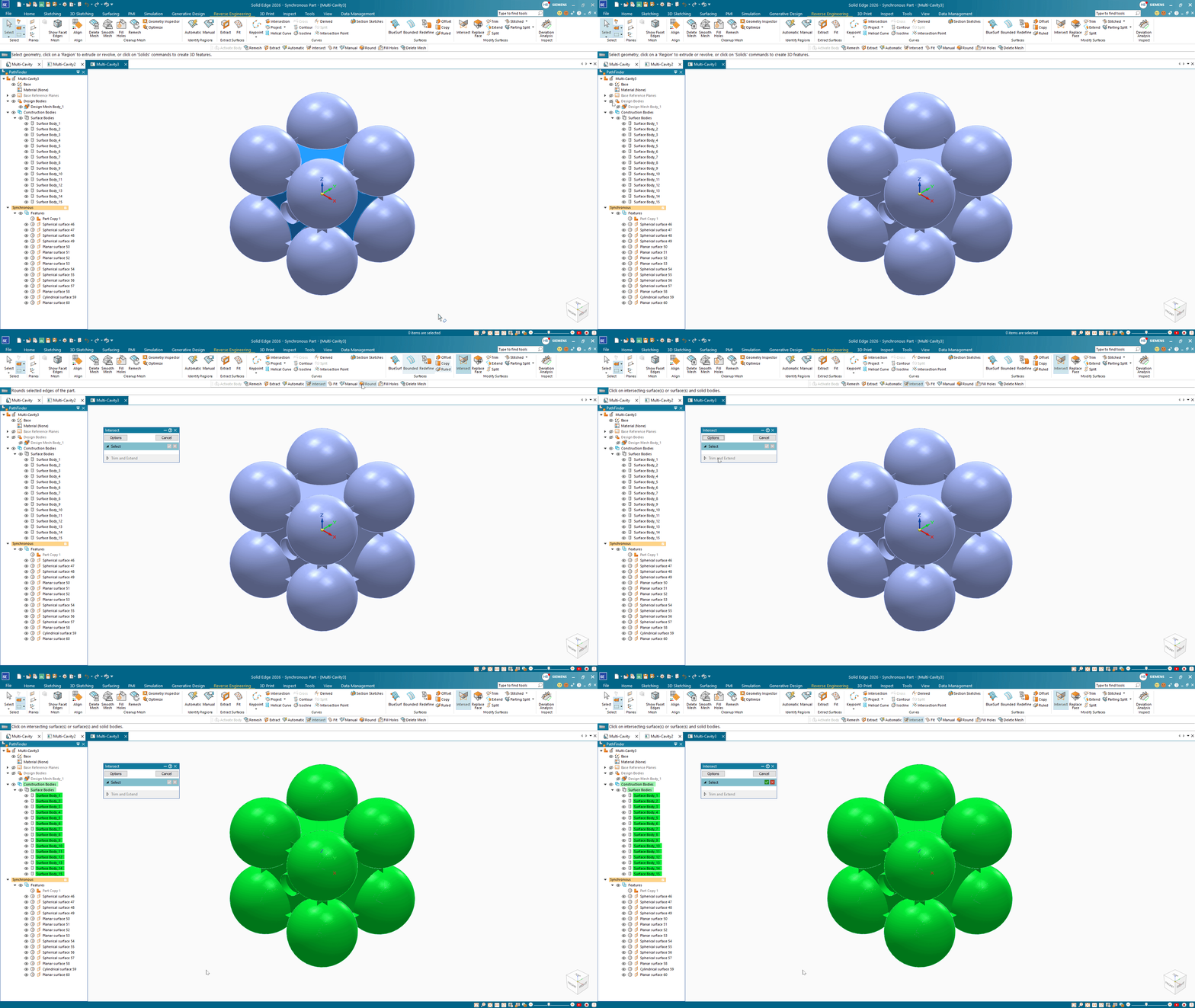 Figure 11. Intersect Command – Creating the Design Body
A pop-up window appears with the Region List, where we can uncheck the regions we do not want to keep. I uncheck the unwanted regions and leave only the region I want to keep.
After, I select Unit Regions and Consume Surface, then click Close. The resulting model is then created with the desired geometry.
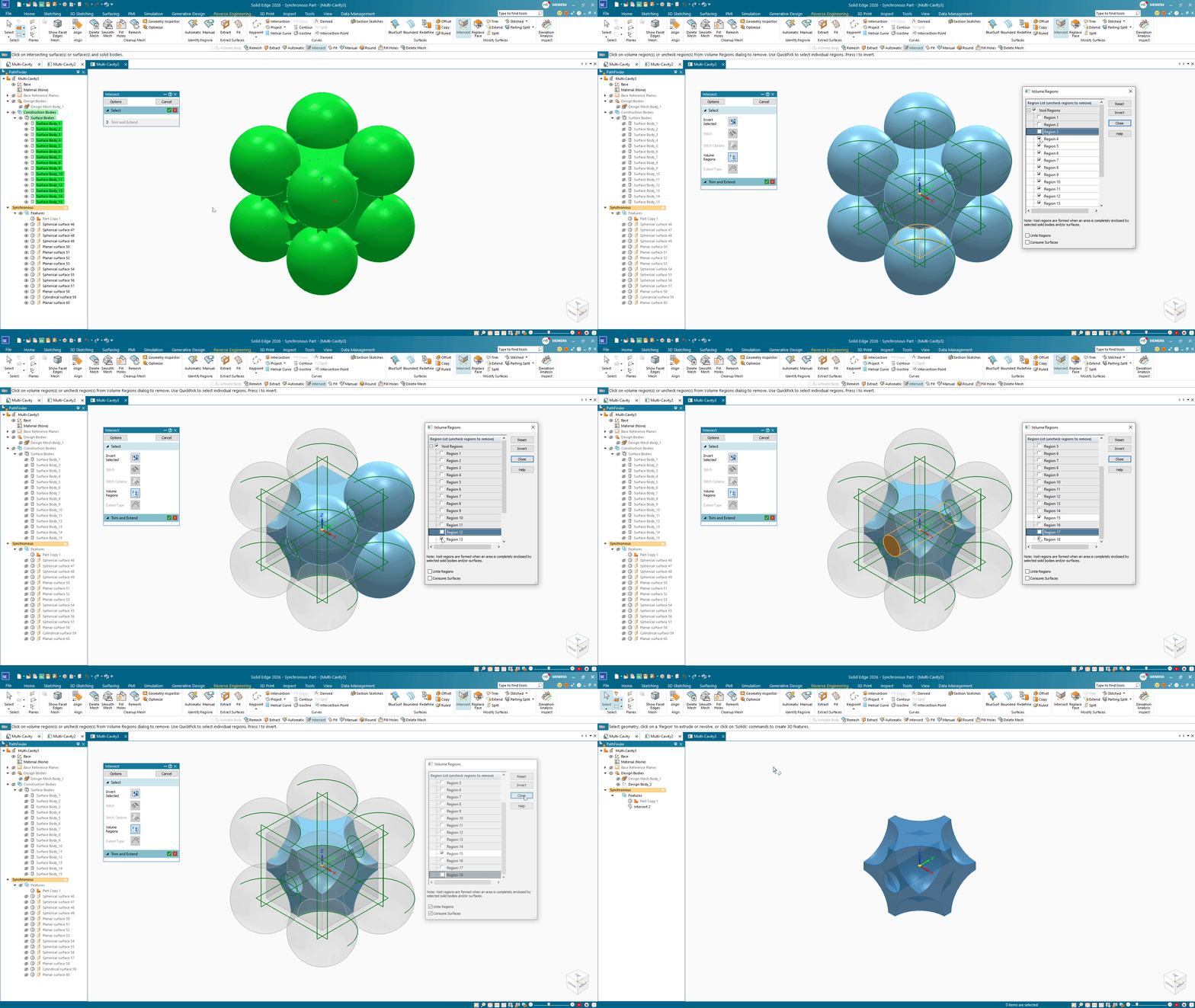 Figure 12. Region Selection
Finally, we activate the body by right-clicking Design Body 2 in the PathFinder and selecting Activate Body.
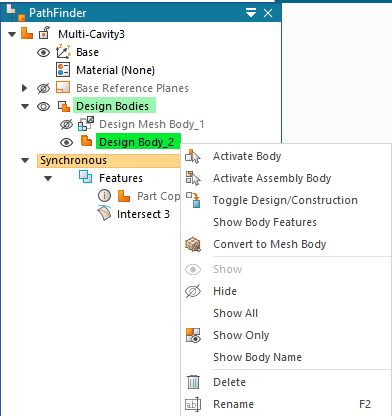 Figure 13. Activating the Design Body
The Design Body is now created and ready for further editing according to the design intent.
In the first example, we used Automatic Region Recognition after remeshing the STL with parameters that produced suitable regions. In this second example, we use the same part but change the remeshing parameters and use Manual Region Recognition to see how these changes affect the identified regions.
The purpose of this example is to show that the remeshing parameters have a direct impact on region recognition. With different mesh settings, some geometric regions may not be identified correctly, requiring manual adjustment before extracting the surfaces.
For this example, we use different values for:
These settings produce a different mesh compared with Example 1. After remeshing, some regions are not recognized as expected.
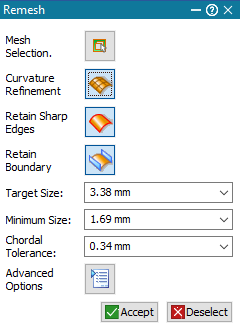 Figure 14. Remeshing Parameters for Example 2
We first tried Automatic Region Recognition with the new remeshing parameters. As shown below, some regions are not identified correctly. The spherical region should normally be red, but it is incorrectly identified as magenta, which is the color used for B-spline / Freeform regions. The planar regions, however, are identified correctly in yellow.
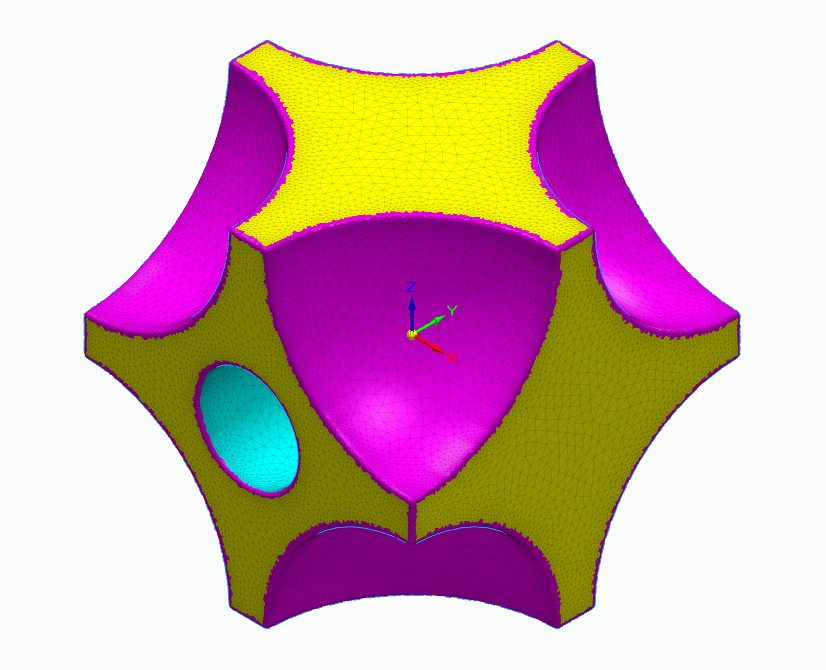 Figure 15. Incorrect Automatic Region Recognition
Before correcting the missing region, we use Extract Surface to extract the recognized regions as true CAD surfaces. In this example, we obtain six planar surfaces and one cylindrical surface.
However, the spherical surface is missing because it was incorrectly identified as a B-spline / Freeform region. We therefore move to the Manual Region command to identify the missing spherical region and assign it the correct red color.
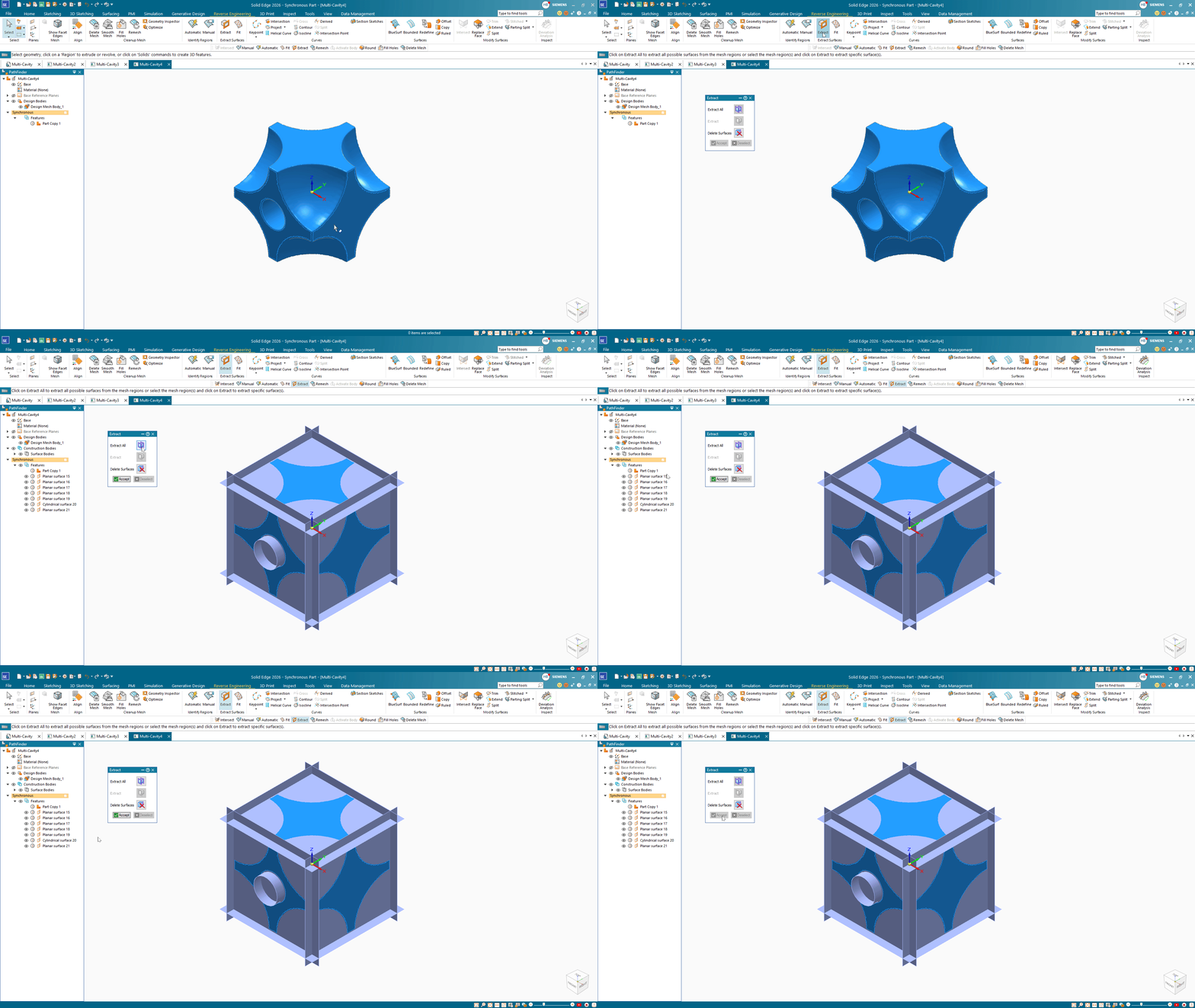 Figure 16. Extracting the Recognized Surfaces
Watch the Manual Region Recognition workflow:
From the PathFinder, we hide the Surface Bodies and select Manual. In the Manual Region command, we select Color and choose Red from the color palette, since red is the standard color for spherical regions. We then apply this color to the eight spherical regions.
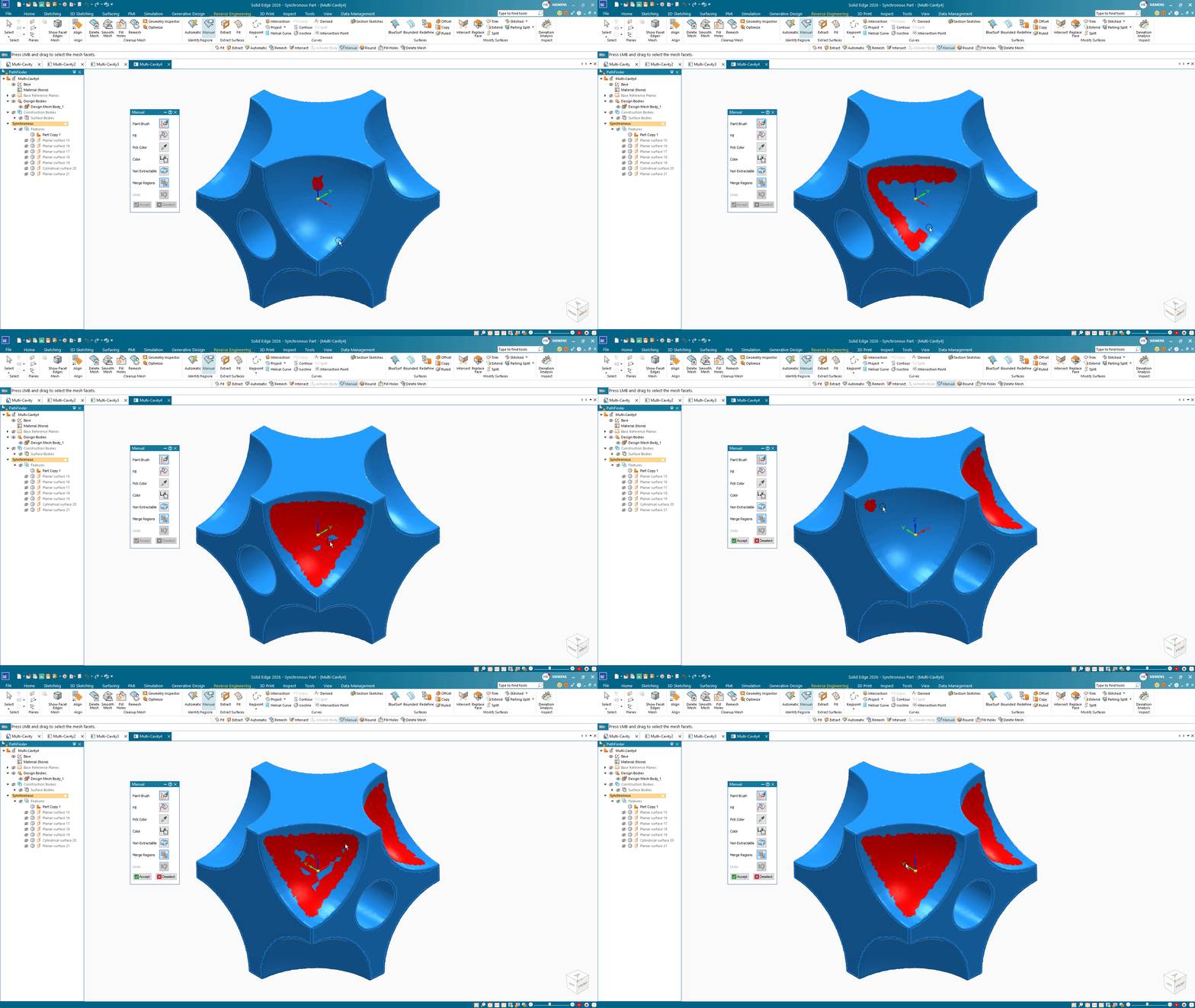 Figure 17. Coloring the Spherical Regions for Manual Recognition
Next, we use the Fit Surface command to create the appropriate geometric surface for each selected region. The selected region is defined by a single contiguous color.
We select Fit, choose Fit as Sphere, and then select each spherical region one by one. The fitted sphere appears in green after selection. We continue this process for all eight spherical regions, then close the command.
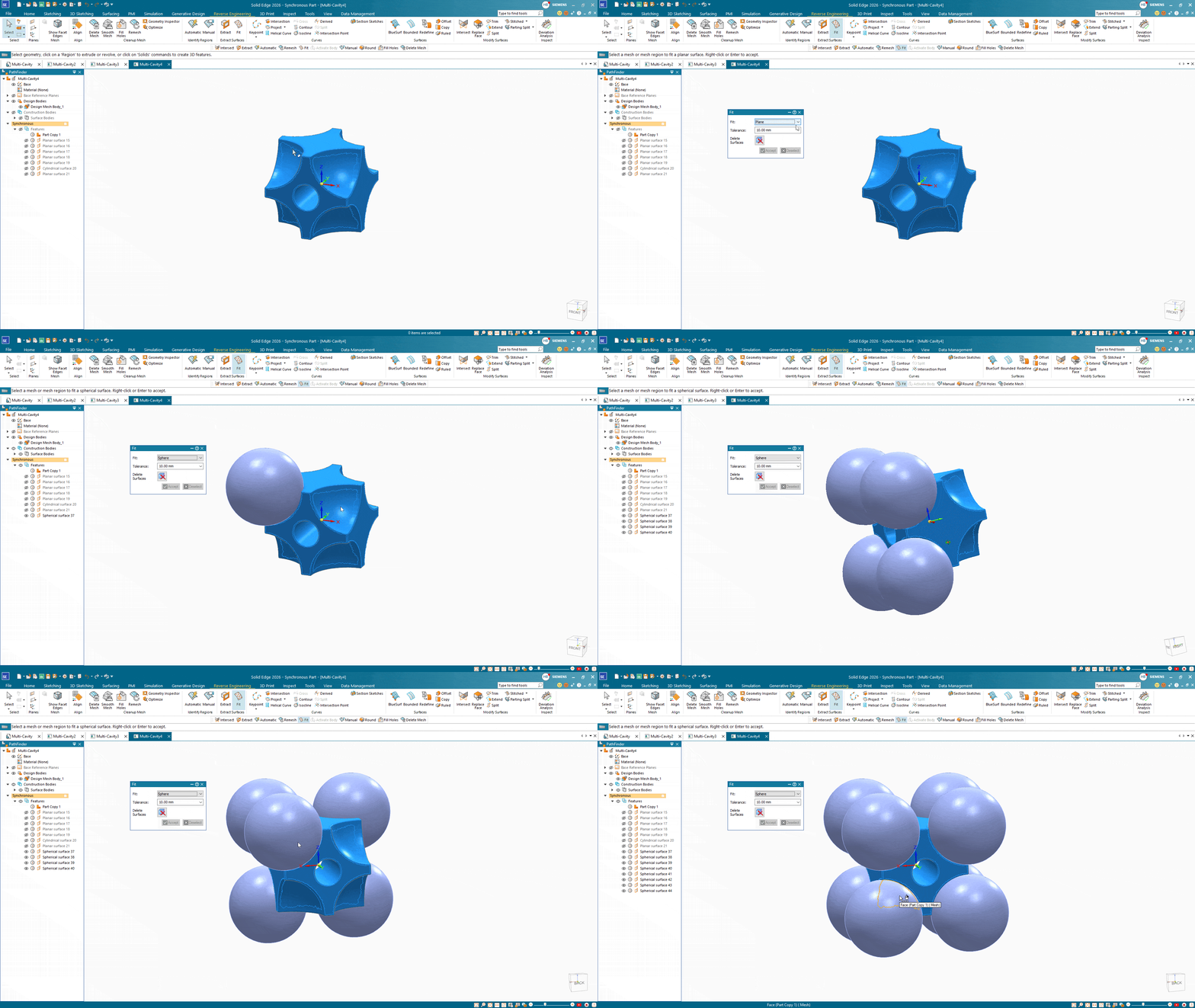 Figure 18. Fitting the Spherical Surfaces
Next, follow the same Intersect workflow described in Example 1. Select the extracted surfaces, enable Create Design Bodies in the Options, and proceed with the intersection process.
The Invert option allows us to quickly switch the selection by reversing the checked and unchecked regions in the Region List. This is useful when we want to keep the opposite set of regions.
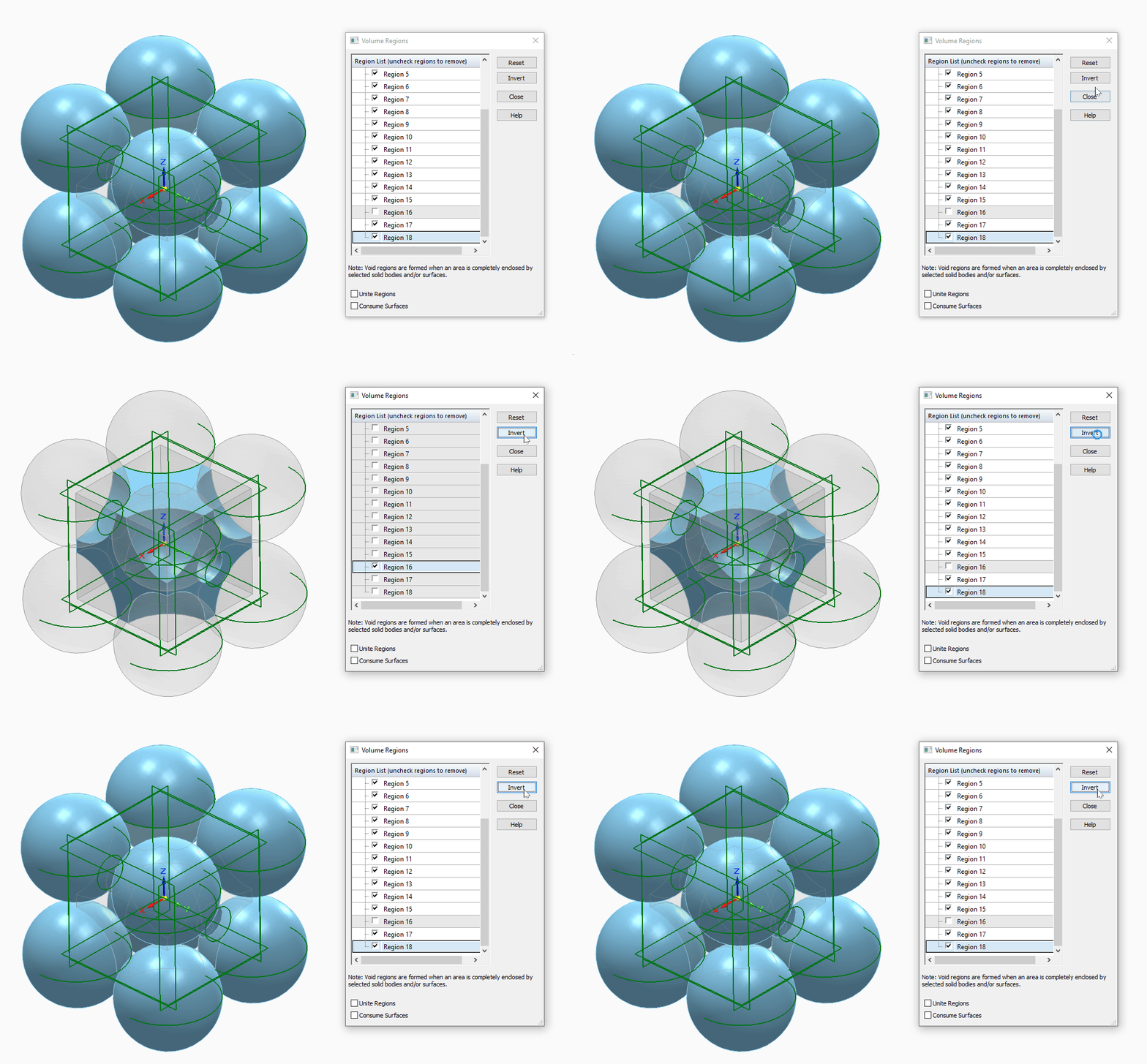 Figure 19. Intersect Command with Region Selection and Invert Option
Once the Design Body is created, we can edit the geometry according to the design intent. In this example, we use the Round command to set the selected rounds to 2 mm, change the cylindrical feature radius to 10 mm, and modify the spherical face by setting its diameter to 50 mm.
This demonstrates how the reverse-engineered model can be edited like a regular CAD model after the original STL mesh has been converted into editable design geometry.
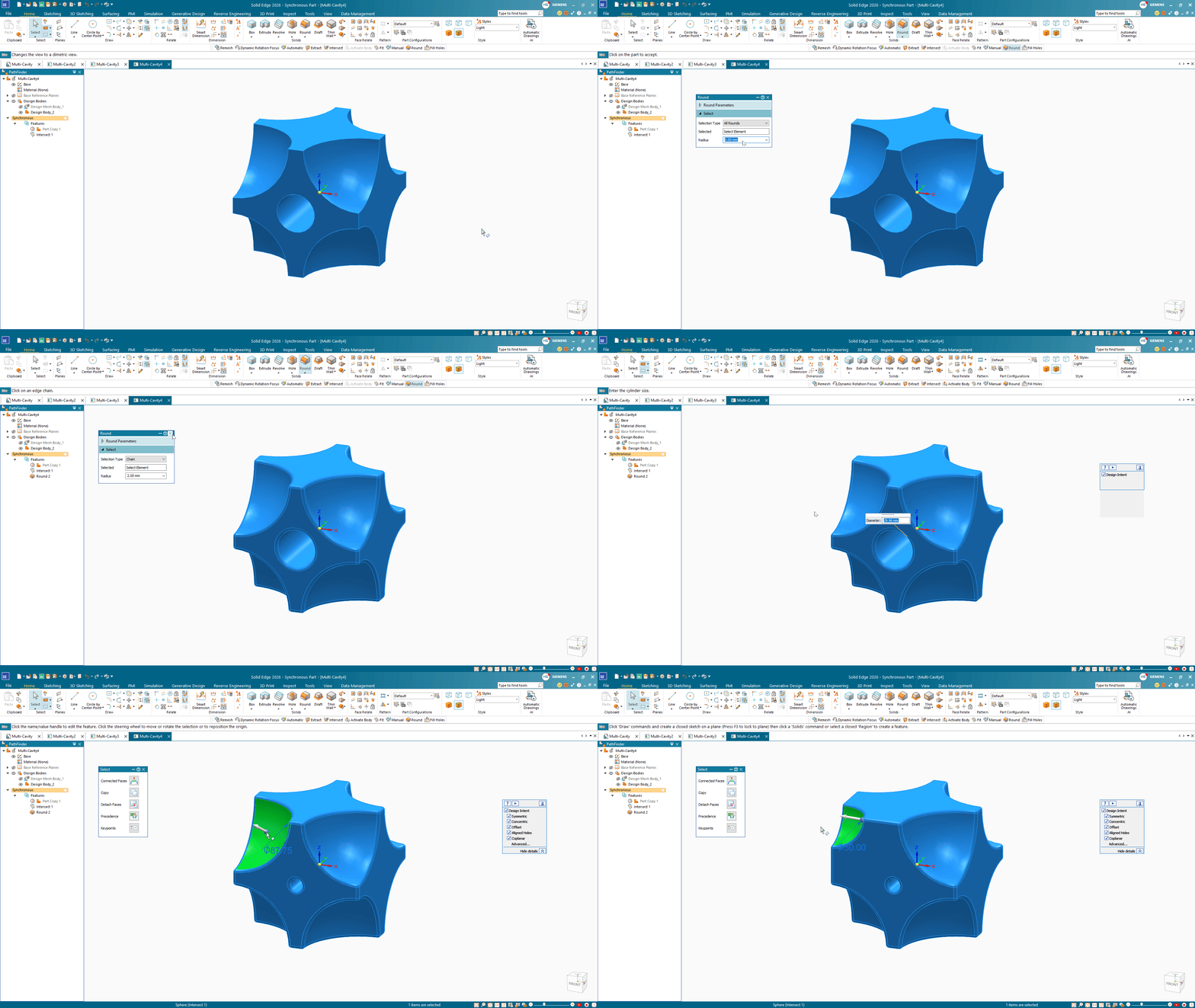 Figure 20. Editing the Reverse-Engineered STL Part
This workflow shows how an STL mesh can be turned into an editable CAD model in Solid Edge. The two examples also show that remeshing parameters affect region recognition, and when automatic recognition is not accurate, manual tools can be used to correct the geometry.
In the end, the reverse-engineered model can be edited like a regular CAD model and adjusted according to the design intent.

