

Simulation used to mean installing heavy software, managing licenses, configuring solvers, exporting files, and hoping your workstation could handle the mesh.
With Onshape Simulation, things work differently:

Everything runs in the same cloud environment where you design. And with branching and merging, you can set up simulation changes in a separate workspace without affecting your production model — keeping design and analysis perfectly in sync.
Let’s walk through everything you need to know.
Onshape Simulation is a cloud-native, fast, and easy-to-use Finite Element Analysis (FEA) environment built directly into the Onshape assembly interface.
Unlike traditional desktop simulation tools that require:
Onshape Simulation runs directly in your web browser and handles the heavy calculations in the cloud.
As Onshape Simulation is fully integrated with the Onshape data model, your simulation stays directly connected to your design. There’s no exporting or file translation, and when you modify a part, your results update automatically.

Want to try Onshape but haven’t had a chance yet? Sign up for a free account or try Onshape Professional, including Simulation, CAM Studio, and Render Studio, through the Discovery Program.
What Does “Cloud Simulation” Actually Mean?
Cloud simulation in Onshape means:
Even on a standard laptop, you can run structural studies without slowing your system.
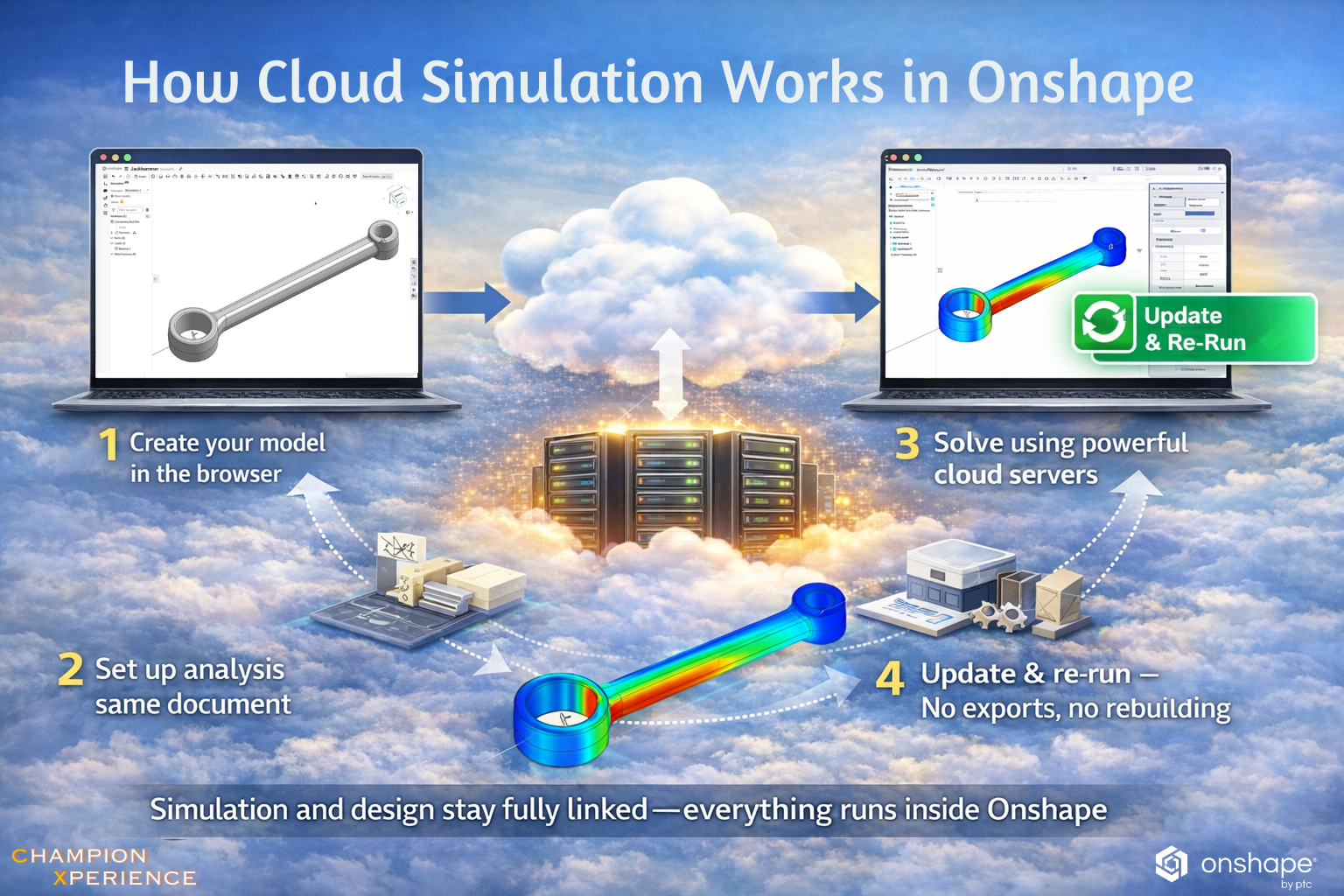
The real advantage is that simulation remains fully linked to your CAD model. When geometry changes, you simply update and run the analysis again. There’s no need for file exports, model cleanup, or frustrating translation fixes — simulation becomes a natural part of the design process.
Onshape Simulation helps designers make better decisions early in the design process. Because it works directly inside the assembly environment, you can check your design’s strength without leaving your CAD model.
Its main tool is Linear Static Analysis, which is one of the most common types of simulation in engineering. It answers two simple questions:
Will it break?
Will it bend too much?
This analysis calculates stress and displacement when a constant load is applied. It assumes normal material behavior and small deformations — which is enough for most everyday mechanical parts.
Engineers can evaluate Von Mises stress, principal stresses, displacement, reaction forces, and factor of safety to determine whether a bracket will fail, a housing is strong enough, or deflection remains within acceptable limits. For most mechanical components, this covers the majority of day-to-day validation needs.

Linear Static Analysis of Connecting Rods
Modal Analysis is more than just checking strength. It involves analyzing the behavior of a design as it vibrates.
Rather than applying constant force, Modal Analysis calculates the natural frequency of a part of a design. This can prevent resonance, which happens when an object is exposed to an outside force equal to its natural frequency, causing extreme vibrations.
Resonance can be particularly problematic with lightweight frames, rotating parts, or products used in a dynamic environment.
By analyzing vibration at an early design stage, engineers can make their product stiffer, less noisy, and more reliable.

Example of a Modal simulation performed on a car brake
For more advanced cases, Inertial Relief allows you to analyze parts that are not fixed in place. This is useful for things like aircraft in flight or satellites in space, where you cannot simply “bolt” the model down. The system balances the loads automatically without adding fake supports.

Example of Inertial Relief analysis performed on Lower control Arm
Onshape also has a smart idea, which is Mates as Physics. In other FEA applications, defining the mating of parts can also be very time-consuming. We need to specify bonded, sliding, friction, and other types of mating. This can get complicated, especially with more complicated assemblies.

If you ask a simulation expert what the hardest part of their job is, they won’t say “the math.” They’ll say “Contacts.”
Traditional FEA requires manually defining how every part touches every other part:
In large assemblies, this can take hours. Onshape has made this very simple. They use your Assembly Mates. This means:
By knowing how the assembly is mated, the simulation can set things up very quickly. What used to take hours can now be done in seconds.
In traditional FEA software, you spend a lot of time setting things up before you even run the simulation. Contacts, mesh, solver settings — it can feel heavy and slow.
With Onshape, once your assembly is fully defined, you just add a load and see the results. It’s straightforward and fast. Simulation becomes part of your normal design process, not an extra step.

Simulation is part of the modeling environment. Onshape Professional, Enterprise, and Educator users have access to Onshape Simulation.
Where to Find It

Once active, the simulation definition stays with your model. Results are versioned and available throughout design history.
Onshape Simulation feels like a helpful guide, making the process simple even if you’re new to simulation.

Your command center for:


A dedicated mode that shows how the solver interprets your assembly:
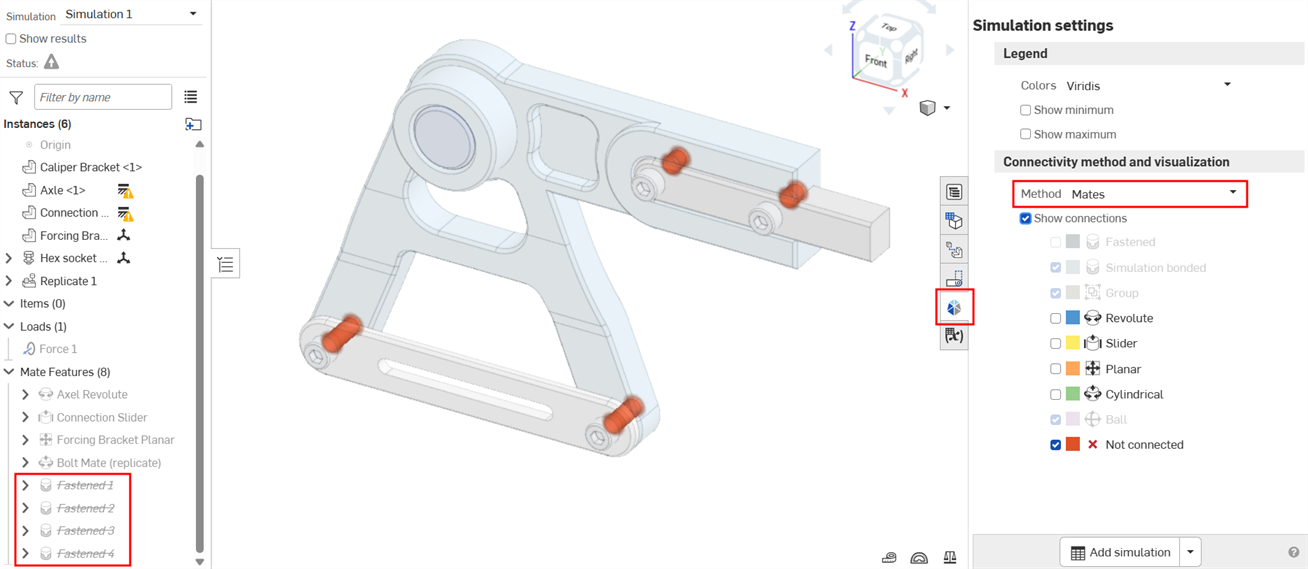
Dynamic legend for:
You can adjust the upper and lower limits to focus on specific areas. For example, you can highlight regions where the safety factor is below 2.0 to quickly see potential risks.
Results are displayed directly on your model using clear color maps. You can rotate, zoom, and inspect the model easily.
You can also animate the deformation to see how the structure bends or twists under load, making it easier to understand how it behaves in real conditions.
Onshape uses the Viridis color scheme to display results clearly. The colors are easy to read and designed to be accessible, including for users with color vision deficiencies.


You can simulate:
Materials include properties such as:
Loads and constraints can be applied to:
Meshing is automatic and cloud-based, with control over refinement for balancing speed and accuracy.
For more extended simulation needs, Onshape integrates with partner applications from the Onshape App Store. These add-ons extend the platform beyond built-in structural analysis.
Thermal and Fluid Simulation (CFD) – Add-On Available through partners like SimScale.
Enables:
Example: Validating cooling performance in an enclosure.
AI-Driven Physics Simulation Available through Luminary Cloud.
Enables:
Example: Comparing multiple design variations in minutes.
Access to structural simulation tools is primarily available to:

Yes. The Onshape Discovery Program
Qualified CAD professionals can access Onshape Professional for up to 6 months at no cost.
This includes:
It allows you to explore the full “More than CAD” experience before purchasing.
The primary difference is simple:
| Main Goal | Assess strength under load | Understand vibration behavior |
| Input | Constant forces or pressures | Structure geometry & material |
| Typical Result | Stress maps & safety factors | Natural frequencies & mode shapes |
| Key Question | “Can it handle this load?” | “Will it resonate or vibrate excessively?” |
| Feature | Linear Static Analysis | Modal Analysis |
Onshape vs Traditional Desktop CAE
| Installation | No installation (browser-based) | Requires local install |
| Hardware | Cloud computing | High-end workstation |
| File Workflow | No export/import | Separate CAD & CAE files |
| Model Updates | Fully associative | Often requires re-import |
| Collaboration | Built-in, real-time | External PDM or manual sharing |
| IT Management | Automatic updates | License & server management |
| Best Fit | Fast iteration & cloud teams | Advanced legacy CAE setups |
| Feature | Onshape Simulation | Traditional Desktop CAE |
One of the biggest advantages is speed. Results often solve in seconds, not hours.
You can see live demonstrations of assembly-level static simulations being set up and solved in literal seconds here.
Speed changes behavior. When solving is fast, engineers simulate more often — and design decisions improve.
Onshape is honest about scope.
It is a structural powerhouse, but it is not a full multiphysics platform.
If you need:
You may need specialized tools or App Store partners such as SimScale or Ansys.
Onshape focuses on giving 90% of engineers the tools they need for 90% of daily structural problems.
Professional engineering is about risk management.
You want to:
Onshape Simulation delivers:
Speed – Results in seconds
Accessibility – No high-end hardware
Collaboration – Share a secure URL, not screenshots
Integrity – Mathematically sound structural results
If you’re already using Onshape daily, Simulation feels like a natural extension of your workflow. There’s no need to switch tools or export files. Instead, you can test your design directly inside the same document where it was created.
It becomes part of your everyday process — adjust, simulate, refine. And when simulation becomes simple, engineers use it more often.

