Running simulations is all about answering one question: Will my design perform as expected? The faster you can set up, solve, and review your simulations, the faster you can improve your design.
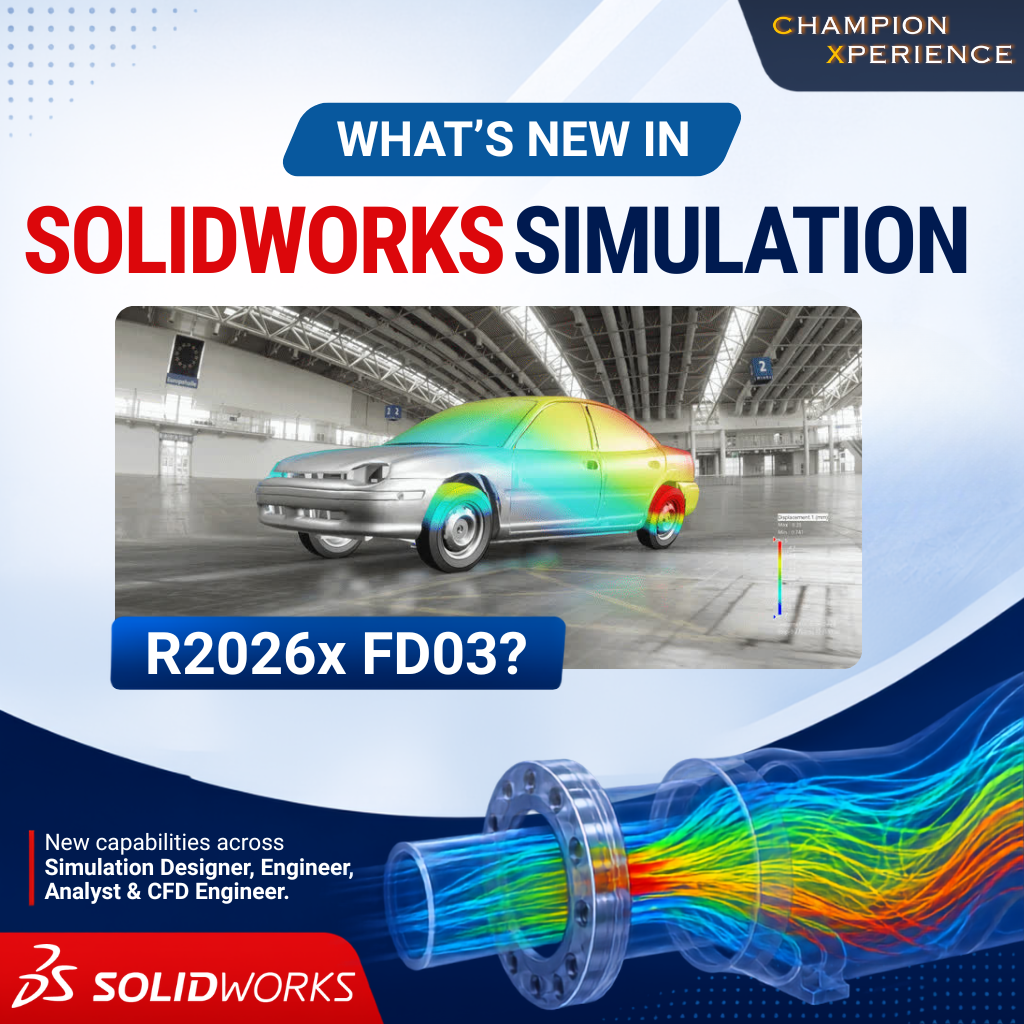
With SOLIDWORKS Simulation R2026x FD03, the focus is on making everyday simulation work simpler and more efficient. Whether you’re performing structural or fluid simulations, this update introduces smarter tools that help you spend less time setting up studies and more time analyzing results.
Let’s look at the highlights.
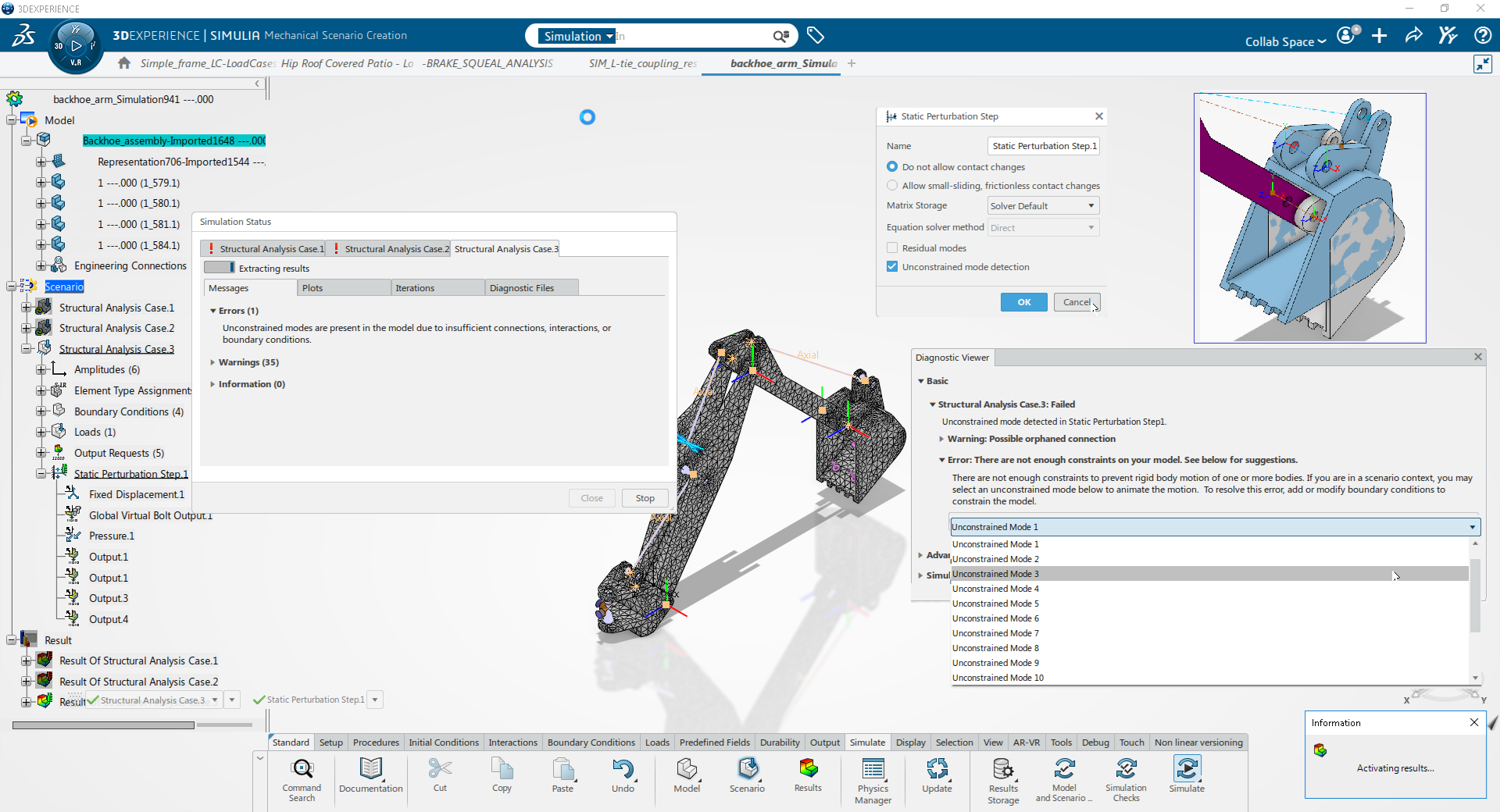
One of the most frustrating moments is launching a simulation only to discover that something wasn’t fully constrained.
In R2026x FD03, Unconstrained Mode Detection is turned on by default. Before you spend time waiting for a simulation to finish—or fail—the software helps identify missing restraints so you can fix them early.
It’s a small change that can save a lot of troubleshooting time.
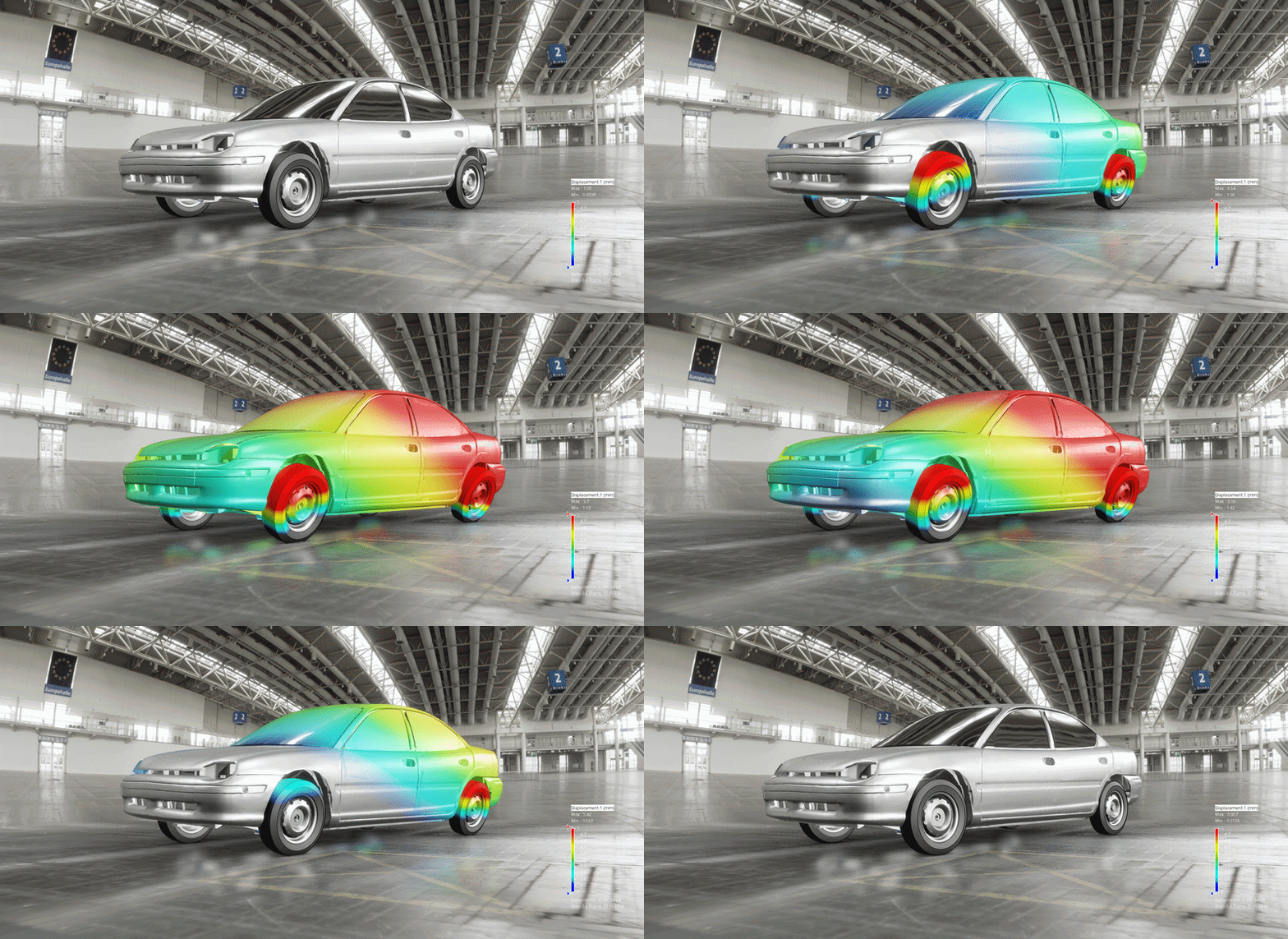
If you regularly work with large or complex assemblies, you’ll appreciate the new solver options for frequency analysis.
The update introduces Advanced Lanczos and Subspace Iteration solvers, giving you more flexibility when calculating natural frequencies and vibration modes.
For engineers working on machines, equipment, or large structures, this means more reliable analyses with improved performance.
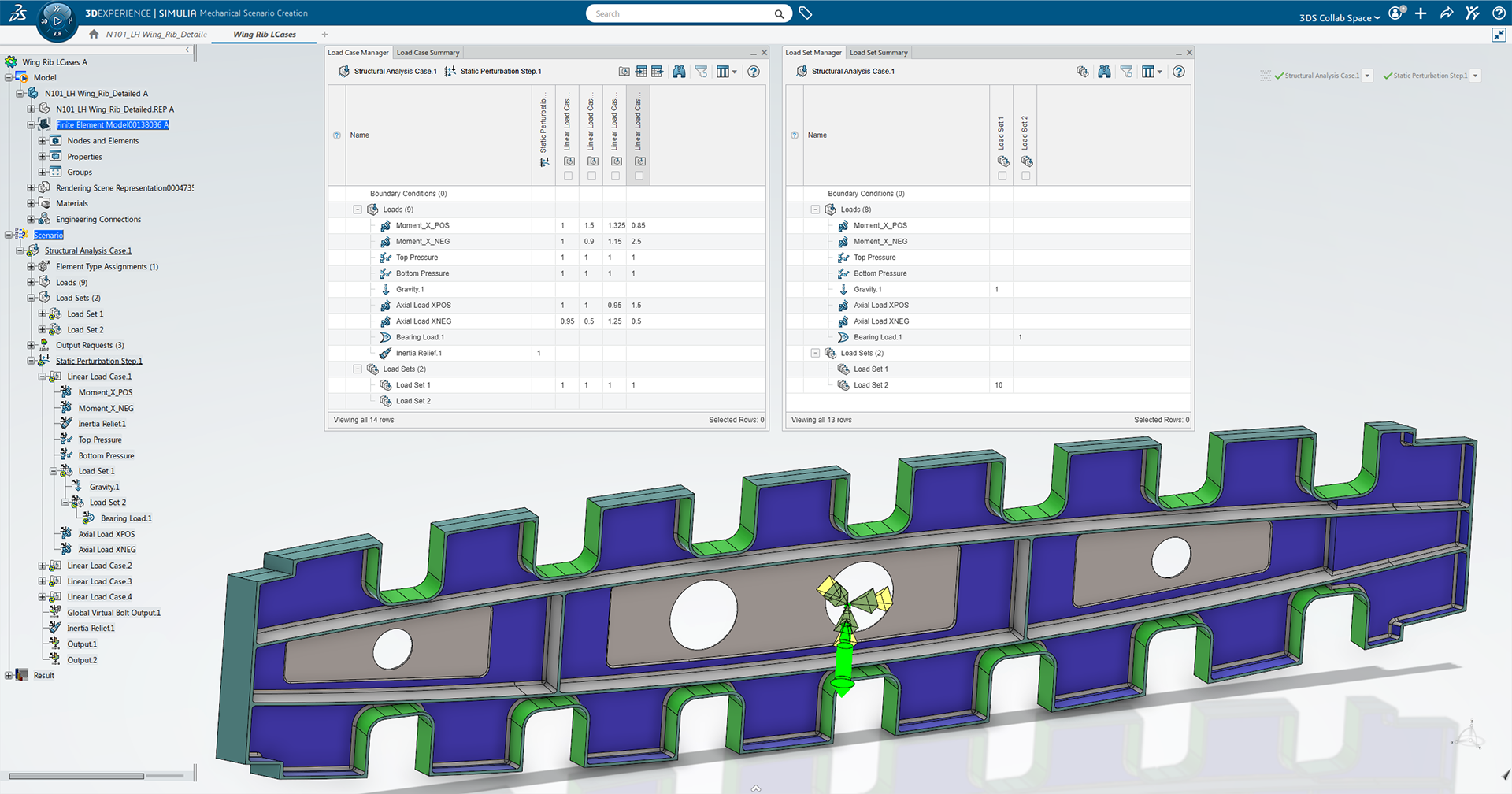
Many real-world products experience more than one type of load. Creating those loading combinations used to require several manual steps.
The updated Linear Load Case interface makes the process much more straightforward. You can organize load sets and create different loading combinations more easily, helping you evaluate multiple operating conditions in less time.
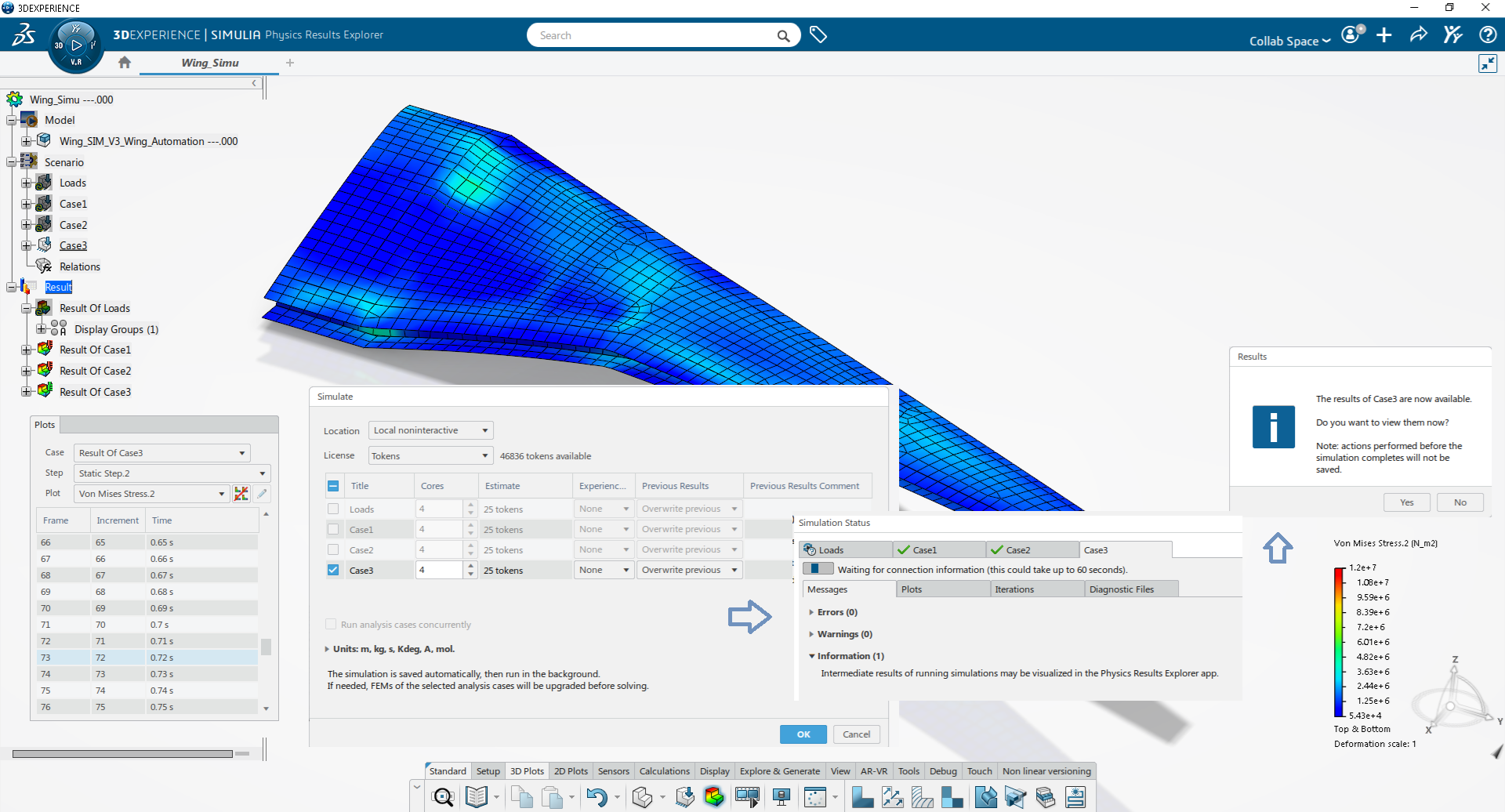
Instead of waiting for the analysis to finish, you can now monitor results as the solution progresses.
This allows you to quickly spot unexpected behavior, identify potential issues, or simply check that everything looks correct before the simulation completes.
For longer analyses, this feature can save valuable time.
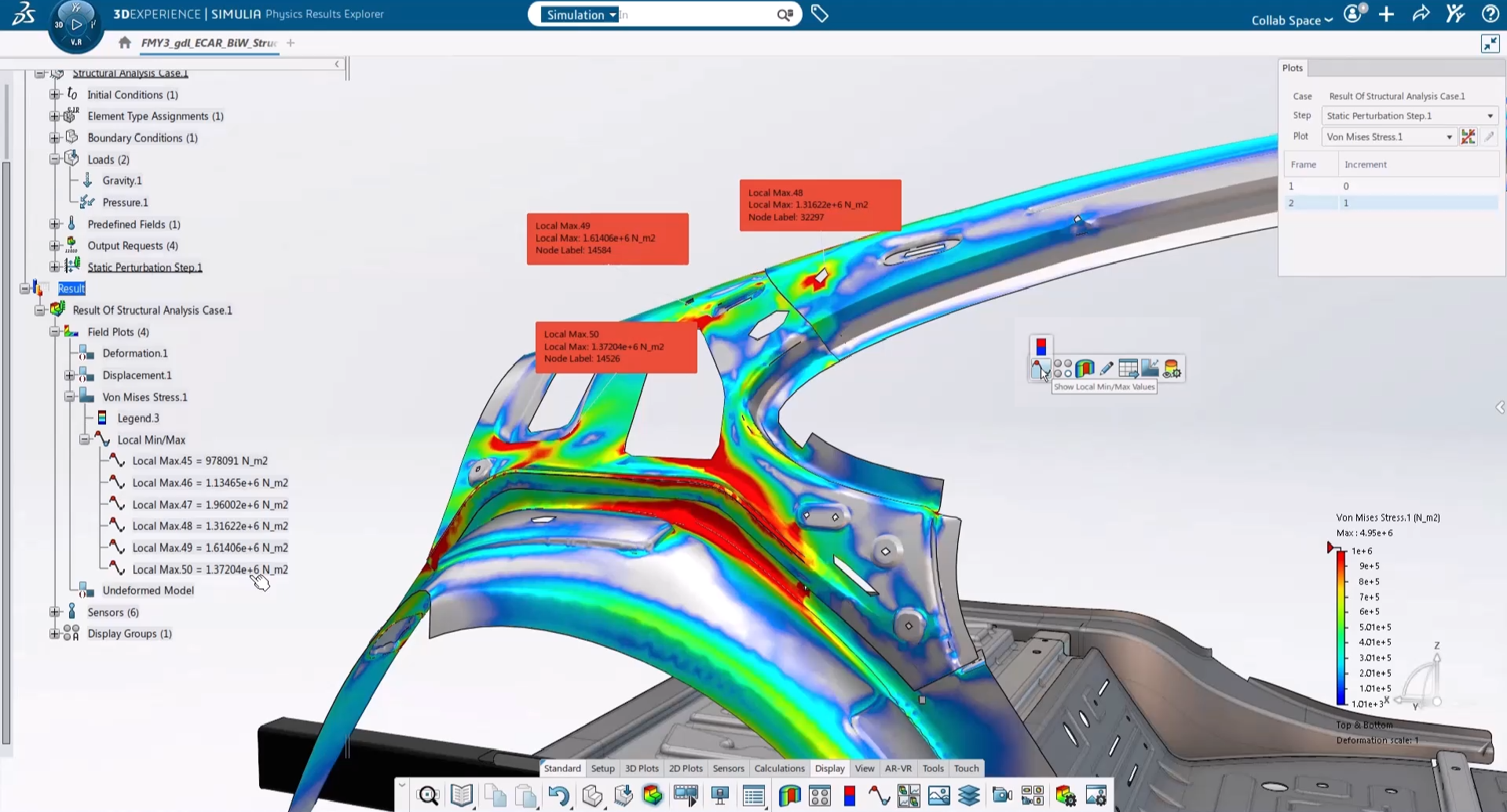
Reviewing simulation results is now easier thanks to improved result annotations.
You can automatically highlight local minimum and maximum values within a selected area, making it much easier to identify stress concentrations or other critical regions without searching through the entire model.
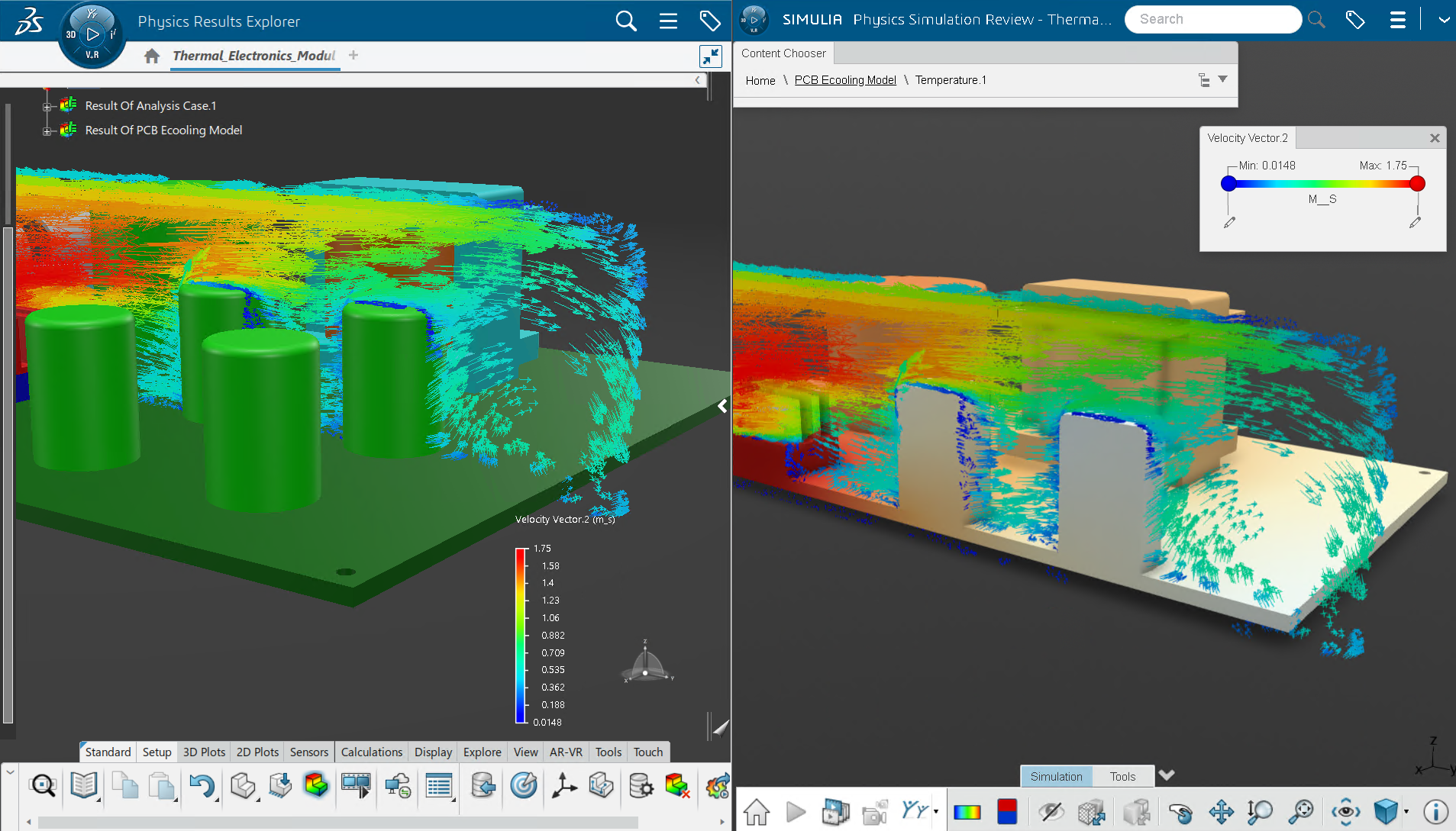
Another welcome improvement is the ability to display multiple legends at the same time.
When working with slices, streamlines, isosurfaces, or other result views, each visualization can have its own legend. This makes comparing different plots much more convenient without constantly switching between legends.
Exclusive Updates for Simulation Analyst
Users of SOLIDWORKS Simulation Analyst also receive several advanced improvements.
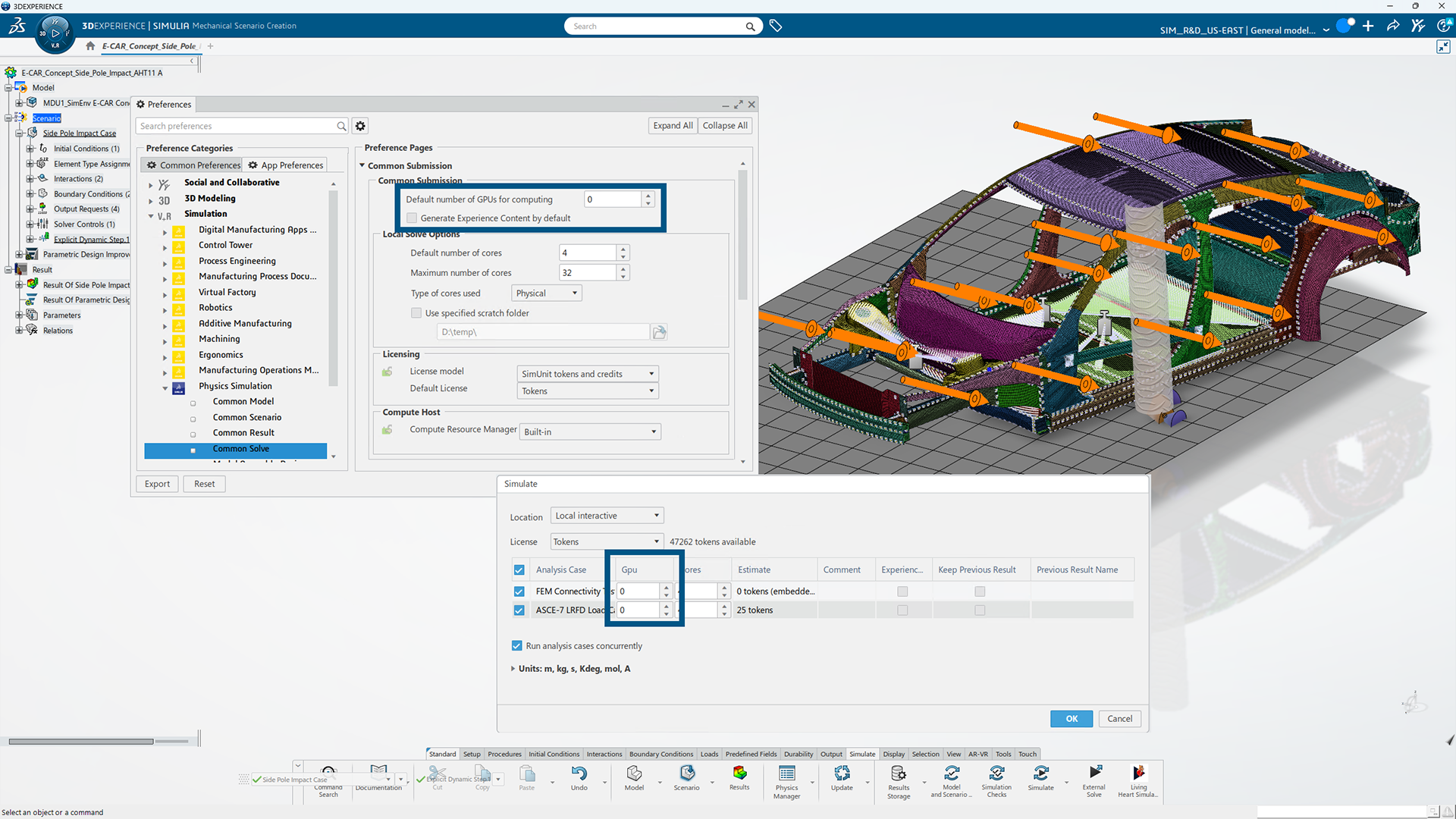
Explicit dynamic analyses can now take advantage of local GPU computing, helping large structural models solve more efficiently.
If your projects involve complex impact or crash simulations, this improvement can significantly reduce solution times.
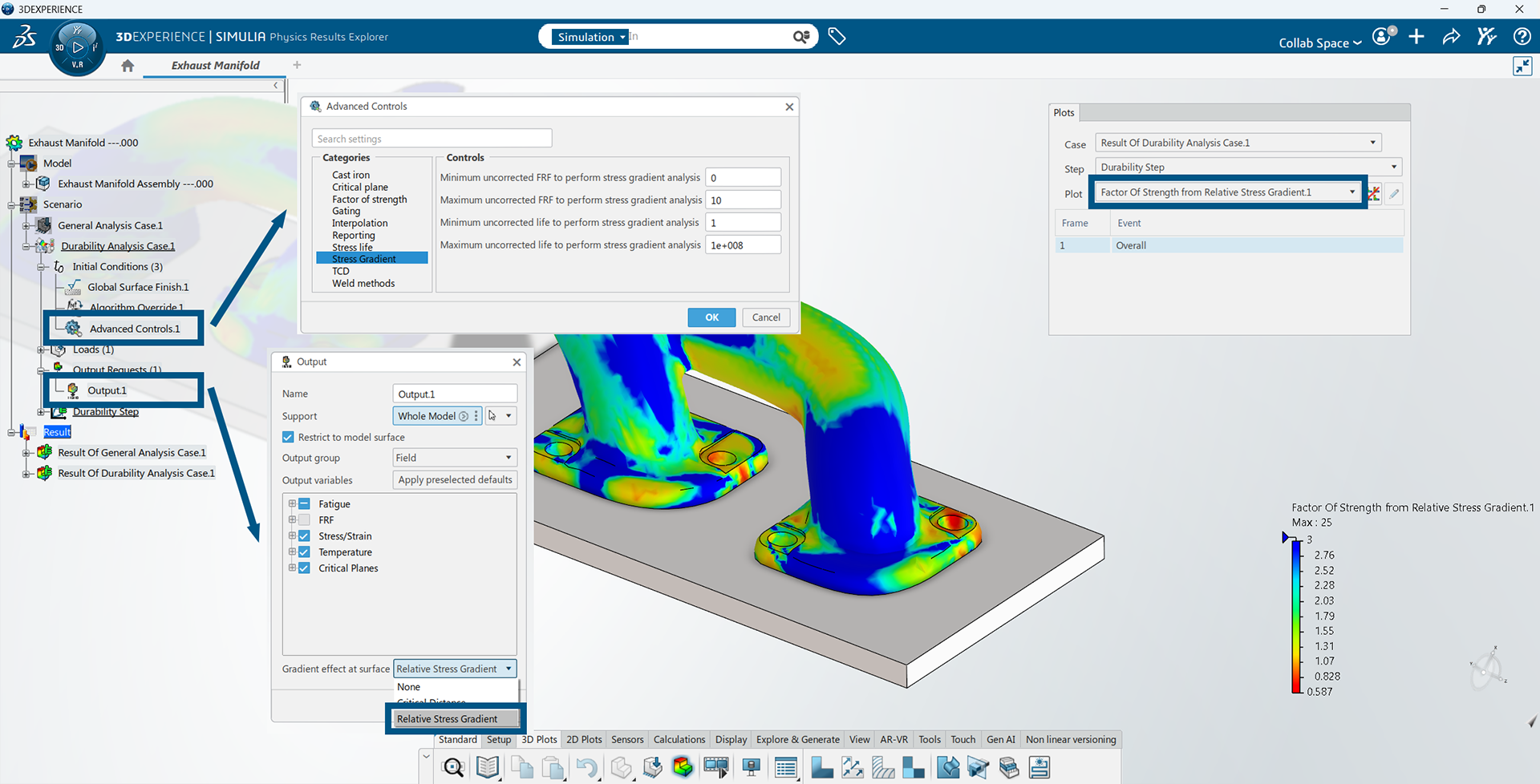
High-cycle fatigue studies are now more realistic by considering stress gradient effects.
The software can apply notch factors and additional correction methods, providing more accurate fatigue life predictions, especially for parts with sharp geometric features.
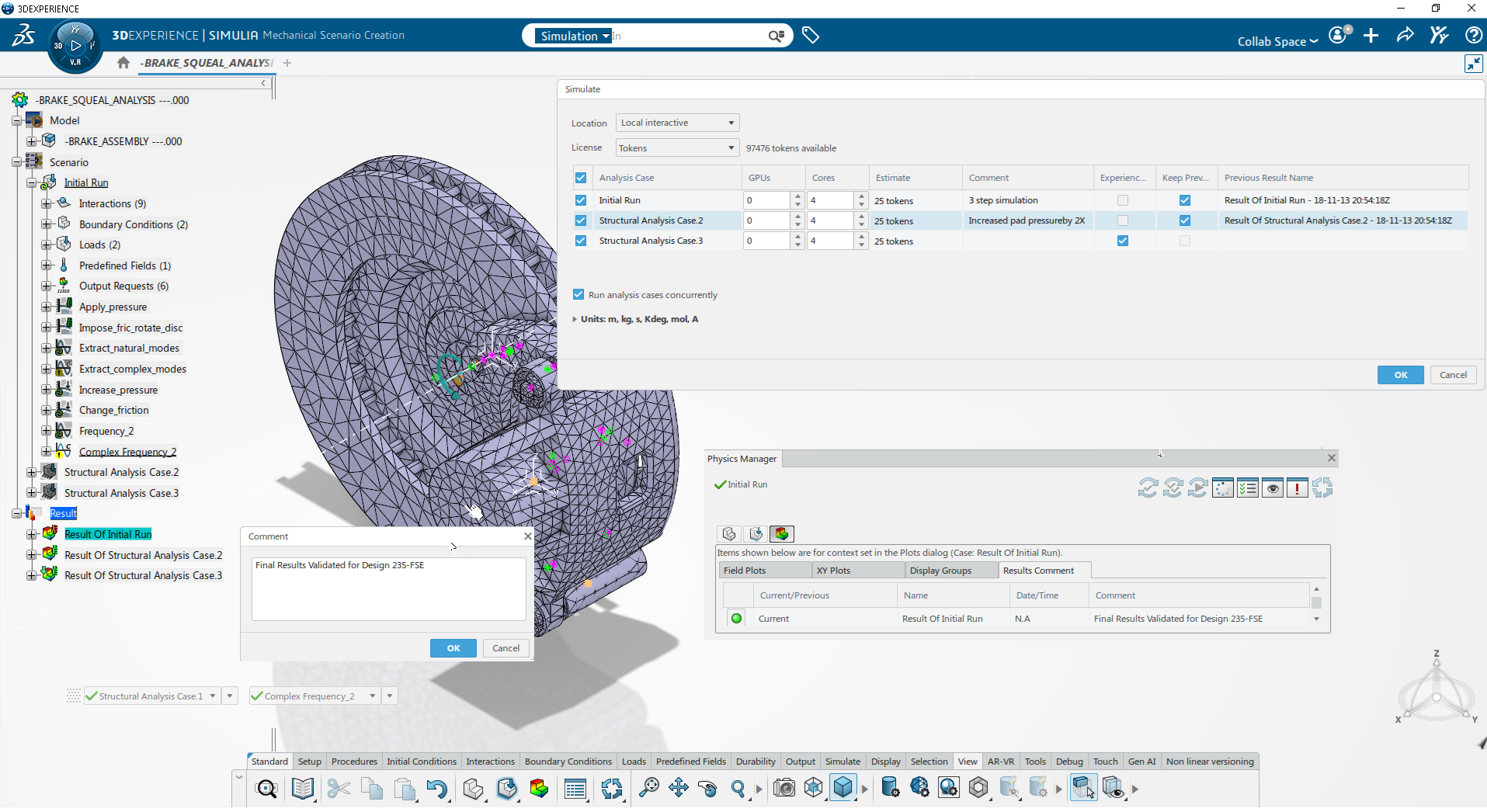
Managing multiple simulation studies is now easier.
You can give analysis results meaningful names and add comments, making it simpler to revisit projects, compare different design iterations, and collaborate with colleagues.
Engineers working with fluid flow simulations will also notice several workflow improvements.
Setting up a CFD study now requires fewer steps thanks to a redesigned interface.
The cleaner workflow helps new users get started more quickly while allowing experienced users to build simulations faster.
Tracking pressure, velocity, temperature, and other values over time is now more intuitive.
The updated controls make it easier to create, edit, and manage history measurements throughout your simulation.
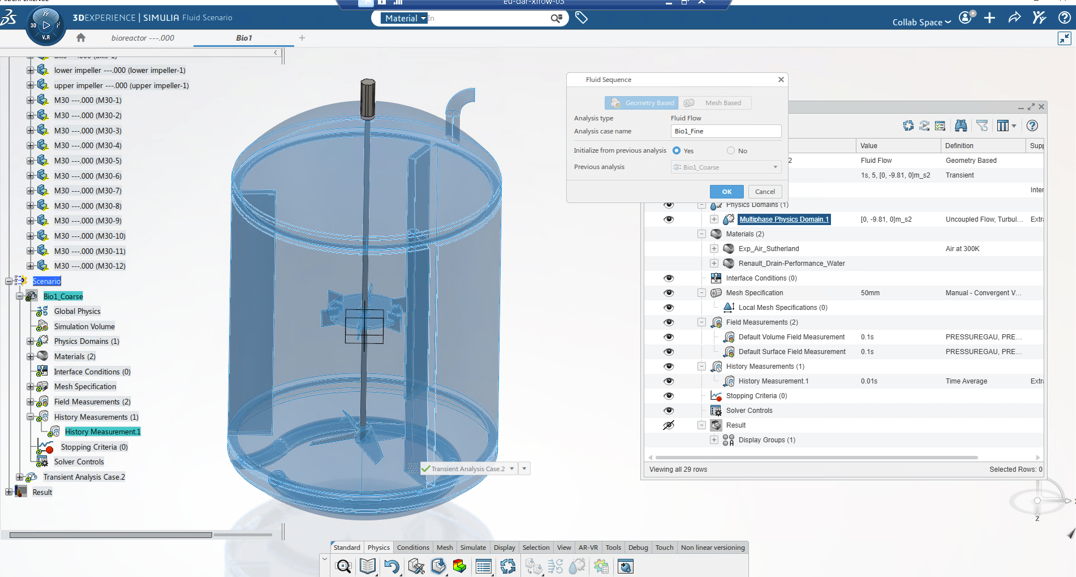
One of the most useful additions is the ability to start a new CFD analysis from an existing converged solution.
Instead of solving every design variation from the beginning, you can reuse previous results as the starting point. This is especially helpful when exploring design alternatives or running parameter studies, since it can reduce convergence time significantly.
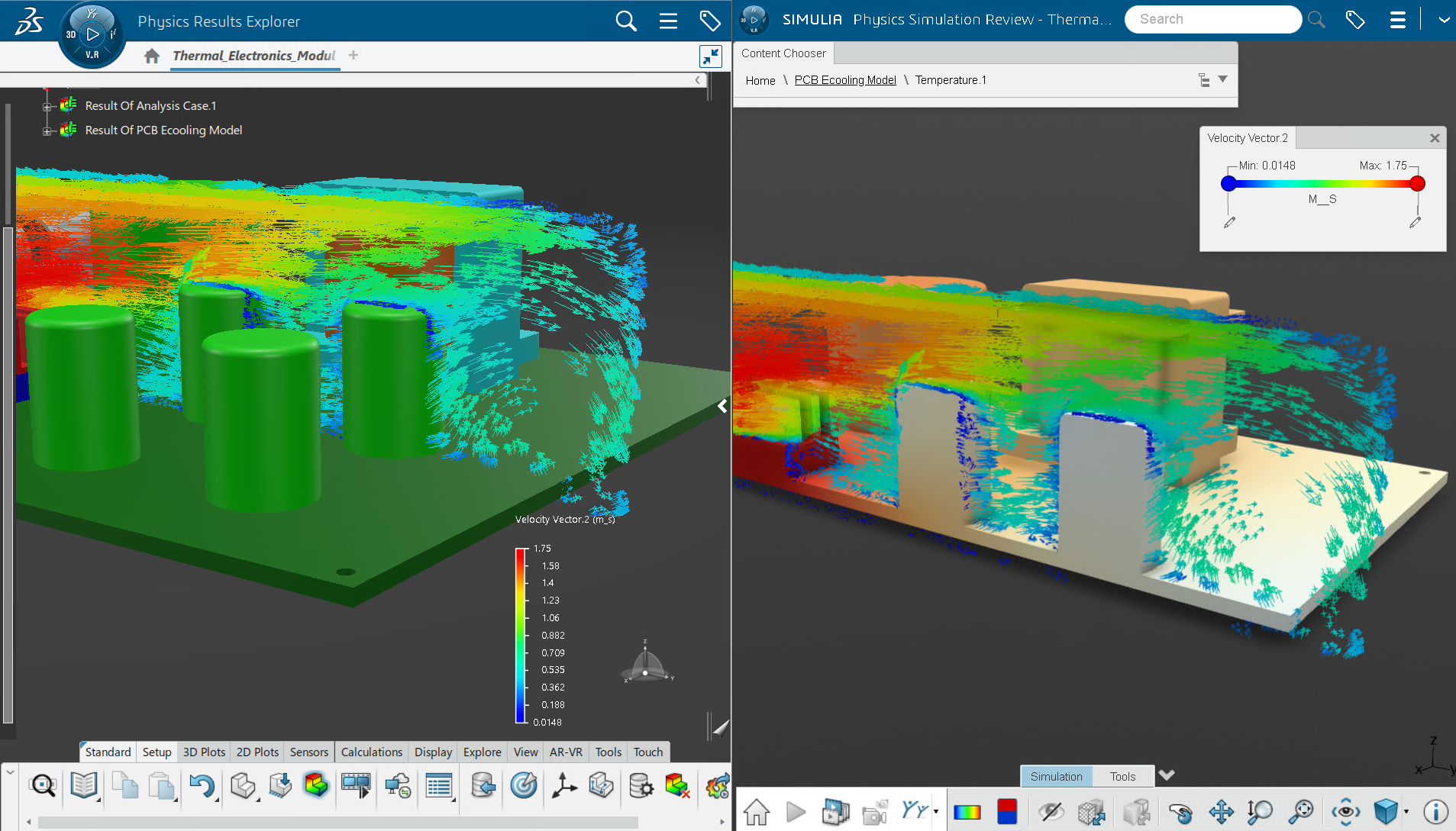
Just like in structural simulations, CFD post-processing now supports multiple result legends at the same time, making it much easier to compare different flow visualizations.
SOLIDWORKS Simulation R2026x FD03 isn’t about introducing one massive new feature. Instead, it delivers many practical improvements that make everyday simulation work smoother.
From catching setup mistakes earlier and simplifying load case creation to improving result visualization and speeding up structural and CFD analyses, these updates help engineers work more efficiently and make design decisions with greater confidence.
If you use SOLIDWORKS Simulation regularly, R2026x FD03 offers several enhancements that can save time, improve accuracy, and make your simulation workflow more enjoyable.