How SOLIDWORKS AI and LEO Automate Assemblies and Macros in R2026x FD03
Have you ever spent half your morning waiting for a massive assembly to rebuild, or lost your mind manually selecting dozens of tiny fasteners? We have all been there. The frustration of repetitive, low-value CAD tasks is a universal engineering headache. But the latest update is about to change how you work forever.
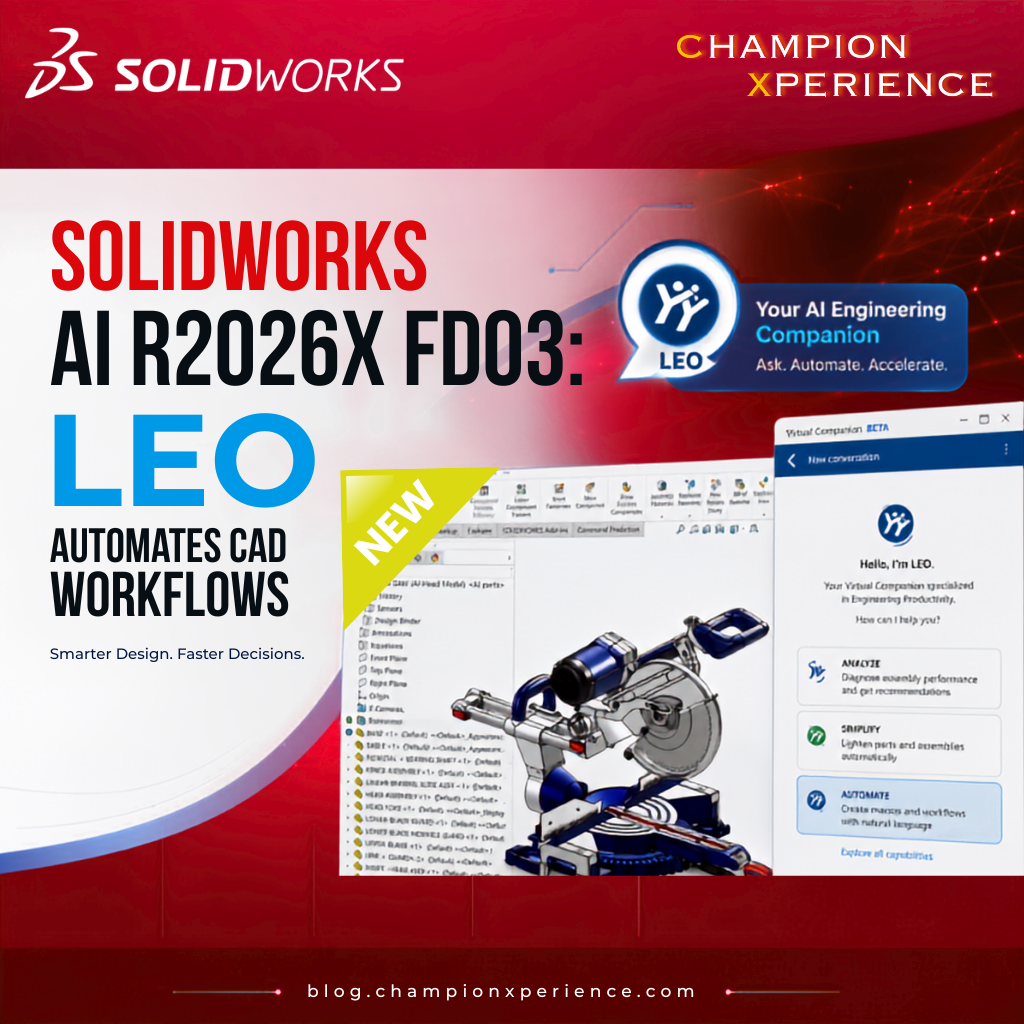
With the release of SOLIDWORKS AI R2026x FD03, Dassault Systèmes is bringing serious artificial intelligence power directly into your design environment. Say hello to LEO, your new AI-powered virtual companion on the 3DEXPERIENCE platform. LEO is not just a basic chatbot; it is an intelligent engineering assistant built to eliminate friction, optimize heavy assemblies, and automate your most tedious tasks.
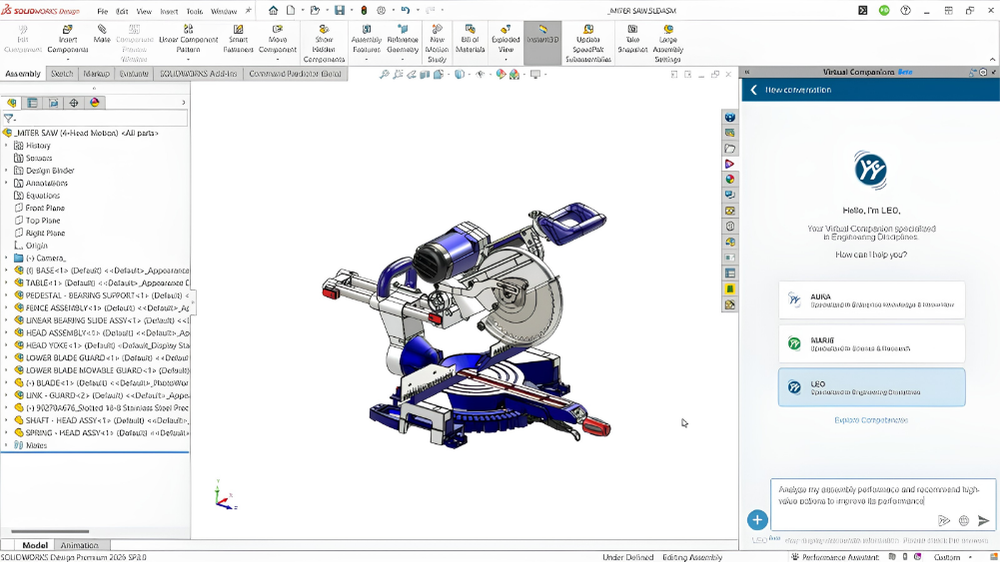
If you are ready to see how this update can give you hours of your week back, let’s dive into the details.
Dassault Systèmes has been steadily rolling out artificial intelligence tools over the past year, but the FD03 update marks a massive leap forward. Accessible via the 3DEXPERIENCE platform, LEO acts as a natural language virtual companion that understands engineering context and design intent . Instead of hunting through endless menus, you can simply type a request to LEO to analyze, simplify, or document your models.
To give you an idea of how much this changes the game, let’s look at how traditional workflows stack up against LEO-driven automation:
| Task | Traditional CAD Workflow | LEO AI Workflow (R2026x FD03) |
| Assembly Diagnostics | Manually inspect every component, rebuild setting, and mate. | Ask LEO to diagnose performance and get a prioritized action list. |
| Thread Simplification | Manually locate and convert modeled threads to cosmetic representations. | LEO automatically converts threads across the entire assembly. |
| Assembly Instructions | Manually create exploded views, capture snapshots, and write steps. | LEO analyzes geometry and auto-generates structured visual guides. |
| Macro Creation | Write, test, and debug custom code using the SOLIDWORKS API. | Describe the task in plain English; LEO writes the macro for you. |
We all dread the dreaded loading spinner. When a massive assembly runs slowly, finding the root cause is usually a guessing game. Is it a complex sketch? A heavy component? Or a graphics bottleneck?
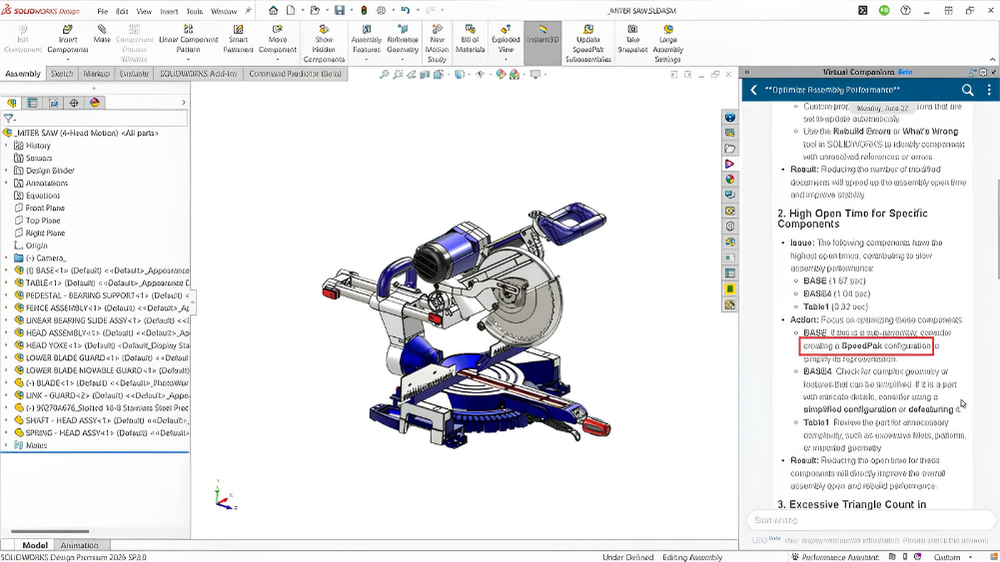
With Assembly Performance Analysis, you can simply ask LEO why your model is lagging. LEO immediately runs a diagnostic scan on the active assembly, analyzing key metrics like:
Instead of giving you a wall of raw data, LEO translates these findings into a clear, prioritized list of recommendations. You will know exactly which subassemblies or parts are dragging down performance, allowing you to target your optimization efforts where they will actually make a difference.
Once LEO identifies the performance bottlenecks, you do not have to fix them manually. The FD03 update introduces automated Part & Assembly Simplification. One of the biggest performance killers in large assemblies is over-modeled hardware—specifically, fully modeled 3D threads on imported fasteners.
You can ask LEO to automatically convert these modeled threads into lightweight Cosmetic Thread representations across your entire assembly. This preserves the visual and drafting information for your drawings while stripping away millions of unnecessary polygons that slow down your GPU.
Additionally, LEO can analyze your model’s structure and automatically configure SpeedPak settings. By creating these simplified configurations at the top-level or subassembly level, LEO helps you maintain a highly responsive, lightweight workspace without sacrificing design integrity.
Handing off a design to the manufacturing floor or tech publications team often requires hours of manual documentation. Creating exploded views, positioning cameras, taking screenshots, and writing out steps is incredibly tedious.
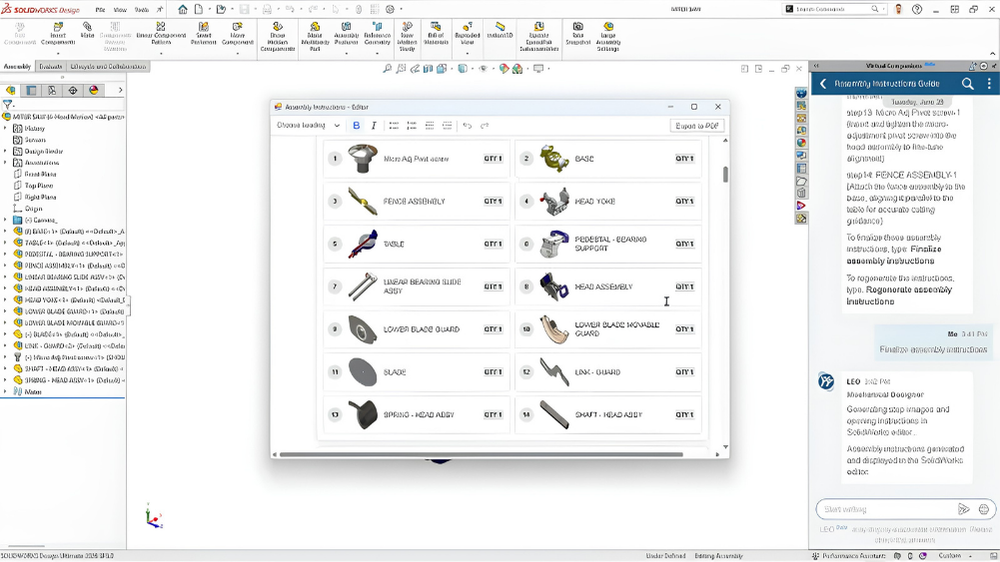
LEO completely automates this handoff. By analyzing the 3D geometry and spatial relationships of your assembly, LEO can automatically generate a structured, step-by-step sequence of assembly instructions. It captures visual snapshots of each step directly from the CAD model, producing clean, professional documentation in a fraction of the time. This bridges the gap between engineering and the shop floor, reducing assembly errors and speeding up production cycles.
Every engineering team has repetitive tasks they wish they could automate—like batch-renaming files, exporting PDFs, updating custom properties, or applying company standards. Traditionally, automating these tasks required deep knowledge of the SOLIDWORKS API and VBA programming.
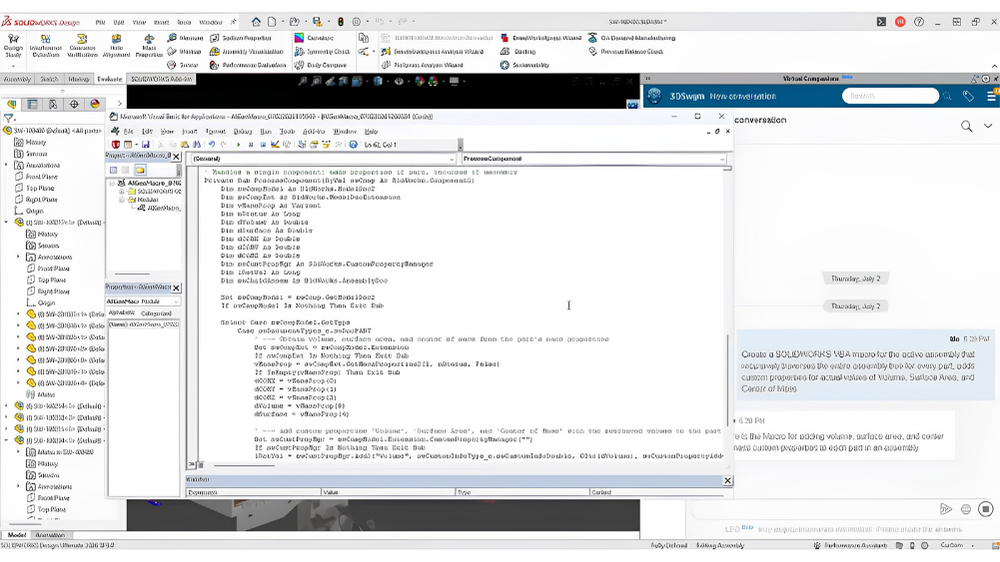
With R2026x FD03, you can automate workflows without writing a single line of code. Simply describe what you want to achieve in plain English. For example, you can tell LEO: “Create a macro that exports all sheet metal parts in this assembly to DXF format and saves them to a release folder.”
LEO writes the code, packages it into a Macro, and opens it directly in the SOLIDWORKS macro editor for your review. You can run it instantly or continue chatting with LEO to refine its behavior. This democratizes automation, allowing every designer on your team to build custom, one-click tools.
How many times have you misclicked while trying to select dozens of small edges, faces, or sketch entities? Manual selection is a major source of click fatigue and design errors.

The new Engineering Guidance feature allows you to use natural language to make complex selections. You can type commands like “Select all fasteners under M6” or “Isolate all sketches with dangling relations.” LEO processes the request and instantly highlights or isolates the target elements across your parts, sketches, and assemblies. It is a faster, error-free way to navigate complex models.
If you are already a SOLIDWORKS Design or Cloud Services customer on the 3DEXPERIENCE platform, these AI Virtual Companions are available to you with no additional license required . Dassault Systèmes uses a token-based consumption model for AI tasks, ensuring you only pay for the computational power you actually use .
Crucially, your intellectual property remains completely safe. Dassault Systèmes has confirmed that customer design data is never used to train these AI models, so you can leverage LEO’s intelligence with total peace of mind . You can read the official announcement and dive deeper into the technical specifications on the SOLIDWORKS Blog.
Are you planning to let LEO write your next batch of macros, or are you more excited to clean up your heavy assemblies? Let us know in the comments below how you plan to use these new AI capabilities in your daily workflow!
This guide is based on insights from the official SOLIDWORKS Blog.