

The biggest challenge between departments is communication. Teams rely on different applications to do their jobs, but when those tools don’t connect, collaboration suffers. This is especially true across design, analysis, and manufacturing, where teams need to share information and stay aligned throughout the product development process.
When teams don’t know who is working on a design, what’s changing, why it’s changing, or which revision is current, confusion and costly mistakes can follow. Standard messaging and collaboration tools aren’t enough to manage the technical communication between design, analysis, and manufacturing teams. That’s why companies have relied on PDM and PLM software for years to manage design data, track revisions, and keep everyone aligned.
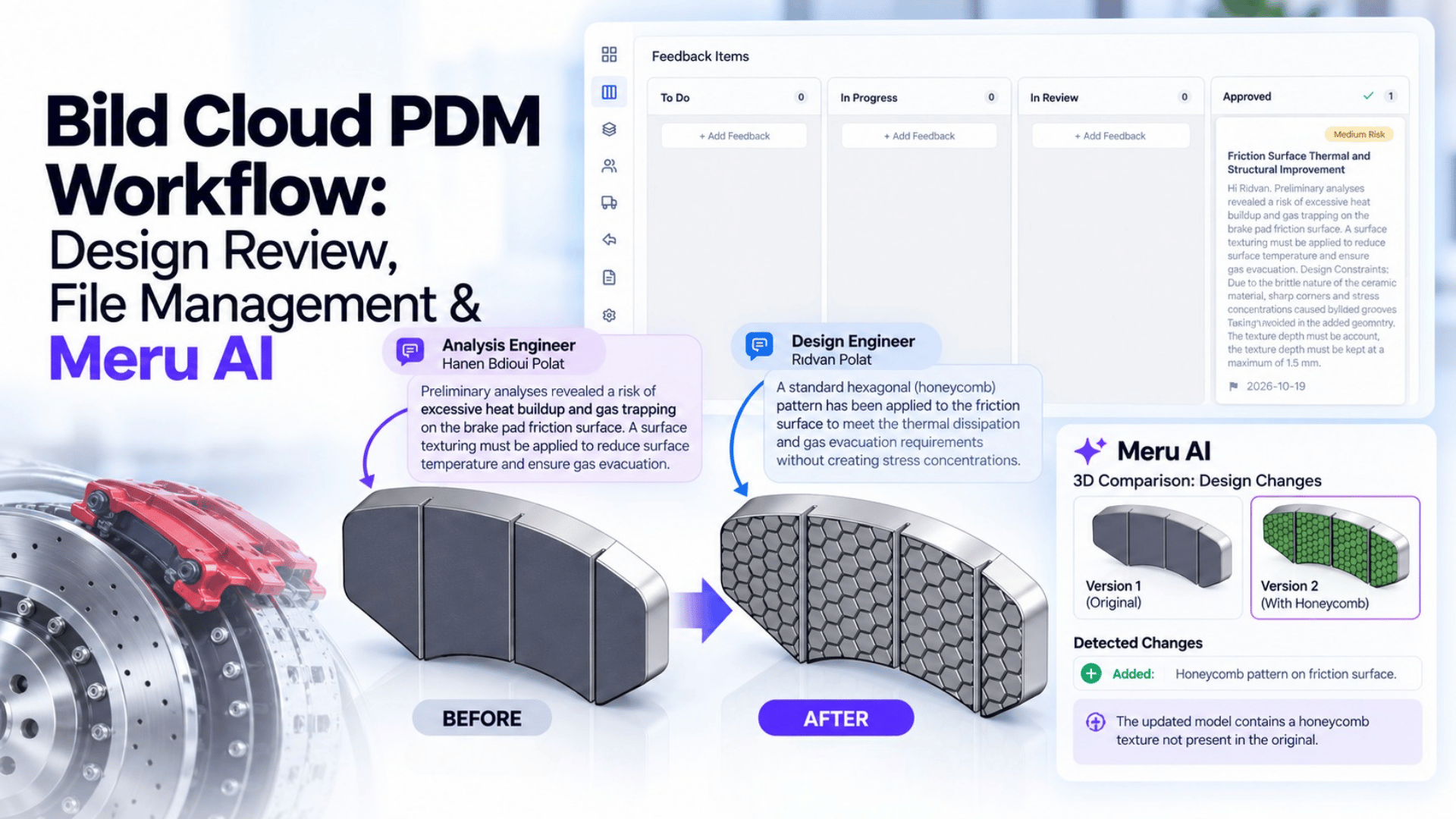
Today, simply managing files is no longer enough; managing feedback on designs and communicating what changes were made to teams quickly and clearly has also become a critical need.
In this blog post, we will practically discuss how technical communication between departments is achieved using Bild’s PDM/PLM solution, and at the end of the process, we will review the Meru Delta tool that explains design changes using AI. Before moving on to the practical application, it is useful to examine how inter-departmental communication is established and how CAD data is managed with Bild PDM/PLM solutions.
Bild is a cloud-native PDM software. It stores your data in a secure, company-specific cloud storage space (central vault). This structure allows you to use the platform directly via a web browser and provides the flexibility to access it from anywhere.
In addition to its web interface, Bild also has a desktop application (Desktop App) running on Windows. Thanks to this application, you can work directly on the local files of your CAD software (e.g., SOLIDWORKS) on your computer. Once your design tasks on the local files are complete, your data is synchronized to the cloud storage space via the desktop application.
The core data management and collaboration capabilities offered by the platform are as follows:
Since the focus of this article is to show how you can manage technical communication between teams and control file management through Bild, we will not cover Bild’s PLM processes in this article. Don’t worry, in another blog post, we will take a detailed look at how Engineering Change Order (ECO) processes can be managed using Bild PLM.
To make the practical content easier to understand, we will follow a scenario.
Scenario: This scenario covers the pre-production analysis of brake discs at a company that manufactures brake discs, as well as how the design is improved based on these analyses until it reaches its final version. The purpose of this scenario is to demonstrate how technical communication between departments can be managed. Throughout the scenario, I will explain the process through the roles of a Design Engineer and an Analysis Engineer.
Since we demonstrate the entire process in detail in the videos throughout the application, I have provided the engineering logic behind the videos as Pro Tips to avoid repeating the same content.
Pro Tip: Based on the information gathered from the tests he performed, the Analysis Engineer used the Add Feedback feature to explain the necessary feedback directly on the 3D model in the simplest way possible, instead of sending a complex email containing numerous images that could easily get lost.
Pro Tip: The Bild Platform provides interdepartmental communication both visually through Markups and in a trackable way through the Kanban Board. This allows communication between teams to take place directly through the relevant 3D model, so the information does not get lost.
Pro Tip: The Kanban Board structure provides a fully customizable workflow that can be adapted to your company’s needs. For example, within this scenario, we changed the standard task workflow steps from To Do, In Progress, and Done to To Do, In Progress, In Review, and Approved. This provides a structure that allows the person who assigned the task to review it before the task is completed. To customize the workflow, you can select the Add Column button to add a new column, or delete or rename an existing column to customize the workflow according to your needs.
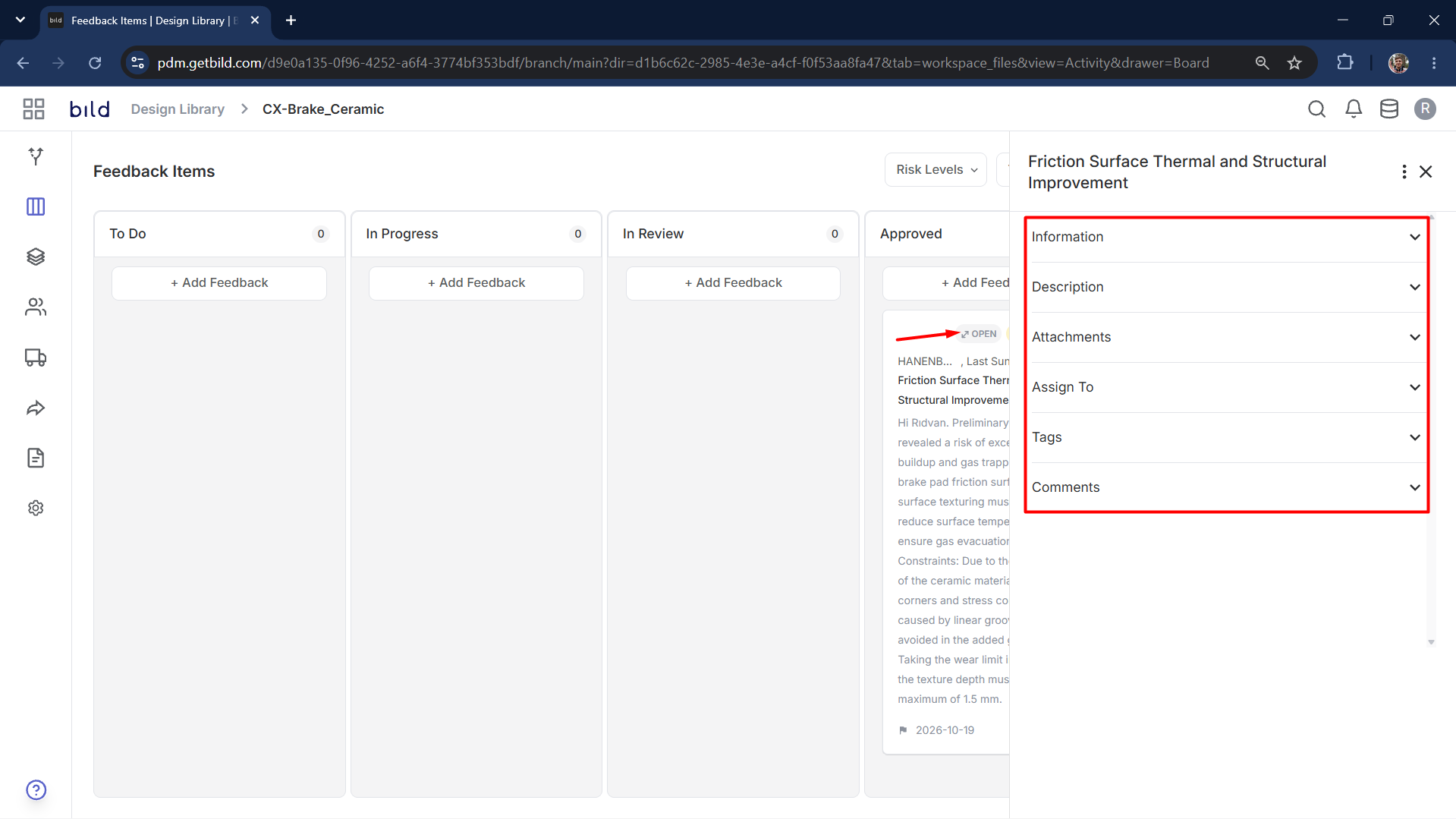
Pro Tip: To add more details to your tasks, you can select the Open button in the task description while on the Board screen. This allows you to add more details to your tasks and make them easier to understand.
Pro Tip: When SOLIDWORKS is used together with Bild, you can see components in Read Only mode when you open them. This is a familiar term for traditional PDM users, meaning that you can only view the file, but you cannot overwrite it with your changes. With the Bild SOLIDWORKS add-in, you can perform Check Out and Cancel Check Out operations directly from within SOLIDWORKS. If you want to make changes to the data, all you need to do is click the Check Out button. If you try to make changes without checking out the file, the system will display a warning message.
Pro Tip: After making the necessary changes, you need to select the model and perform Check In through the Bild Desktop Application or the browser to ensure that the latest version of the data is available in the cloud and that your team members can access the updated data.
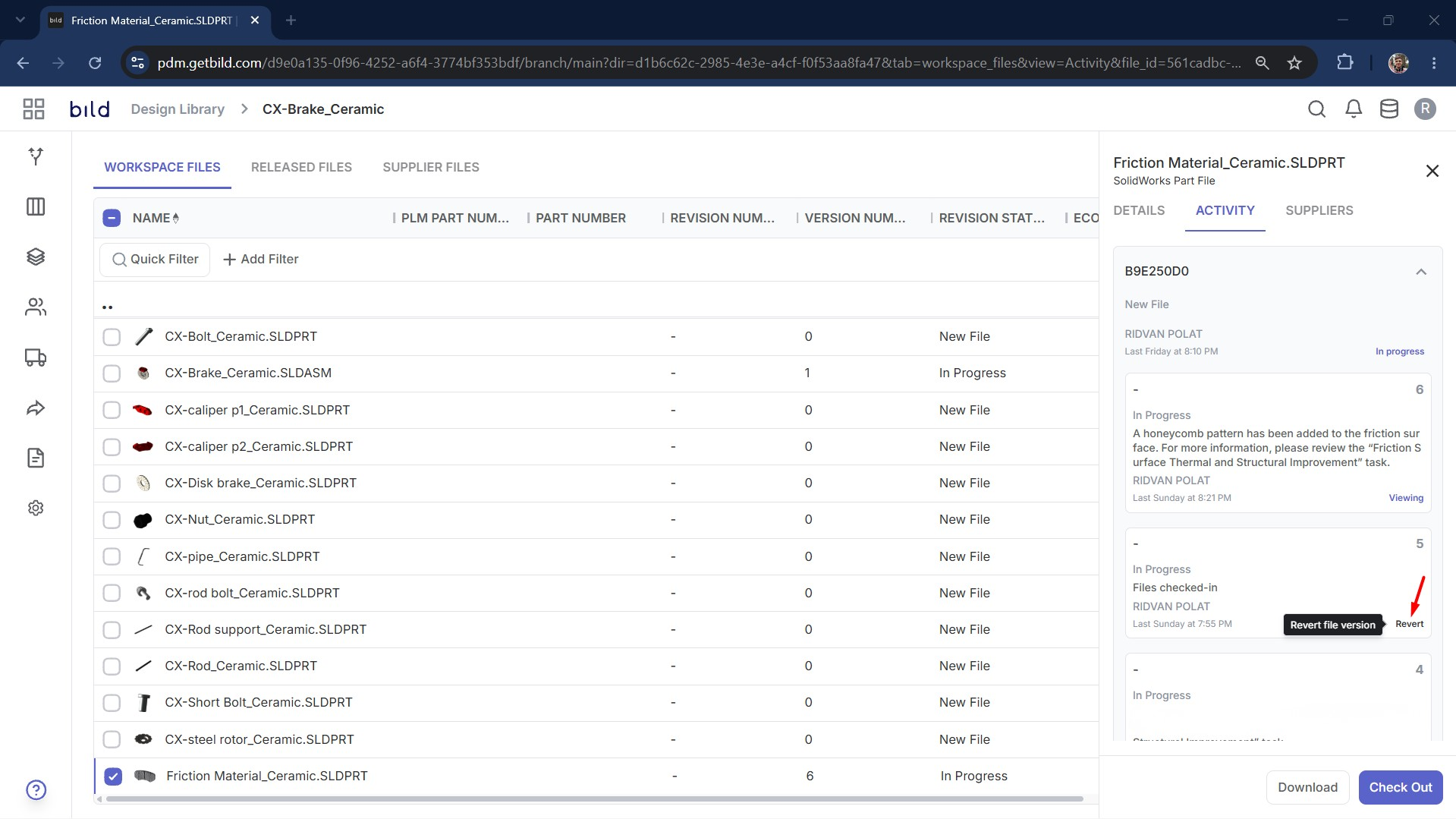
Pro Tip: When you perform Check In, a new version of the component will be created. You can go back to these versions whenever you need.
Pro Tip: If the change you have made is important and you plan to continue working on the design after making that change, you can use the Keep file checked out option while performing the Check In. This option saves the change you have just made as a version while still allowing you to continue working on the component by keeping it checked out.
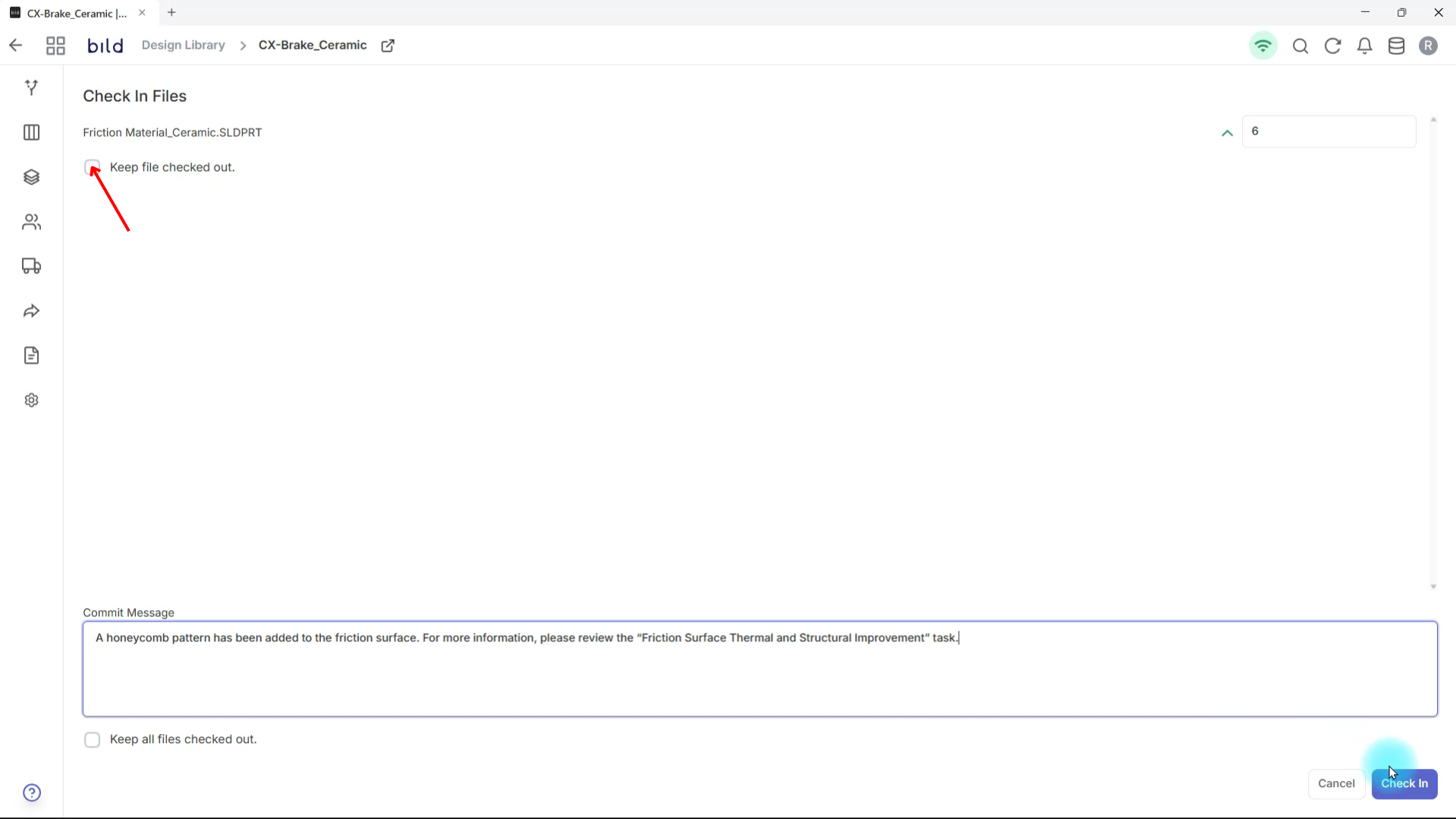
Pro Tip: Before completing the Check In process, it is also useful to add a description of the changes you made in the Commit Message field. This can be helpful both for yourself and for your team members.
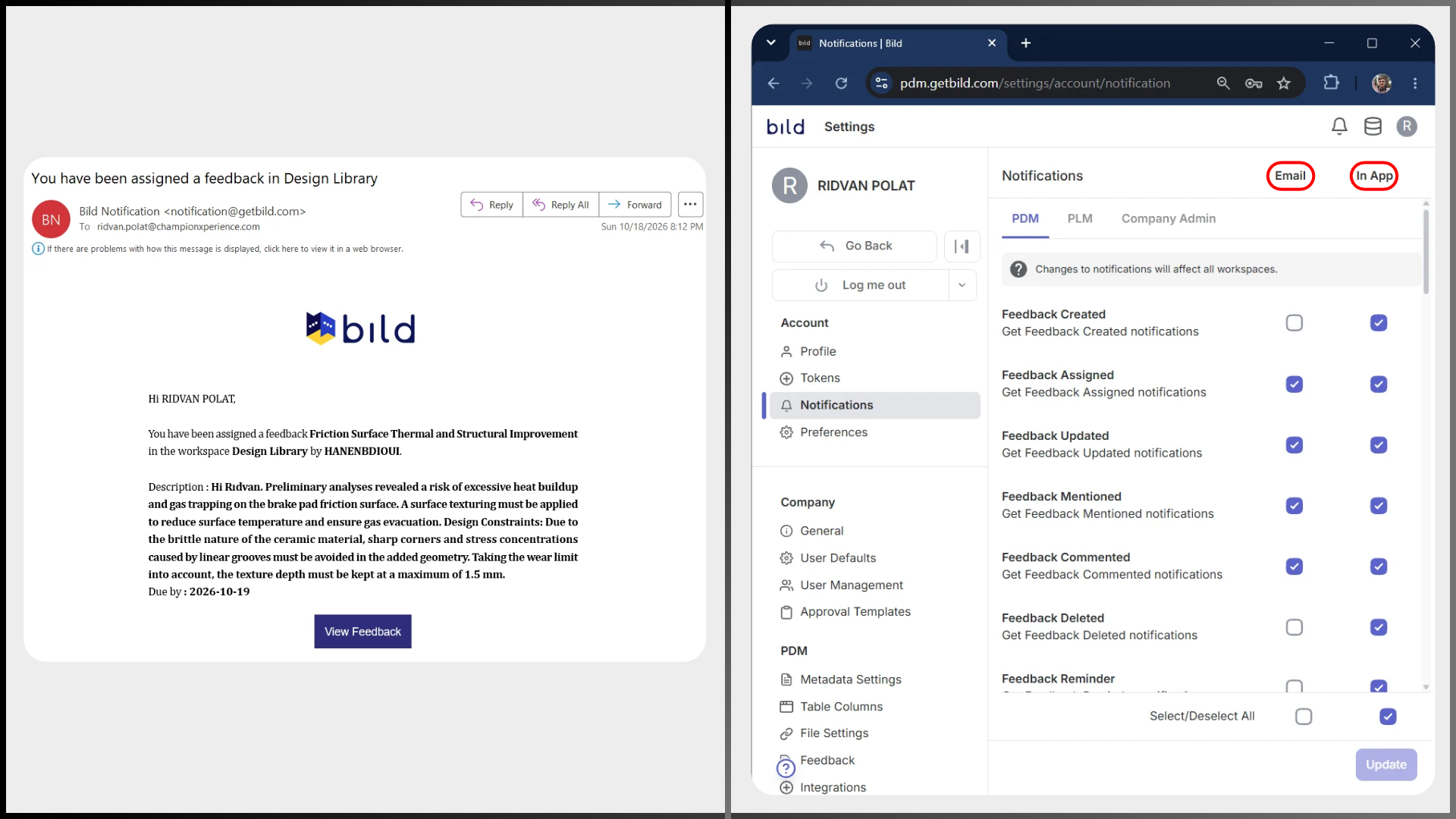
Pro Tip: On the Bild Platform, you can receive notifications not only through the application but also by email. You can customize which notifications are sent through the application and which ones are sent by email.
Pro Tip: Using the measurement, section, and explode tools provided in the 3D Viewer means that departments responsible only for reviewing the design do not need to use CAD software.
So, if someone wants to understand what has changed in a model, are they expected to place both models side by side and manually check what has changed, or does Bild offer a solution specifically designed for comparison?
Bild offers the Delta tool within Meru AI for comparing CAD versions. This tool goes beyond standard 3D model comparison tools that overlay models and color-code the differences. It uses AI to explain each change that has been made. This makes it easier for someone who does not work directly with CAD to understand what has changed in the design.
The Delta tool is currently available within the Bild platform, but it is not yet publicly available to all users. If you would like to test the tool, you can try it for free using the link below.
When you run a test, the results will be sent to your email address.
In this blog post, we explained many of the features offered by the Bild platform through a detailed scenario. You can also try Bild to manage technical communication between departments or teams and control your data in a more organized way.
If you need more information about Bild, you can schedule a meeting with the Bild team using the link below.

